—
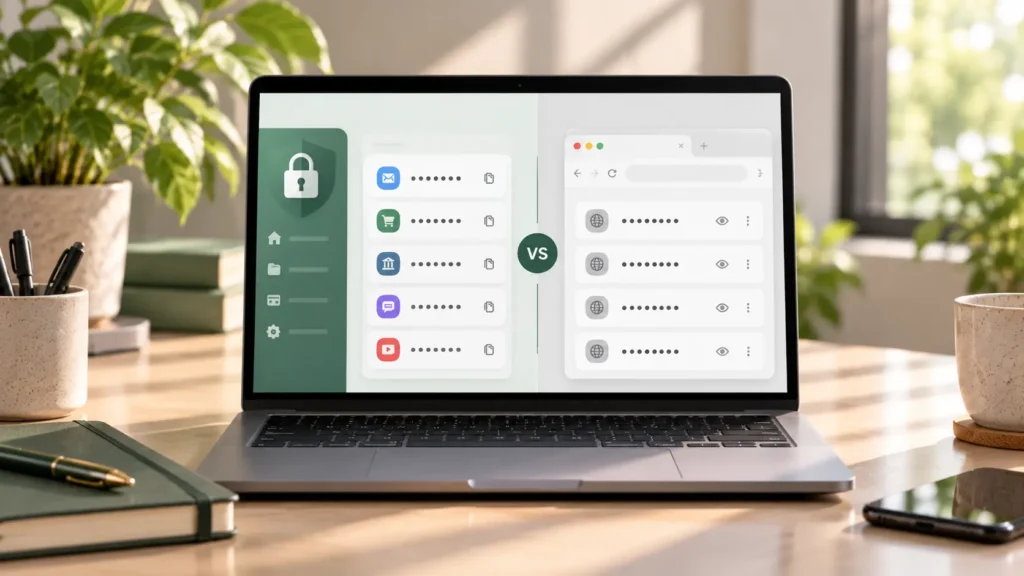
Browser-saved passwords usually belong to a browser-integrated password manager. A dedicated password manager provides a separate vault that you access through its apps and supported browser extensions. Both approaches can help you use unique passwords without remembering every login.
Keep a browser manager if it already handles your usual devices and logins reliably. Consider a standalone manager if switching browsers or using different apps leaves you repeatedly searching for passwords. Neither category is automatically safer. The useful choice depends on the particular product, your setup, and how you protect access.
Quick comparison
These are typical differences, not a promise that every product has every feature. Check the manager's current documentation for your devices.
| Area | Browser-integrated manager | Dedicated standalone manager |
|---|---|---|
| Password saving | Built into the browser or its account system | Through supported extensions or apps |
| Autofill | Convenient within supported browser and device workflows | Across supported browsers and apps after setup |
| Password generation | Available in Chrome and Firefox | Common; options vary by product |
| Syncing | Depends on account, settings, and where entries are stored | Depends on product and configuration |
| Cross-browser use | Viewing entries elsewhere may be possible; autofill is separate | Often a reason to choose one; verify extension support |
| App support | Some integrated systems support apps on compatible devices | Requires supported mobile or desktop integration |
| Portability | Password export/import may be available | Import/export formats and coverage vary |
| Setup effort | Usually fewer separate components to configure | Install apps/extensions and configure unlocking and autofill |
| Recovery | Account recovery and local storage choices matter | Vault access and recovery methods need planning |
| Best suited for | A familiar browser/device setup that meets your needs | Regular browser switching or gaps in current coverage |
What browser-saved passwords actually means
Saving a password in Chrome or Firefox is more than leaving text in a browser form. Their password-management systems can save logins, fill them in, and generate passwords.
Google Password Manager can store passwords in your Google Account or on your device and autofill supported sites and apps. Firefox's built-in manager saves and fills website logins; Firefox Sync can make them available in Firefox on other devices.
That distinction matters: a locally saved entry should not be assumed to follow you to another device. Account storage, the selected profile, and sync settings affect what you can access. Our guide to using Google Password Manager explains how to check the collection you are actually using.
What a standalone manager changes
A dedicated manager makes the vault a separate tool rather than primarily a feature of your chosen browser. You install its supported extensions or apps and configure how to unlock it.
For example, Bitwarden documents browser extensions for workflows including Chrome, Firefox, and Safari, plus a separate Android autofill setup. This illustrates the approach, rather than a recommendation to choose that product.
Broader coverage still needs checking. A desktop app's presence does not guarantee that every desktop application accepts autofill. Likewise, installing a phone app is not the same as selecting it as the phone's autofill provider.
Convenience depends on your actual routine
If you use Chrome on your laptop and a compatible Google Password Manager setup on your phone, a separate manager may add work without solving a problem. Keep the simpler arrangement if saving, finding, and filling your logins already works.
If you use Firefox for personal browsing, another browser for certain websites, and several phone apps, a separate vault may reduce that friction. Check all three situations before committing, rather than choosing from a feature list alone.
Try a non-sensitive test account first. Confirm where its password is saved, whether it appears on your second device, and whether you can unlock the manager after restarting. Before installing an unfamiliar manager or extension, check whether its app is safe and verify the publisher through its official website.
Generation and autofill are shared strengths
You do not need a standalone product just to generate a password. Google supports password generation, and Firefox can generate passwords during registration.
Use a unique password for each account, preferably one generated and stored by the manager you trust. Confirm the new entry was saved and works before closing your existing session. Editing a stored entry alone does not change the password accepted by the website.
Inspect the website address and selected username before filling a login. If a suggestion is missing, do not paste a password into an unfamiliar page merely to bypass the problem.
Security involves more than where the vault lives
A browser manager is not inherently unsafe, and a standalone manager is not a guarantee of safety. Product design, updates, device protection, and your account settings all matter.
NIST's authentication guidance requires covered services to allow password managers and autofill. Its discussion also explains the value of distinct passwords. This supports password-management habits, not a universal ranking of products.
Keep the browser, manager, and operating system updated. Use a device lock and avoid leaving a vault unlocked on a shared device. Where supported, protect the account behind your manager with two-factor authentication.
Google's Password Checkup identifies exposed, weak, and reused passwords. Security-check features differ between managers, and a clean result is not proof that an account has never been accessed.
Plan recovery before changing tools
Know what you would do if your phone disappeared or you forgot the credential used to open the vault. Check recovery methods before signing out of your only working device.
Browser-account recovery can have consequences for saved data. Mozilla explains that resetting a forgotten account password without an account recovery key erases encrypted Sync data on its servers. Do not assume an account reset will restore every saved password.
For a standalone manager, read its recovery documentation before relying on it. Keep required recovery information securely accessible outside the vault if the vault itself would be needed to retrieve it. A fingerprint unlock should not be your only plan for a new device.
Moving passwords needs a careful handover
A password CSV export is sensitive and readable. Google warns that someone using the device can open the exported file and access its passwords. Do not email it, upload it to a converter, or leave it in an automatically shared folder.
Import through the destination manager's documented process. Check important usernames and website addresses, then test several logins on both devices before deleting old saved entries. Remove the temporary export and unintended copies afterward; do not assume deletion recalls files already shared or synced elsewhere.
Passkeys need separate attention. Google Password Manager supports them, but do not assume a password CSV moves passkeys or that every destination supports your existing ones. Verify the transfer method before removing access from the old manager.
Once the handover works, choose which tool should save and fill future passwords. Competing prompts and two collections that gradually diverge can make the setup harder to maintain.
Choose around the logins you actually use. A browser manager that covers them reliably is a reasonable place to stay. A standalone manager earns the extra setup when it resolves a real access or organization problem and gives you a recovery process you understand.