—
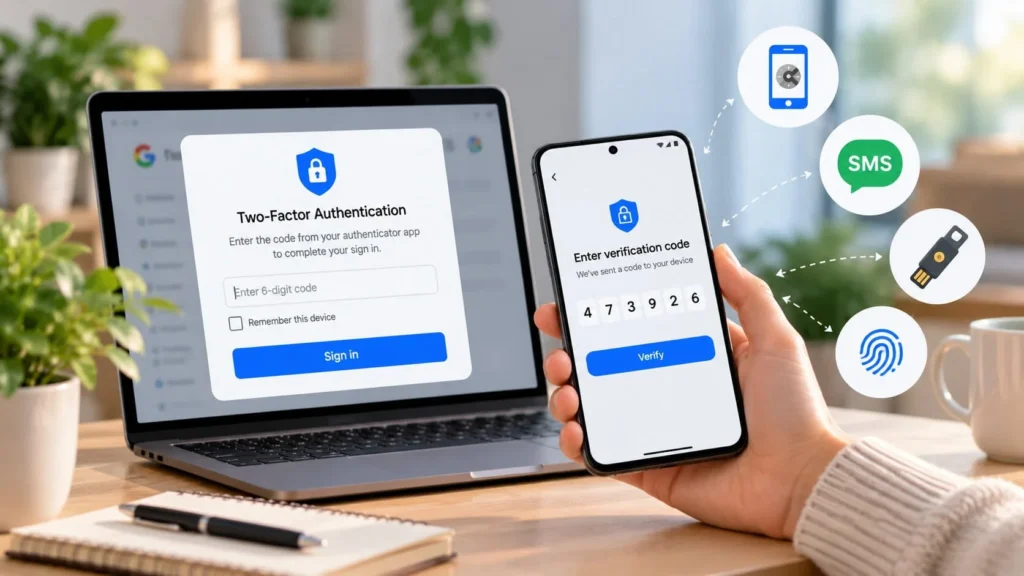
Two-factor authentication, or 2FA, requires two different kinds of proof when you sign in. A familiar example is your password plus a code from an authenticator app on your phone. Someone who learns the password still needs the other proof.
You should use it for important accounts that support it, especially email and accounts holding money or sensitive information. Choose a method you can use reliably, and set up recovery options before depending on it.
What makes the second factor different
Authentication factors are commonly described as something you know, something you have, and something you are. A password is something you know. A registered security key is something you have. A fingerprint can help verify you when unlocking a supported authenticator.
Two passwords do not become two factors simply because you type them into separate boxes. A password and a security question usually rely on the same kind of proof: knowledge.
“Two-step verification” describes a sign-in sequence and is a common product label. “Multi-factor authentication,” or MFA, is the broader term for multiple factors. Product implementations vary, so examine the actual method rather than judging its strength by the label alone.
For a practical starting point, Google's account protection guide describes its available second-step options. Other services may offer a different selection.
How a typical sign-in works
After entering a password, you may be asked to approve a prompt, enter a temporary code, or use a security key. The account checks the additional proof before completing sign-in.
For example, you enter your email password on a new laptop, then supply a code from your authenticator. The extra check adds friction, but it also means a leaked password alone is insufficient for that sign-in route.
Some services remember trusted devices or use passwordless methods. You may not see an extra prompt every time. That does not tell you by itself whether protection is enabled; review the account's security settings.
Compare codes, prompts, and security keys
Text-message codes are convenient where supported, but they depend on access to a phone number. Authenticator apps generate codes without requiring a text message for each sign-in. Neither type of code should be shared with someone claiming to be support.
Approval prompts need your attention too. Approve only a sign-in you initiated. An unexpected request is a reason to stop and investigate, not an inconvenience to dismiss by tapping Yes.
FIDO-based security keys and passkeys use a different approach from typing a code into a website. Their credentials are tied to the legitimate service, helping resist fake sign-in pages. The FIDO Alliance explains passkeys, while CISA's guidance discusses phishing-resistant MFA.
Prefer a phishing-resistant option when it is supported and you can maintain access to it. If your account offers only a code-based second step, use it rather than leaving password-only access while waiting for an ideal setup.
Understand where passkeys fit
A passkey can replace a password rather than simply follow one. You may unlock it using the device's PIN or biometrics, depending on the implementation. Treat it as a sign-in method with its own storage, synchronization, and recovery choices.
Do not assume every service handles passkeys and two-factor settings identically. Check how your provider combines them, whether older sign-in methods remain available, and how you would sign in from another device.
The useful question is whether your account has a strong sign-in method and a workable recovery plan. Counting visible screens is a poor way to judge security.
Prepare recovery before enabling protection
Before changing sign-in settings, confirm access to the account and its recovery details. If the service offers backup codes, save them securely somewhere you can reach without the phone you might lose.
Google, for example, provides single-use backup codes for supported accounts. Generating a new set invalidates the old set. Its backup-code guide explains the rules.
Do not leave codes in an unlocked note, send them to someone else, or store the only copy behind the very account they recover. A securely stored printed copy may suit some people; protected digital storage may suit others. Choose deliberately.
Test a normal sign-in while keeping an existing signed-in session available. Confirm the new method works before removing an old one. Recovery is easier to prepare while you still have access.
Start with the accounts that protect other accounts
Prioritize your main email account because password resets for other services often arrive there. Then review banking, cloud storage, social accounts, and any password manager you use, such as Google Password Manager.
Use each provider's official website or app to find security settings. Do not follow an unsolicited message that says you must urgently “activate 2FA” through its link.
When changing phones, transfer or replace the authentication method before erasing the old device. Google's lost-access guidance illustrates why previously prepared backup methods matter.
Keep ordinary security habits too
Two-factor authentication improves sign-in protection, but it does not make every file, device, or message safe. Keep passwords unique, install updates, and be cautious about downloads and sign-in links. Apply the same caution when checking an app before installing it.
If you receive a request you did not initiate, deny it and review account activity through the official service. A well-chosen second factor works best when you also understand what you are approving and how you would recover access.