—
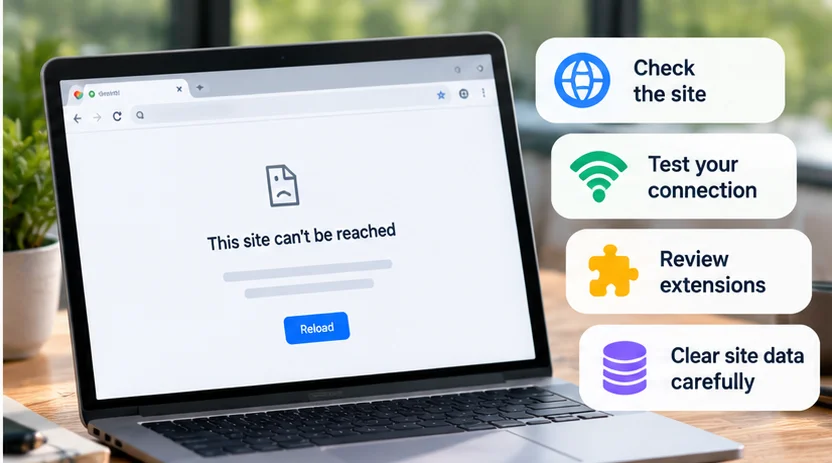
If Chrome is not loading pages, first determine whether one website fails or many unrelated sites fail. Compare the same page in another browser or device, check the connection, and record Chrome's exact error. That separates a site problem from a browser or network problem before you reset anything.
Save unsent text and open documents before reloading, closing tabs, or restarting. A page that is partly visible can still contain work that has not been saved.
Quick checks first
-
Check the address for typing mistakes and try another trusted website.
-
Open the failing address in another browser, or on another device if available.
-
Confirm the internet connection, including any expected Wi-Fi sign-in portal.
-
Note whether the page is blank, endlessly loading, or showing a named error.
After preserving work, reload once. Repeatedly refreshing a payment or submission page can complicate the situation; check the service's confirmation or order history before submitting again.
Use the pattern to narrow the problem
| What happens | Investigate first |
|---|---|
| One site fails across browsers and devices | The site's service, address, or access requirements |
| Many sites fail on every device using one network | Network connection, router, or provider |
| The same site works in another browser on this device | Chrome's state, extensions, or configuration |
| It works on another trusted connection | The original network, VPN/proxy, or its restrictions |
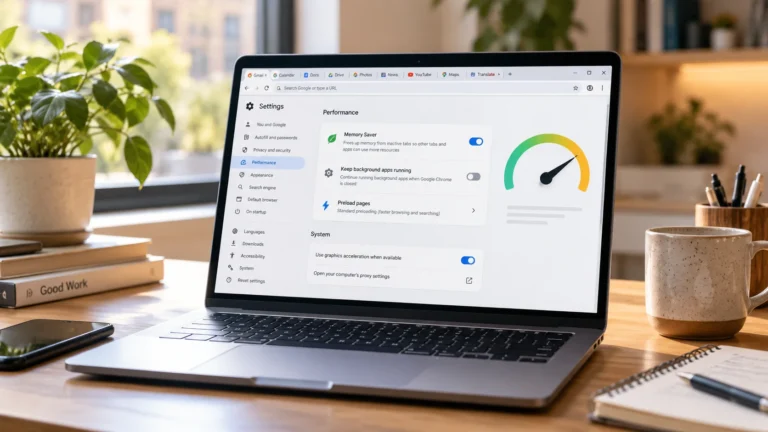
| Chrome tabs crash while other apps are busy | Device resources and the exact crash error |
These comparisons are clues, not a definitive diagnosis. For example, a work service may intentionally be reachable only through its approved network. Google's loading guide describes the range of possible causes.
If only one website fails
Confirm that you are opening its current address through a trusted route. Try its home page rather than an old bookmark or a link to content that may have moved.
If the site fails elsewhere too, check an official status or support page where available. A missing incident notice does not establish that your browser is responsible.
For a signed-in service, distinguish “page cannot load” from “account lacks access.” Record the message rather than repeatedly changing passwords. Do not bypass certificate, unsafe-site, or security warnings to force a page open.
Restart and update without discarding work
After saving, close unnecessary tabs and apps, then quit and reopen Chrome. A page crash can occur when device resources are under pressure. Google's crash guidance includes closing other tabs and apps.
Check for an available supported Chrome update and finish the required restart. If the whole device behaves unusually, save other work before restarting it too.
Avoid treating every blank page as evidence that the computer needs a cleaner, driver tool, or extra extension. Add-ons create another variable when you are trying to isolate the original problem.
Test Incognito, then inspect extensions
Open the same site in an Incognito window as a controlled comparison. It uses a different temporary browsing session, so site-state and extension behavior can differ. It is a diagnostic test, not an anonymity guarantee. Google explains Incognito's limits.
Some extensions can be allowed in Incognito, so success or failure there does not prove that all extensions were absent. A site may also behave differently when you are signed out.
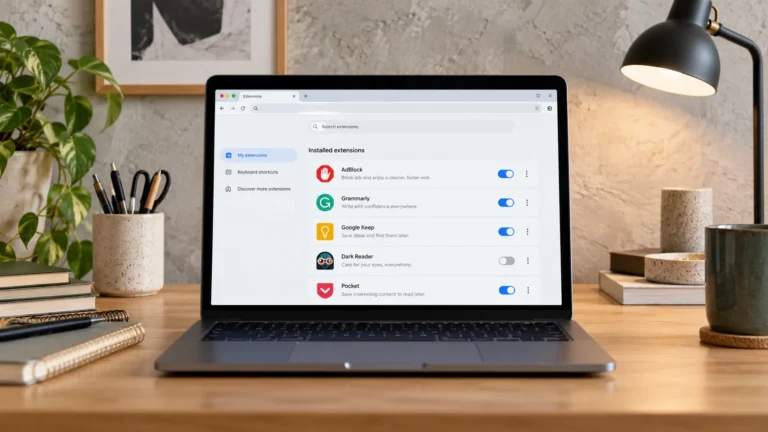
On desktop Chrome, open More → Extensions → Manage extensions. Note what is enabled, turn extensions off for a test, and then re-enable them one at a time while checking the page. Avoid sensitive browsing while deliberately disabling an extension you rely on for protection.
Google documents extension toggles and Allow in incognito. If one extension explains the failure, inspect its settings, update, or vendor guidance before deciding whether to remove it. Do not permanently uninstall every extension simply to test a theory.
Clear the relevant data, with sign-in access ready
Before deleting site data, save drafts and confirm that you can sign in again, including any second factor. Cookies and local site state can hold a session, preferences, or unsent work.
Cached images and files are reusable page resources. Cookies and other site data serve different purposes, so a broad Delete browsing data selection can do much more than refresh a stale image. Our cache-versus-cookies guide explains the distinction.
For a problem limited to one website, start with that site's stored data where practical. On desktop, Chrome's settings let you review site data and remove a particular site's entry; Google documents the current controls.
If cached resources remain the likely issue, review the cache category and time range in Delete browsing data. Leave history, autofill, and other categories unselected unless you specifically intend to remove them. Google lists the separate deletion effects.
Reopen the site and repeat the original test. If cleanup makes no difference, move on rather than repeatedly erasing more unrelated data.
Check the network without weakening protection
If several websites fail, compare Wi-Fi with another trusted connection where available. Be aware of mobile-data charges if you test through a hotspot.
For a home router, a normal restart may help, but it interrupts everyone using it. Check that nobody depends on an active call or upload first. Follow the provider's restart instructions; do not press a factory-reset button as a substitute.
If the error names DNS, check the address and whether other devices on the same network resolve it. Ask the network provider or administrator about a persistent issue before replacing DNS settings or running reset commands you do not understand.
A VPN or proxy can affect the path to a site. Review its status and official guidance; do not disconnect a required work VPN or disable a security service casually. If a firewall or antivirus appears involved, check its logs, allowed-app settings, or vendor support. Keep protection enabled while investigating.
Leave reset and reinstall until the cause is clearer
A Chrome settings reset affects extensions, themes, site permissions, cookies, and several browsing preferences. Google says saved bookmarks and passwords are not deleted, but a reset is still disruptive. Read its reset explanation before proceeding.
Before considering reinstalling, preserve unsynced information and understand what is stored locally versus in your account. Our cloud-storage guide explains why an online copy and a device copy are separate things.
Uninstall options can also delete profile data. Google documents those choices. Do not remove profile folders or assume that signing in guarantees every local item will return.
If the problem continues, give support the exact error, Chrome and operating-system versions, affected sites, and results from the browser/network comparisons. Those details are more useful than another unexplained reset.