—
To manage browser extensions, review what is installed, decide which tools you still use, and compare their access with their purpose. Disable an unfamiliar or unused extension while you investigate; remove it when you no longer need or trust it.
These steps focus on desktop Chrome. Other browsers have their own managers and permission controls. You do not need to remove every extension: a useful tool with appropriate access can deserve its place.
Open the extension manager and make an inventory
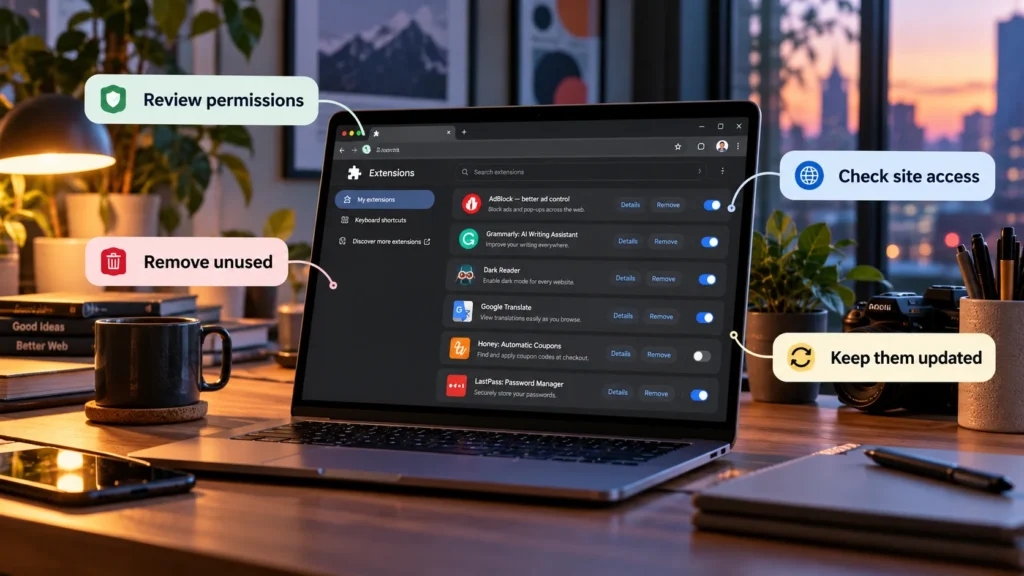
In Chrome, open the three-dot menu, then Extensions → Manage extensions. Google's extension-management instructions cover the controls for each installed item.
For each extension, identify its purpose, when you last used it, and its publisher. Open its details and store listing where available. Compare the publisher and support links with the developer you intended to install from; a familiar name or icon alone is not enough.
Start with tools left over from a completed task, duplicate utilities, and anything you do not remember installing. Record what you find before making changes. A short inventory makes it easier to restore a useful function without installing several similar replacements later.
An absent toolbar icon does not mean an extension is inactive. Chrome lets users unpin icons without uninstalling the corresponding extension, so review the manager rather than judging only by the toolbar.
Understand the permissions before changing them
Permission warnings describe capabilities, not a verdict that an extension is malicious. Google's Chrome Web Store permissions guide explains access to website data, browsing history, tabs, and other information.
Ask whether the capability fits the job. A writing assistant may need access to text on pages where you use it. A tool used only on one work website has a weaker reason to request routine access everywhere you browse.
Pay attention to these distinctions:
| Access | What to consider |
|---|---|
| Website content | Which pages can the extension read or change, and does its purpose require that scope? |
| Browsing history or tabs | Does the feature need information about browsing activity rather than only the current page? |
| Clipboard | Is reading or changing copied information necessary for the tool? |
| Downloads | Does managing downloads fit its stated function? |
Chrome's permission reference distinguishes clipboard reading from writing and identifies download-management permissions. These are separate capabilities; access to one does not automatically mean unrestricted access to every file on the computer.
For example, a download organizer may reasonably need download-management access. The same request from a simple colour-picker deserves an explanation. Judge the requested access together with the developer's stated function and your willingness to trust it.
Limit site access where the extension supports it
Open an extension's Details and inspect its site-access options. Chrome documents choices such as On select, On specific sites, and On all sites for applicable extensions.
Choose the narrowest scope that still lets you use the tool. A utility needed only for a particular dashboard may work with that website allowed. A tool intended to operate across many sites may need broader access to deliver its function.
After changing access, reload the relevant page and test the task you actually need. If a button stops working, check whether the necessary site was excluded before granting access everywhere again.
Site access is not a master switch for every capability. Google's guidance specifically excludes lower-level VPN or proxy changes from these site-permission controls. Review the extension's other permissions separately.
Disable before removing when you are unsure
Turning an extension off in the manager is a useful temporary step when deciding whether you need it or investigating a site problem. Change one item, reload the affected page, and compare the same task.
Save work before testing. Disabling an extension may stop password filling, accessibility support, blocking rules, or another function you rely on. Make sure an alternative way to complete an important task is available first.
A broken page that works with one extension disabled gives you a lead; it does not prove malware. Likewise, high memory use alone does not establish malicious behavior. Keep the investigation tied to the symptom rather than assuming every installed tool causes significant slowdown.
Browser storage cleanup is a separate decision. Our cache versus cookies guide explains those categories; clearing them is not a substitute for reviewing installed extensions.
Remove extensions you no longer need or trust
Before removal, check whether the extension stores settings or information you need, and use its documented export or backup option if relevant. Do not assume reinstalling will recover everything.
In the manager, choose Remove for the selected extension and confirm. If unexpected redirects, search changes, or pop-ups prompted the review, note which item you removed and whether the behavior stops.
If you suspect information was exposed, review the affected account's security using the service's official controls. Removing a browser extension does not by itself revoke an online account connection or undo data previously collected.
Avoid installing a replacement simply because a pop-up claims it will clean the browser. Verify the developer and use the genuine store listing or official organizational distribution channel.
Keep updates and Incognito access under review
Chrome normally updates extensions automatically. Google's extension update documentation notes that applying updates can wait for an extension to become idle; restarting the browser can help complete that process.
Keep Chrome itself updated too. On supported Windows and Mac installations, menu → Help → About Google Chrome checks for updates; relaunch when offered. Save work first, including anything in Incognito windows, which will not reopen after a restart. Google provides platform-specific update instructions, including package-manager guidance for Linux.
Review private-mode access separately. Chrome uses an explicit Allow in incognito control in extension details. Enable it only when you need and trust that extension in those sessions; private browsing is not a reason to grant broader access automatically.
Respect managed-browser controls
Work or school administrators can install extensions and restrict settings. Google's managed-browser guide explains how to check management status, including chrome://management.
Some enforced extensions cannot be disabled or removed by the user. Contact the administrator about concerns rather than bypassing policy. On a personal device with unexpected management, identify the source before changing system configuration.
Keep extensions that have a clear role, access you understand, and a source you trust. Disable uncertain items to investigate, then remove unnecessary ones deliberately. That leaves a browser setup you can explain and maintain without treating every add-on as a threat.