—
To judge whether an app is safe before installing it, check who publishes it, where the download comes from, what access it needs, and how it handles your data. Read payment terms as well. A legitimate app can still be a poor choice for your privacy or budget.
No individual check guarantees safety. A familiar icon, high star rating, or professional website is evidence to examine, not proof. Use several checks together and pause when the details do not fit the app's purpose.
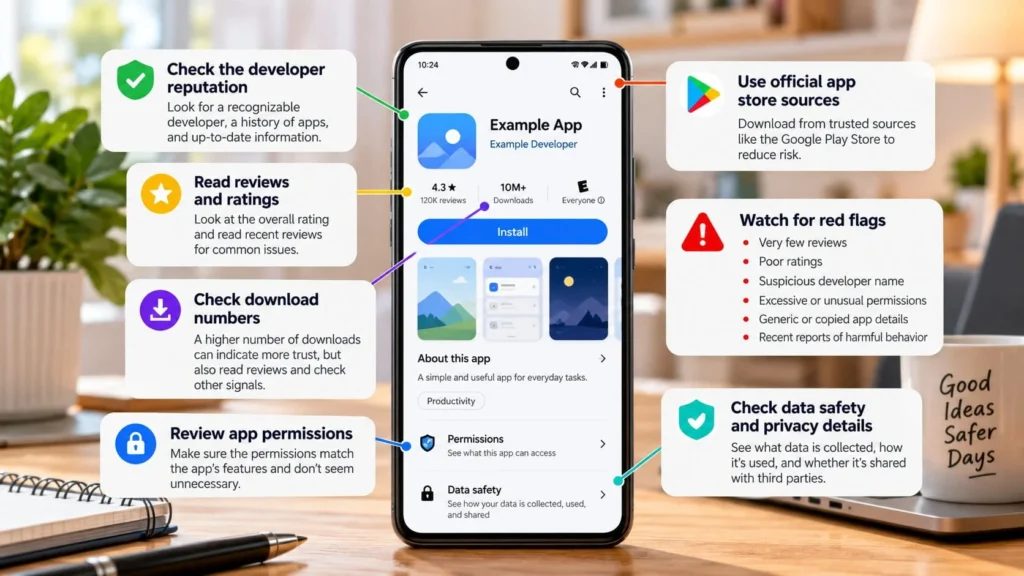
Start with the publisher and download source
For a bank, employer, or familiar service, reach the app listing from the organization's official website or another trusted route. Compare the publisher name and support details, not just the title or icon.
Lookalike names can be easy to miss on a small screen. Slow down if the app arrived through an advertisement, unsolicited message, or a page telling you to install immediately to fix a problem.
Prefer the platform's trusted distribution route when it is available. If you are downloading directly from a developer, verify the website and understand why the app is distributed that way. An app outside a store is not automatically malicious, but it puts more of the verification work on you.
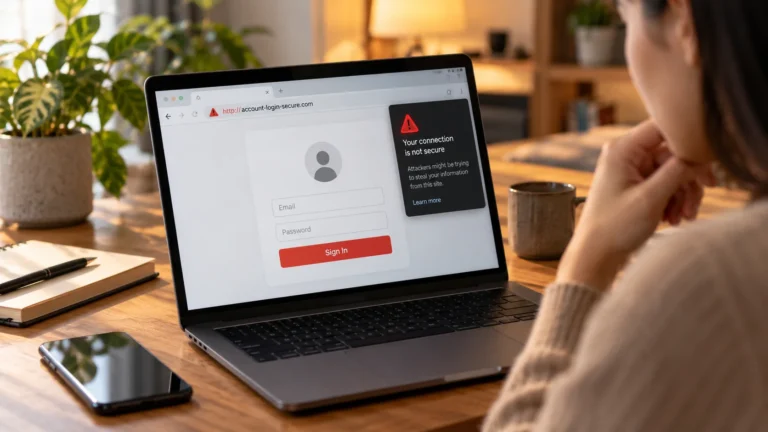
Do not bypass a device warning simply because the download page instructs you to do so. Find an independent explanation from the publisher or platform first.
Read the listing for concrete inconsistencies
Check that the description, screenshots, support website, and privacy policy refer to the same app and developer. A copied-looking description with unrelated contact information is a reason to investigate further.
Ask what the app actually does. “Protect everything” and “speed up your phone instantly” are not clear explanations. A useful listing should identify functions you can understand and evaluate.
Compare alternatives for a simple task, including free AI tools for everyday tasks if an assistant is what you need. If a basic utility requires an account, extensive personal information, and a subscription, decide whether that complexity serves you. More features do not automatically make the app more trustworthy.
Use reviews as clues, not a verdict
Read recent critical reviews for specific reports about unexpected charges, excessive ads, login problems, or behavior after an update. Look for patterns across multiple accounts rather than relying on a single angry review.
Check whether complaints concern safety, reliability, or preferences. A disliked redesign is different from a report of misleading billing. Reviews can also be manipulated, so do not treat repeated praise or a large download count as a substitute for verifying the publisher.
An older app is not necessarily unsafe, and a new app is not necessarily bad. What matters is whether the developer can explain its behavior and maintain the product you are about to trust.
Match permissions to the job
A camera app has a clear reason to request camera access. A navigation app may need location while you use it. A simple calculator asking to read contacts deserves closer scrutiny.
Be especially careful with broad access such as accessibility services, notification access, device administration, or permission to install other apps. These can have legitimate uses, but you should understand the specific feature requiring them before consenting.
You may not see every request until after installation. On Android, permissions can be reviewed and changed through the app's settings. Google explains the available controls.
Grant the narrowest access that supports the feature you need. If you deny a request, test whether the app still performs its basic job. Do not grant broad access merely to remove an inconvenient prompt.
Read privacy information without mistaking it for certification
Google Play's Data safety section describes collection and sharing practices supplied by developers. It is useful context, but it is not an independent guarantee that every claim is accurate or that the app suits your needs. Google explains the section and its limits.
Apple's App Store also provides privacy information, including developer-reported data practices. Apple describes how to read it.
Use these summaries to decide what to investigate in the privacy policy. Look for why information is collected, who receives it, and how deletion works. If the explanation is vague, avoid sharing sensitive data while you look for a clearer alternative.
An app can avoid malware while still collecting more information than you want. Decide what you are comfortable sharing rather than reducing the decision to “virus or no virus.”
Keep platform checks enabled
On Android devices with Google Play, Play Protect checks apps and can warn about potentially harmful behavior. Google documents its protections. Keep it enabled as part of your checks rather than assuming it catches every possible risk.
Treat unexpected instructions to disable security scanning as a reason to stop. Likewise, an app that urgently demands another download before explaining its purpose needs investigation.
Check the cost before starting a trial
Read whether the app is free, supported by ads, or dependent on a subscription. For a trial, note when billing starts, what it costs under the terms shown to you, and how cancellation works.
Do not infer “free forever” from an Install button. If the app immediately pressures you into payment, leave the purchase flow until you understand what you are buying. Keep records of terms for subscriptions you deliberately choose.
Install cautiously and reassess later
If the checks are consistent, install through the verified route and grant permissions gradually. Avoid putting sensitive files or credentials into a new app until you understand its behavior. When creating an account, use a password manager for a unique login.
If it acts differently from the listing, stop using it and review its access. For important accounts, enable two-factor authentication where supported. Removing an app does not necessarily delete its online account or cancel a subscription, so handle those separately if needed.
Revisit the decision when an update asks for new access. The permission you were comfortable granting for one feature may be excessive for another.