—
To make Chrome more responsive, reduce work it does not need to do: close unused tabs, review extensions, finish updates, and simplify startup. On desktop, Memory Saver can also free memory from inactive tabs. Start with the symptom you notice rather than applying every tweak at once.
These steps cannot make a slow website or internet connection disappear. They can help identify browser workload and device constraints without adding a speed-booster extension or cleaner utility.
Choose a useful comparison before changing settings
Pick one ordinary task, such as opening your work dashboard or switching between a document and a spreadsheet. Save unsent work first, note which tabs and other apps are open, and repeat that task after one change.
| What feels slow | Start here |
|---|---|
| Switching tabs while many apps are open | Reduce active workload and inspect memory use |
| Chrome takes time to become usable after launch | Review startup pages and restored tabs |
| One website is slow but others respond normally | Investigate that site, its data, or its connection |
| Video stutters or graphics behave incorrectly | Check updates and investigate graphics-specific causes |
| The whole computer is sluggish | Inspect device resources and other running software |
A comparison with another browser can narrow the issue, but differing sign-in state or extensions can affect the result. Avoid treating one observation as a benchmark or proof of a universal Chrome problem.
Close work you are not using
Save active documents before closing tabs or browser windows. Bookmark reference pages you do not need open now, then keep the smaller group needed for the current task.
Google's Chrome speed guide recommends reducing unused tabs and tasks. Several open video, meeting, or editing sessions can demand more than a simple reference page, so a tab count alone does not explain the workload.
Pause unnecessary media and finish or pause nonessential downloads appropriately. Quit other demanding applications you no longer need, especially if the whole device is struggling. Do not interrupt a required upload, call, or background job simply because it appears busy.
A browser restart can provide a useful comparison after saving work. If the same workload immediately returns, however, reopening everything unchanged may recreate the original pressure.
Finish Chrome updates
On desktop, open More → Help → About Google Chrome to check for updates. If prompted to relaunch, save work and finish the restart. Do not rely on every temporary form or private window returning: Google says Incognito windows do not reopen after an update restart.
Google's update instructions describe the process and supported operating systems. Linux uses its package manager, while ChromeOS browser updates follow operating-system updates. Use the appropriate official route rather than installing a separate updater.
If the device can no longer run a supported version, address that compatibility issue before fine-tuning performance settings.
Use desktop Memory Saver with selective exceptions
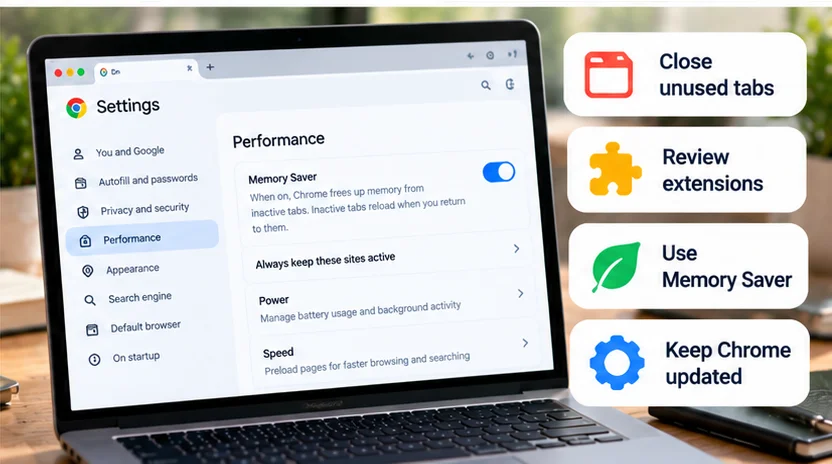
On a computer, open Chrome Settings → Performance and review Memory Saver. It deactivates tabs you are not using to free memory; returning to an inactive tab reloads it. Google's performance-control announcement describes the Moderate, Balanced, and Maximum levels.
Begin with a moderate choice or the recommended setting and observe the tradeoff. If a necessary site must remain active, use Always keep these sites active for that specific site instead of excluding every site.
Google's performance guide lists activities that can prevent deactivation, including calls, downloads, partially completed forms, and pinned tabs. Those exceptions are not a reason to leave important unsaved work unprotected.
These desktop performance controls are not available as the same settings on Android or iPhone. On a phone, focus on supported app updates, unnecessary tabs, and the device's own resource constraints rather than searching for a missing desktop menu.
Find the busy task before removing extensions
Chrome's desktop Task Manager can help identify which browser tasks use memory. Ending a process loses its unsaved work, so inspect first and close a page normally where possible.
Open More → More tools → Task Manager and sort by Memory. Google describes this in its speed guide. Look for a task that explains the symptom, such as a page you no longer need, rather than terminating unfamiliar processes at random. High memory use by itself does not establish harmful behavior.
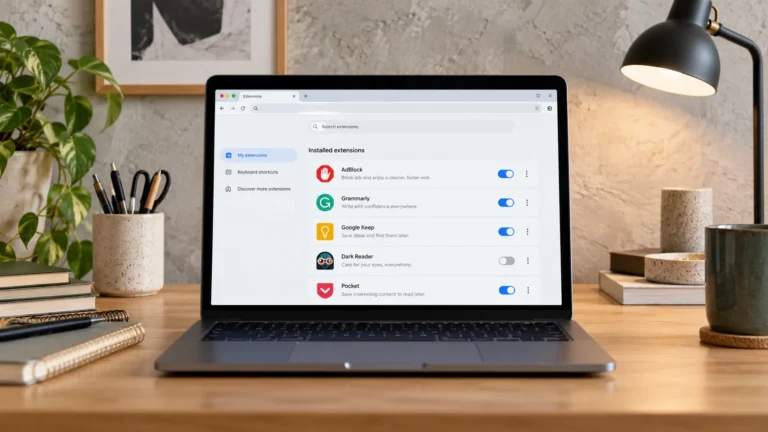
Then open More → Extensions → Manage extensions and review what you actually use. Disable an unused extension before permanently removing it if you are uncertain, and repeat your ordinary task. Google documents those extension controls.
Re-enable a needed extension if the comparison shows no benefit. Keep a required security or work tool's purpose in mind; disabling it can remove protection or functionality. The goal is a deliberate extension list, not a blanket purge or another “optimizer” added on top.
Simplify startup and review background work
If launch is the main problem, inspect Settings → On startup. Continue where you left off restores the previous session, while a configured page set can open several sites automatically. Try the New Tab page or a smaller deliberate set if you do not need that launch workload. Google explains these startup choices.
Keep bookmarks for important pages before changing your routine. Startup settings and the Home button are different controls; changing the homepage alone may not change what launches.
On supported Windows/Linux installations, also review the setting for continuing background apps when Chrome is closed, if present. Chromium's official background-mode definition describes processes remaining active after the last window closes. Turning this off can interrupt background features you depend on. Availability and administrator policy matter; do not assume the same switch exists on every platform.
Use data cleanup only for a relevant problem
Cache is stored material that can help repeat visits load faster. Erasing it routinely can mean downloading resources again, so it is not a universal speed fix. Our cache-versus-cookies guide explains why these categories should not be treated interchangeably.
Deleting cookies or site data can sign you out or remove local site state. Save work and confirm sign-in access before considering that action. For one misbehaving site, prefer its targeted controls to wiping unrelated browsing data; Google lists the deletion effects.
Chrome also offers page preloading, which can load likely destinations in advance. Its performance guide explains the associated cookie and request behavior. Decide whether that optional tradeoff fits your connection and preferences.
Reserve graphics changes for graphics symptoms
Hardware acceleration lets Chrome use graphics hardware for supported work. Do not disable it as a general speed recommendation. Google includes an acceleration test in its crash troubleshooting, where hardware interaction may be involved.
If symptoms point to graphics or video, first complete supported browser, OS, and relevant vendor updates. If testing the hardware/graphics acceleration control under desktop Settings → System is warranted, record its original state, save work, relaunch as instructed, and compare the same symptom. Restore the earlier setting if the change does not help. A graphics workaround can make other workloads worse.
Finally, inspect device free storage and other running tasks if the whole system remains slow. Use built-in storage information and review known files; do not delete profiles or install RAM/registry cleaners to chase an assumed gain. Keep the changes that improve your own task without sacrificing required functionality, and give support the specific symptom if the cause remains unclear.