—
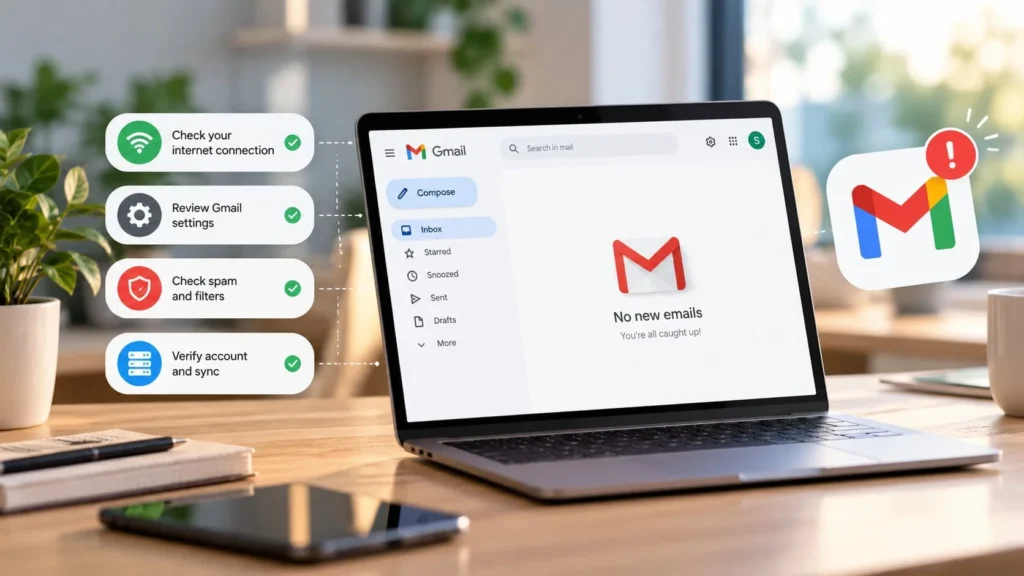
If Gmail is not receiving emails, open the same account at mail.google.com in a browser first. If the message is there, Gmail received it and the problem is with the app's display, synchronization, or alerts. If it is missing there too, check search, storage, filtering, and the sender's delivery details.
This distinction prevents unnecessary resets. A missing phone notification and a rejected email are different problems, even if both make your inbox seem quiet.
Confirm the account and send a simple test
Check the account address shown in Gmail, particularly if you switch among personal and work accounts. Ask a trusted person using another email account to send a short message with a distinctive subject and no attachment.
Record the sending time and exact recipient address. If the test arrives but an expected message does not, focus on that sender or message. If several unrelated senders fail, investigate your account or the service more broadly.
For a verification email, also confirm the address entered on the requesting site. Avoid repeatedly requesting new codes before checking the inbox and spam, since you can lose track of which message is current.
Search beyond the visible inbox
Search for a known sender or part of the subject. To include Spam and Trash, use a query such as in:anywhere from:sender@example.com, replacing the example with the real sender. Google documents the search operators.
Also inspect inbox tabs or categories you normally overlook. A message can have arrived without appearing in the view you use most often.
If the email is in Spam, inspect it before marking it as legitimate. Check the actual sender and message context rather than trusting the display name. Moving a suspicious message out of Spam just to complete a troubleshooting step defeats the purpose of that protection.
If you find it in Trash, restore it before doing any cleanup. Do not empty Trash while you are still searching for missing messages.
Check storage before deleting messages
A full Google account can prevent Gmail from receiving new mail. Storage is shared with services such as Drive and Photos, so your inbox does not need to look large for the account to be full. Google explains the quota effect.
Review the storage breakdown and remove only confirmed unnecessary items, such as large Gmail messages you have reviewed. Before permanently deleting emails or files, save anything important and verify the saved copy. Do not bulk-delete messages while the cause is still uncertain.
After freeing space, allow time for the account to update and send a fresh test. Ask the sender to resend a message that was rejected; do not assume it will automatically arrive later.
Inspect filters and forwarding
On Gmail's desktop settings page, use See all settings and inspect Filters and Blocked Addresses. Look for rules that archive, delete, label, or otherwise redirect the affected messages. Review forwarding settings too.
Google's missing-mail guide identifies filters, forwarding, and other email clients as possible explanations. Change only a rule that explains your symptoms, and note its original configuration first.
If an unfamiliar forwarding destination or filter appears, treat that as a security concern. Review your Google account's security activity and signed-in devices before assuming it was an accidental preference. Do not merely remove the rule and ignore how it got there.
Check other connected mail apps
If you also use Apple Mail, Outlook, or another email client, review whether an action there moved or deleted the message. Think about recent changes to account configuration or cleanup routines.
Compare the same message in Gmail's browser view and the other client. A client-specific view can make received mail look missing; synchronized actions can affect the account itself.
Avoid changing POP or IMAP settings at random. If another person or an administrator manages the setup, collect the evidence first and ask them which change is appropriate.
If the message is online, fix the phone sync
Open the Gmail app, confirm the same account, and refresh. Check the connection, update the app through its trusted store, and restart the phone if necessary.
On Android, review Gmail's Sync Gmail setting and the phone's account synchronization controls. Device storage and restrictive background settings can also interfere with normal use. Google provides an Android sync checklist.
If messages appear when you open Gmail but produce no alert, inspect notification permissions and quiet modes separately. The mailbox is receiving mail; alert settings are the remaining question.
Do not clear app data or remove the account as an early fix. Those actions can discard local settings or unsynced work and may require signing in again. Confirm your credentials and recovery access before considering them with current support guidance; if you use Google Password Manager, check its saved login too.
Ask the sender for the rejection details
If one sender still cannot reach you, ask whether they received a bounce message. The exact error can identify an incorrect address, quota problem, or sending-system issue more effectively than repeated tests.
For a work or school account with a custom domain, your administrator may need to check mail routing. Avoid changing domain settings yourself. You can also check the Google Workspace Status Dashboard for an incident relevant to Gmail; a clear dashboard does not rule out an individual account problem.
Keep the failed sender, recipient, time, and error details together. That gives support useful evidence without requiring access to your whole inbox.