—
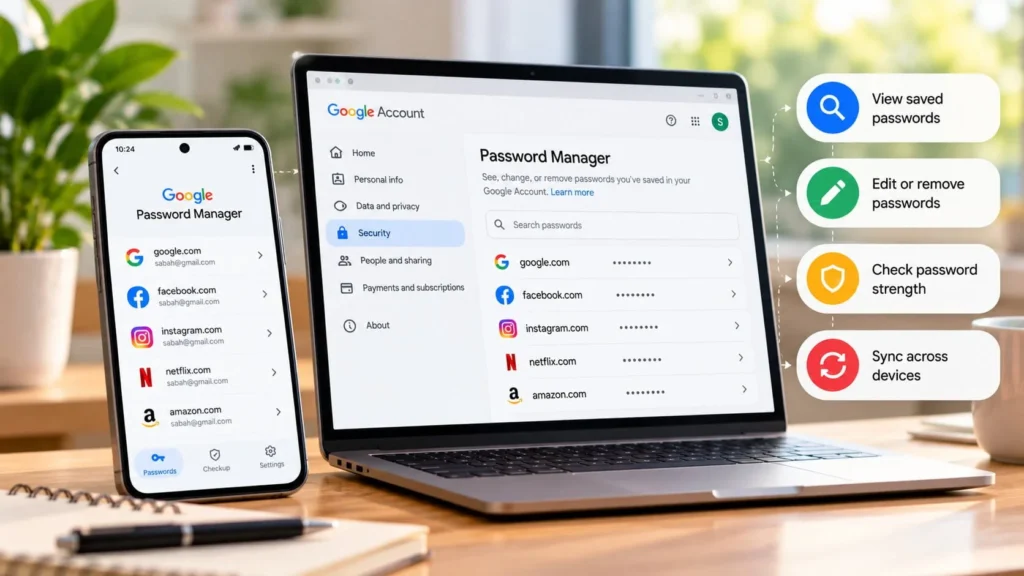
You can check passwords saved to your Google Account at passwords.google.com, or open Google Password Manager from Chrome or your Android device. Confirm the account first: a password missing from one account may be stored under another account or locally on a device.
Google Password Manager can save login details, help fill them in, and flag certain password problems. The useful habit is to keep saved entries accurate while protecting access to the account that holds them.
Understand where your saved passwords live
Google distinguishes passwords stored in a Google Account from passwords stored on a device. Account-stored entries can be available on other devices using the appropriate account and settings; local entries should not be assumed to appear everywhere. Google's getting-started guide explains the storage choices.
Before changing anything, note which account or Chrome profile you are using. A work profile and a personal profile can have separate login collections. Finding an entry in one place does not establish that it was backed up to the account you intended.
Use a non-sensitive test login if you are learning how your setup works. Do not experiment by deleting the only saved password for an important account.
Find and view a saved login
On a computer, Chrome's documented route is its menu → Passwords and autofill → Google Password Manager. You can also visit the account-based password website directly. Chrome's password guide covers viewing and managing entries.
Search for the website or app name, then open the matching entry. Check the username as well as the site; you may have several logins for the same service. Use the reveal or copy control when needed, and complete the authentication prompt the device requires.
On Android, search Settings for Google Password Manager or passwords if you cannot find it. Samsung, Pixel, Xiaomi, OnePlus, and other manufacturers may place password and autofill controls differently. Use the official instructions for your device rather than guessing an exact sequence.
View passwords in private. Avoid revealing one while screen sharing, and never include a password or recovery code in a support screenshot.
Save and fill passwords deliberately
When your browser or device offers to save a login, check that you are on the legitimate service and that the selected account is correct. A saved password is only useful if it matches a real, current login.
For a new account, use a unique password. If Password Manager offers a generated password, save it successfully before closing the registration page. Keep any separate recovery information the service provides in an appropriate secure place.
When filling a login, inspect the website address and selected username. Do not override a mismatch by pasting credentials into an unfamiliar page simply because its branding looks familiar.
If autofill is unavailable, find the entry manually and confirm its destination. Investigate the autofill provider and account settings separately instead of treating a missing suggestion as evidence that the password has disappeared.
Run Password Checkup and interpret the warnings
Password Checkup can identify saved passwords that are exposed, reused, or weak. You can open Checkup in Password Manager or use the account website. Google explains the warning categories.
An exposed password needs attention at the affected service. A reuse warning means the same secret protects more than one login. A weak-password warning concerns guessability. These are different problems, but replacing affected passwords with unique alternatives addresses the underlying issue.
Prioritize email and other accounts used to recover access elsewhere. Then work through remaining entries methodically. A clean result is not a guarantee that an account has never been accessed or that every security problem has been detected.
Change the service password, then update the saved entry
Editing a Password Manager entry alone does not change the password accepted by the website. To replace an unsafe login, open the service's official website or app and use its password-change flow first.
After the change succeeds, update the saved entry when prompted, or edit it to match the new password. Test a normal sign-in before discarding old recovery information or closing every existing session.
If you find an unexpected security warning, reach Password Checkup directly rather than following a link in an unsolicited message. If the service shows unfamiliar account activity, use its account-security guidance in addition to changing the password.
Delete or export entries with care
Deleting a saved entry removes your copy from that password collection; it does not close the website account or invalidate its password. Before deleting, ensure you can still sign in or have deliberately closed the account through the service itself.
If you export passwords to move to another manager, treat the export as sensitive plaintext. Google warns that a password CSV file can be opened to access its passwords. Before importing through a new password manager, check that its app is safe. Confirm the transfer and remove the export afterward, including unwanted copies in Downloads or a synced folder.
Avoid exporting merely to inspect passwords. The normal interface is sufficient for checking individual entries without creating another file full of credentials.
Protect the account behind the manager
Use a strong device lock and secure your Google Account with an appropriate additional sign-in method. Keep recovery access current before changing phones or signing out of your only trusted device.
A password manager reduces the burden of remembering unique passwords. Its value depends on accurate entries, careful sign-in habits, and a recovery plan you can use when the usual device is unavailable.