—
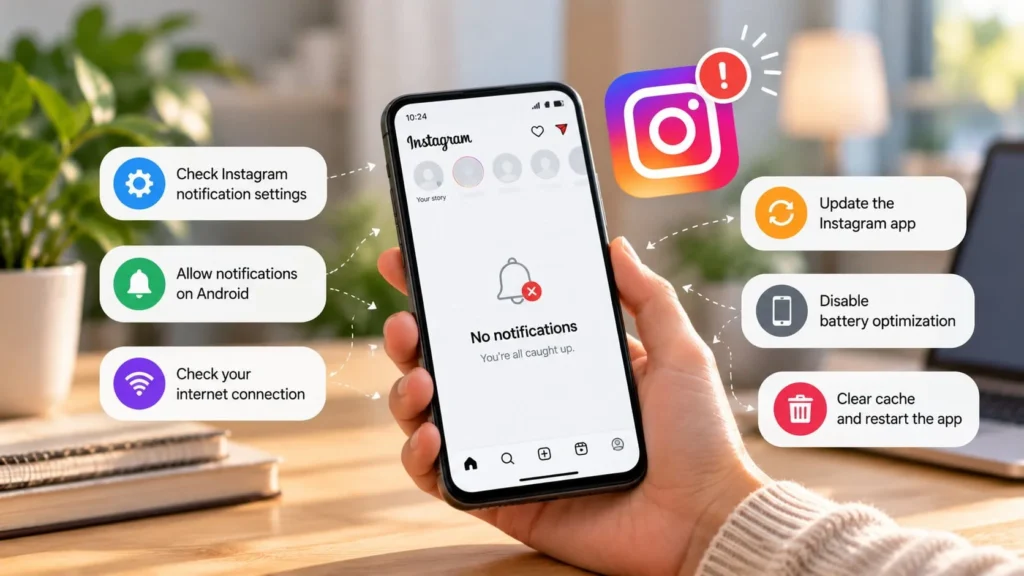
If Instagram notifications are not working, check whether the activity appears inside Instagram when you open it. A received message without a phone alert points toward notification settings. Activity that appears only after opening the app suggests a connection or background issue worth investigating.
Also identify the scope: direct messages, one conversation, comments, or every notification. That distinction helps you avoid turning on a large number of alerts you deliberately disabled.
Quick checks first
-
Confirm you are viewing the Instagram account that should receive the alert.
-
Temporarily turn off an active phone quiet mode and check alert volume if the problem is sound only.
-
Check whether Instagram has paused notifications or a scheduled Sleep mode active.
Ask a trusted person to send one test message. Lock the screen before the test, and note whether the message arrives silently, arrives late, or does not appear at all.
Check Instagram's notification preferences
Open Instagram's settings and look for Notifications. Review the setting for the type of activity you are missing, along with any option to pause alerts. Avoid switching every category on just to test one missing message.
Meta describes Instagram's Sleep mode, previously called Quiet mode, as a way to turn off notifications during scheduled periods. Its explanation includes the mode's purpose and controls. If alerts fail at predictable times, examine that schedule.
If one conversation is affected, inspect that conversation's mute preferences rather than changing all direct-message alerts. Make the smallest change that fits the symptom.
Allow Instagram alerts at the phone level
An in-app preference cannot override a phone-level block. On Android, find Instagram's app information and its notification controls. Check the overall permission and any relevant category your phone exposes. Google explains Android's per-app notification controls.
On iPhone, look in Settings → Notifications → Instagram. Check Allow Notifications and the display locations you want. Apple documents the notification options.
Samsung, Pixel, Xiaomi, OnePlus, and other Android manufacturers may use different labels or menu locations. Use Settings search or the manufacturer's guide if the controls differ; do not copy a path from an unrelated device.
Distinguish a silent alert from a missing alert
Swipe down to inspect the phone's notification list. If the Instagram alert is there, delivery occurred. Investigate sound, vibration, banner, and Lock Screen choices rather than reinstalling the app.
Check the alert or ringer volume rather than relying on music volume. Temporarily disconnect headphones if you are unsure where sound is going.
A preference that hides message previews can be useful for privacy. You can allow an alert while keeping its content concealed. Choose the behavior you need rather than assuming all notification options must be enabled.
Investigate alerts that arrive only when you open Instagram
Try the test on Wi-Fi and, if available, mobile data. If the problem occurs only on one connection, start with that connection or its data restrictions.
On Android, inspect Instagram's background battery and data controls. A restrictive setting may interfere with timely updates. Relax only the relevant restriction for a test, because allowing more activity can increase battery or data use.
Samsung's sleeping and deep sleeping lists can limit app activity. Samsung explains their behavior. Remove Instagram from an overly restrictive list only if prompt alerts matter more to you than the savings.
Do not give Instagram unrelated permissions such as contacts access as a speculative notification fix. Match each change to the symptom you can observe.
Update and restart before resetting anything
Install an available Instagram update through your trusted app store, then restart the phone. Repeat the same test so you can tell whether the behavior changed. If Instagram closes unexpectedly, follow the app-crash checks instead.
If other apps also fail to alert, continue with the phone's general notification controls. If only Instagram fails, keep your attention on its preferences, account, and support options.
Avoid repeatedly changing several settings at once. Record the changes that matter, particularly if you normally use quiet modes or battery restrictions and want to restore them after testing.
Protect local drafts before reinstalling
Reinstalling or clearing app storage can remove local app data, including work that has not been saved elsewhere. Before either action, preserve any important drafts outside the app and confirm that you know your login and can complete two-factor authentication.
Do not assume a draft visible on one device is safely synchronized. If you cannot preserve it or cannot confirm account access, use Instagram's help or report-a-problem route instead of uninstalling.
For a support report, include the account affected, alert type, phone model, software version, and whether the activity arrives inside the app. A report that separates “message received, no sound” from “message appears only after opening” is much easier to investigate.