—
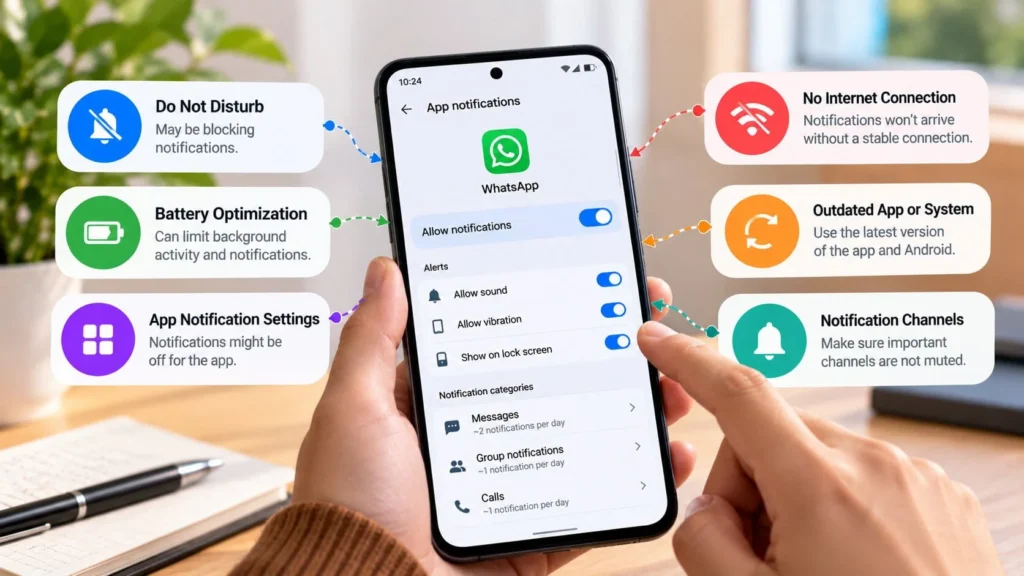
When Android notifications are not showing, first determine whether the alert is blocked, silent, hidden from the Lock Screen, or arriving late. Each points toward a different control. If new information appears only when you open the app, investigate background activity and connectivity as well as notification permission.
Samsung, Pixel, Xiaomi, OnePlus, and other manufacturers may use different labels and menu locations. Use Settings search and your manufacturer's documentation where necessary. The checks below describe the controls to inspect without claiming one exact path fits every Android phone.
Quick checks first
-
Swipe down to see whether the alert is already in the notification list without a sound or banner.
-
Check whether Do Not Disturb, a scheduled mode, or a restrictive battery-saving mode is active.
-
Send one test alert to the correct account with the app closed and the screen locked.
If only one app or conversation fails, start there. If several unrelated apps fail at the same time, inspect phone-wide settings before resetting individual apps.
Match the symptom to the likely area
| What you observe | Where to investigate first |
|---|---|
| Alert in the notification list, no sound | Alert category, volume, and quiet modes |
| Alert appears unlocked but not on the Lock Screen | Lock Screen display and privacy controls |
| One type of alert missing from an app | App notification categories and in-app preferences |
| New content appears only when the app opens | Connection, sync, battery, and background data |
| Many apps stop alerting during the same hours | Scheduled phone modes or power saving |
This table narrows the investigation. It does not establish a fault without a test that reproduces the symptom.
Check the app's notification permission
Find the affected app in Settings, then inspect its notification controls. Enable the overall permission if it was unintentionally disabled. If the phone shows separate categories, inspect the category related to the missing alert rather than switching on every category.
Android can distinguish alerting and silent notifications, and some devices have notification history for previously received alerts. Google explains the controls and device differences.
History is useful only where supported and available; do not assume enabling it now reconstructs every past notification. The current test is a more reliable starting point than trying to infer an old delivery failure.
Inspect the app's own preferences
A phone-level permission does not necessarily override a muted conversation or disabled alert type inside the app. Check account-specific notifications, conversation mutes, and the activity you actually expect to trigger an alert. For Instagram notification problems, check the notification type affected.
For example, an app may still display promotional notifications while a conversation is muted. That shows the overall permission works, but it does not establish that every in-app category is enabled.
Keep deliberate choices intact. For WhatsApp alerts, check the chat's mute settings as well. If you muted a noisy group, the useful outcome may be restoring direct messages while leaving that group quiet.
Adjust quiet modes and Lock Screen behavior
Temporarily turn off the active quiet mode for a controlled test. If alerts return, examine its schedule and exceptions. Restore the mode afterward with the app or people you want allowed. Google documents Modes and Do Not Disturb.
If notifications appear only after unlocking, review Lock Screen display settings. Allowing an alert and revealing its full content are different privacy choices. You may want to see that a message arrived while keeping the sender or text concealed.
If the alert is visible but silent, check notification or ringer volume rather than media volume. A missing sound does not require clearing an app's data.
Investigate battery restrictions only for delayed delivery
If content arrives after opening the app, review its background battery controls. Before relaxing a restriction, understand that more background activity can increase power use. Test the affected app selectively.
Samsung's sleeping and deep sleeping lists can restrict background work. Samsung describes those lists. Keep essential messaging apps out of a restrictive list when immediate delivery matters.
Pixel's Extreme Battery Saver pauses many apps, and paused apps cannot send notifications. Google explains saver behavior. That is expected behavior in the mode, not proof that the app has malfunctioned.
Do not disable optimization for every app. Restore any test change that makes no difference, especially if it increases battery use without solving the delay.
Check background data and account synchronization
Repeat the test on Wi-Fi and mobile data where available. If only mobile data fails, inspect Data Saver and the app's background data controls.
Data Saver limits background mobile data for many apps and allows exceptions. An exception can increase data use, so apply it only where timely updates matter. Google documents Data Saver.
For email or other synchronized content, check that the correct account is signed in and its synchronization is active. If the content itself is missing online, the issue is not just the phone's alert display.
Update before considering a reset
Update the affected app through a trusted store and restart the phone. If several apps still fail, check supported system updates and manufacturer guidance. Keep a record of the phone model, software version, and test results.
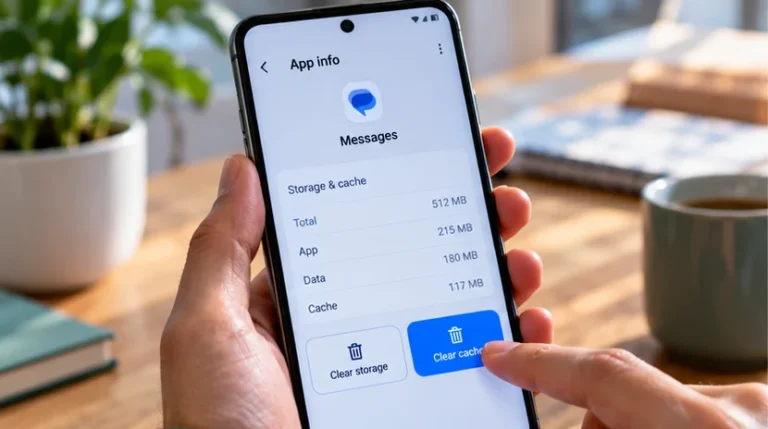
Before clearing app storage, resetting settings, or reinstalling, preserve local data and confirm account and two-factor access. These actions can erase unsynced work or preferences. They belong after the targeted checks, not before permission and mode inspection.
For a managed work phone or work profile, ask the administrator about restrictions you cannot change. If support is needed, report whether the information arrived in the app, where the alert appeared, and which connection you used. Those observations give the investigation a clear direction.