—
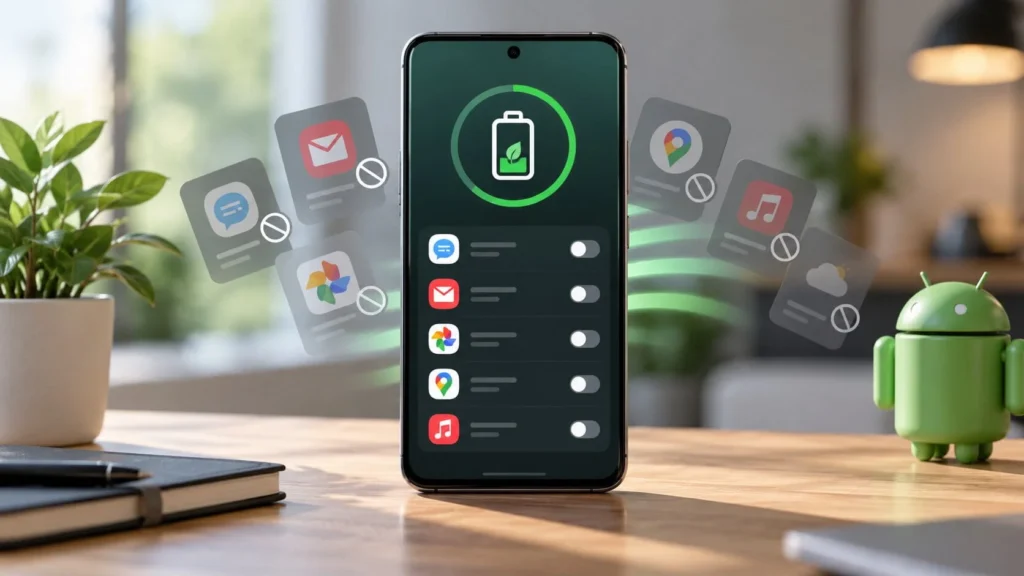
To stop an Android app doing unnecessary work in the background, inspect its battery use and apply the phone's per-app background restriction. If your concern is mobile data, use data controls instead. You usually do not need to shut down every app.
Restricting an app can delay notifications, uploads, or other useful work. Start with one app you rarely need in real time, and check the effect before changing several. Android menus vary by manufacturer and software version, so the examples below may use different labels on your phone.
Decide what problem you want to solve
Background activity is not automatically a fault. Email synchronization, message delivery, music playback, and photo backups may need to continue after you leave an app.
Choose a measurable symptom: unusually high idle battery use, unexpected mobile data consumption, or an app continuing a task you no longer want. A long recent-app list is not enough to identify any of these.
For example, restricting a shopping app you open once a month may be acceptable. Applying the same restriction to a messaging app you depend on can create a worse problem than the one you were trying to solve.
Check battery use before changing settings
Open Settings and look for Battery or Battery usage. Review app usage over a period that includes your actual problem. Then open the suspected app's battery controls.
Google's Pixel guidance describes reviewing usage and restricting background battery use for some apps. It also recommends keeping appropriate optimization enabled. Google's battery troubleshooting guide provides the device-specific context.
A high position in the list does not prove waste. An app you used for hours will naturally consume power. Compare the timing with what you were doing, and distinguish active use from work while the screen was off where your phone reports that detail.
Restrict one app's background battery use
Before applying a restriction, consider whether you need immediate alerts or ongoing uploads from the app.
-
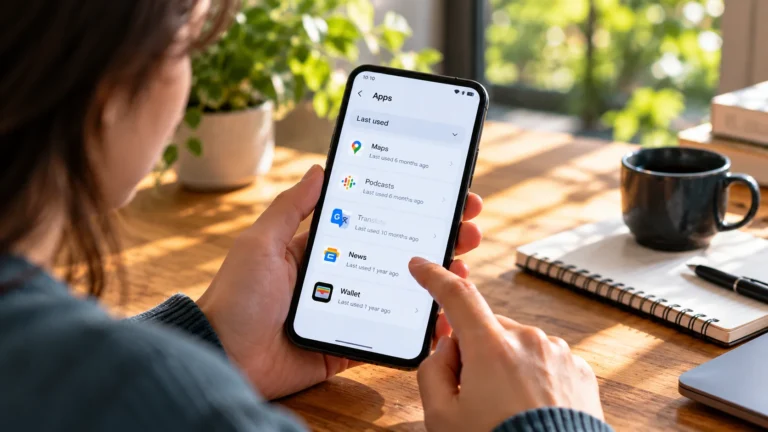
Open the app's information screen through Settings → Apps, or the app icon's information shortcut if available.
-
Find its battery or background-usage controls.
-
Read the available choices and select the restrictive option appropriate to your phone.
-
Use the phone normally, then check that the features you still need work.
Some phones expose a choice such as restricted, optimized, or unrestricted usage; others provide a toggle. Do not assume a setting described for one Pixel or Galaxy build exists on every Android phone.
Keep a note of the original choice. For WhatsApp notification problems after a restriction, test delivery with the screen locked. If messages start arriving only when you open the app, or an upload stops completing, restore it and reconsider whether the battery tradeoff is worthwhile.
Use Samsung sleeping controls selectively
Samsung Galaxy devices can offer Sleeping apps, Deep sleeping apps, and Never sleeping apps under background usage limits. Deep sleeping is more restrictive: those apps do not run in the background and work when opened. Samsung explains the available lists.
Use a restrictive list for apps whose background features you do not need. Keep messaging, time-sensitive reminders, and ongoing backup requirements in mind before adding anything.
Search Settings for “background usage limits” if the path differs. Change one app first rather than placing every installed app into deep sleep. A broad change makes it harder to find the cause when something stops working.
Limit mobile data when data is the issue
Battery controls and data controls solve different problems. If the app is using too much mobile data, inspect its data usage and look for background mobile data settings.
Android's Data Saver can limit background mobile data while allowing exceptions. Apps may still use data differently when opened or on Wi-Fi. Google explains Data Saver and unrestricted-data exceptions.
Before blocking data, consider whether the app must deliver messages while you are away from Wi-Fi. Try the restriction on a nonessential app, and check its behavior using mobile data rather than testing only at home.
Use Force stop for a stuck app
Force stop is a troubleshooting action for an app that appears stuck or misbehaving. It interrupts current work, so save what you can and expect in-progress activity to stop. It is not a routine battery-management schedule.
Open the app's information screen, choose Force stop if available, then reopen it when you are ready to test again. Avoid applying it to core phone services or unfamiliar system components.
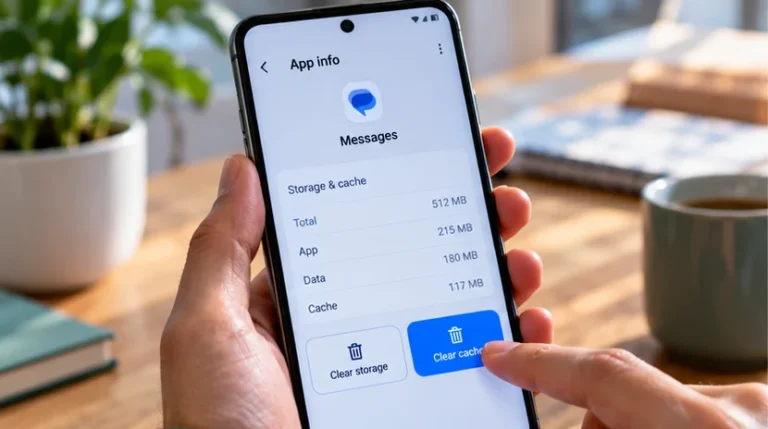
Do not use Clear storage or Clear data to achieve the same goal. Those actions can remove local settings and unsynced app information. A temporary background problem does not justify deleting data you have not backed up.
Leave ordinary app management to Android
You do not need to continually clear the recent-app list. Google explicitly advises that closing apps is not necessary to prevent running out of memory or battery. Its Android app guide explains this.
Avoid adding a task-killer app or changing developer background-process limits as a routine fix. Use the built-in controls for the specific app causing trouble.
If you no longer need an app, consider uninstalling it after checking local data and account access. If the phone still drains quickly with the suspected app restricted, investigate other causes instead of progressively disabling everything.