—
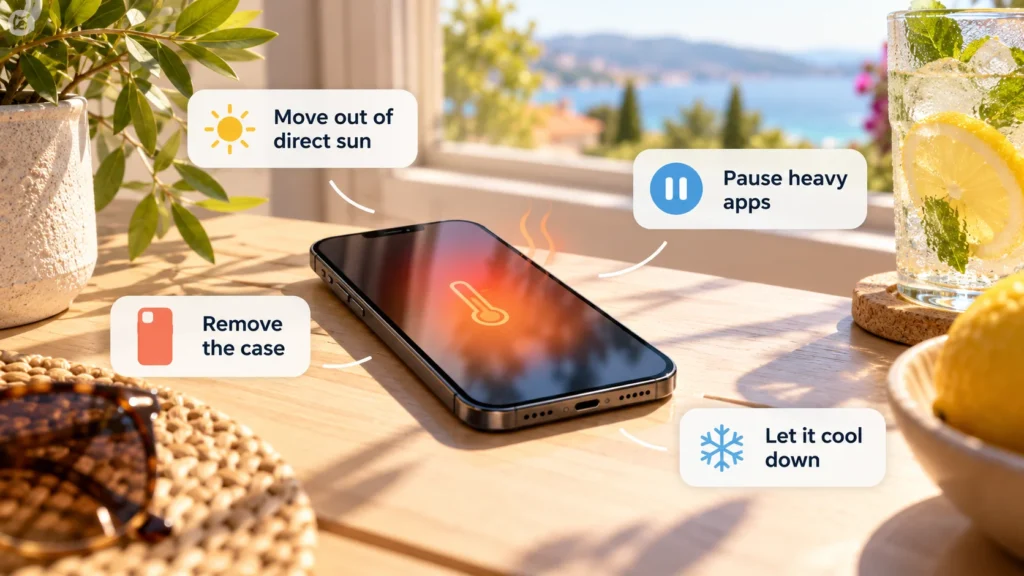
A phone can become warm during gaming, video recording, navigation, charging, or a large update. That warmth alone does not establish a fault. Repeated temperature warnings, shutdowns, or abnormal heat during light use need closer attention.
If a warning is showing, stop the task and follow the phone manufacturer's cooling instructions before troubleshooting. If the phone is swollen, damaged, smoking, or making unusual sounds, skip routine checks and use the battery-safety guidance below.
Quick checks first
-
Stop demanding activity such as gaming, recording, or a long video call.
-
Move an intact phone out of direct sunlight and away from hot surroundings, if safe to handle.
-
Disconnect charging safely if it is too hot; follow any on-screen instruction to turn it off.
-
Leave it unused in a cooler, ventilated place and allow it to cool naturally.
Google's Pixel heat guidance recommends disconnecting power and pausing use when the phone is too hot. Apple's temperature-warning guidance says to turn the device off, move it away from direct sun, and let it cool.
Do not use a refrigerator, freezer, ice pack, water, or another rapid-cooling method. Do not try to defeat thermal protections or repeatedly restart a phone that is shutting itself down from heat.
Stop routine checks if there are battery-damage signs
Stop using and charging a phone with swelling, deformation, a chemical smell, unusual hissing, or other signs of battery damage. Disconnect power only if you can do so safely. Do not press a lifted screen or back cover into place, open the phone, puncture the battery, or attempt to remove it yourself.
Seek the manufacturer's or a qualified service provider's instructions for safe inspection and handling. Excessive heat while idle also warrants stopping use and charging until you obtain guidance, even without visible swelling.
The London Fire Brigade's lithium-ion battery warning guidance identifies bulging, unusual heat, chemical smells, and hissing as warning signs. If a device smokes or catches fire, move away, alert others, and contact local emergency services. Do not handle the device or attempt a repair.
Recognize when warmth matches the workload
Once there are no warning or damage signs and the phone has cooled, consider what it was doing:
| Situation | What to investigate |
|---|---|
| Gaming, camera use, or video calls | Whether the warmth follows a sustained demanding task |
| Navigation with a bright screen | The combined workload and exposure to sun or a hot vehicle |
| Initial setup, restore, or software update | Whether background processing is still underway |
| Hotspot, cloud sync, or large uploads | Whether several transfers are running together |
| Poor cellular reception | Whether the pattern changes with a reliable connection |
| Charging, especially alongside heavy use | Accessories, placement, and concurrent workload |
Apple documents warmth during setup, restoration, major updates, processor-intensive use, and wireless charging. These circumstances help explain a pattern; they do not mean persistent warnings should be ignored.
A phone that warms during a long camera session and cools afterward presents a different pattern from one that repeatedly overheats untouched on a desk. Record the task and surroundings instead of guessing from the case temperature alone.
Review charging accessories and placement
Some warmth while charging can be normal. Check that the charger and cable are compatible with the phone and meet the manufacturer's requirements. Stop using damaged or malfunctioning accessories rather than trying an unfamiliar high-power replacement.
Charge in a ventilated location instead of under bedding, cushions, or other coverings. Avoid combining charging with a demanding game or recording session when investigating heat.
For wireless charging, follow the charger's placement and accessory instructions. Samsung warns against foreign materials between the phone and wireless charger, and identifies damaged cables among possible heat-related problems.
Case advice depends on the phone and case. Apple notes that certain case styles can generate excess heat during charging. Follow applicable manufacturer guidance if a case is trapping heat; removing every case in every situation is not a universal requirement. Do not manipulate a damaged or unsafe-to-handle phone to remove its case.
Reduce the workload you can identify
After cooling, lower unnecessarily high brightness and pause nonessential large transfers. Turn off a hotspot when finished. If poor cellular reception is part of the pattern, use a reliable Wi-Fi connection where appropriate.
Samsung lists weak reception, multitasking, large downloads, syncing, and hotspot use among situations associated with heat. Several together can matter more than one app in isolation.
Inspect the phone's battery-usage information for activity matching the warm period. A large entry is a clue to what was running, not proof that the app is defective. If battery life is also unexpectedly short, the guide to Android battery drain can help separate active use from idle activity.
For an app that keeps working unnecessarily, review selective Android background controls. Preserve messaging, backup, and other functions you need rather than restricting everything.
Update and test after the phone has cooled
Check for supported operating-system and app updates. If the phone is cool and behaving normally, save work and restart it before testing ordinary use again. Samsung includes software updates and restart among its heat-troubleshooting recommendations.
Change one identifiable workload at a time: for example, compare normal use without a nonessential upload running. Do not deliberately repeat an overheating scenario or run stress tests to provoke another warning.
Android labels vary across Samsung, Pixel, Xiaomi, OnePlus, and other manufacturers. Use the model's documented battery or diagnostic tools; there is no universal temperature-screen path or reassuring number that applies to every phone.
Get service help when the pattern persists
Contact the manufacturer if warnings or heat-related shutdowns continue, ordinary light use repeatedly causes abnormal heat, or charging accessories or the port appear damaged. Describe the model, software version, activity, environment, and any warning shown.
Avoid factory resets or replacing parts as an early experiment. A persistent heat problem may need inspection, and erasing data does not establish whether the battery or charging hardware is sound. Keep the phone's own protections active and let the service provider guide the next step.