—
Fast Android battery drain usually needs a more specific diagnosis than “too many apps.” A bright screen, demanding activity, background work, connection problems, or an aging battery can produce similar symptoms. Start by checking when the charge drops and what the phone was doing at that time.
An afternoon of navigation and video is different from a phone losing substantial charge untouched on a desk. Comparing those situations helps you change the right setting instead of disabling useful features at random.
Quick checks first
-
Lower an unnecessarily bright screen and stop any activity you knowingly left running, such as a hotspot or video playback.
-
Restart once if the drain began suddenly after an app stopped responding.
-
Note the battery level and time, then inspect usage after a normal period of use.
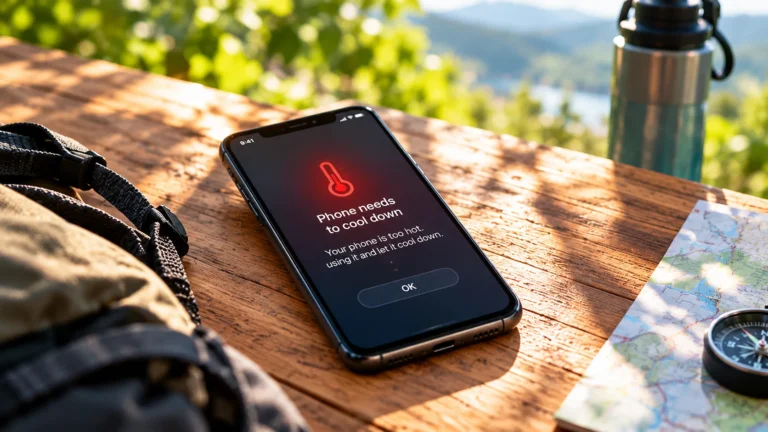
If the phone displays an overheating warning, stop demanding activity and follow the manufacturer's cooling guidance before continuing. Do not put it in a refrigerator. Google's heat guidance explains appropriate steps for Pixel phones.
Identify active drain versus idle drain
Write down when the problem happens: while using the screen, during a commute, overnight, or just after installing an app. Also note charging, navigation, downloads, and photo uploads.
For active drain, start with the activity itself. Long video calls or gaming sessions are not comparable with checking messages occasionally. For idle drain, look for work that continued after you put the phone down.
Compare similar conditions rather than yesterday's quiet day with today's travel day. There is no single normal percentage loss that fits every Android phone, battery age, and usage pattern.
Read the battery-usage screen in context
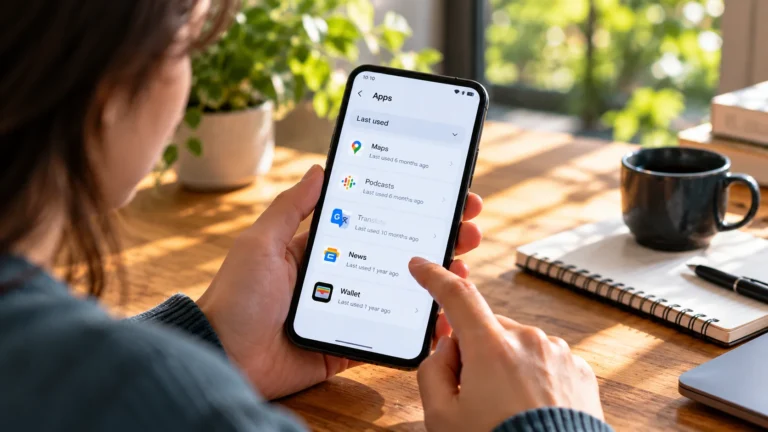
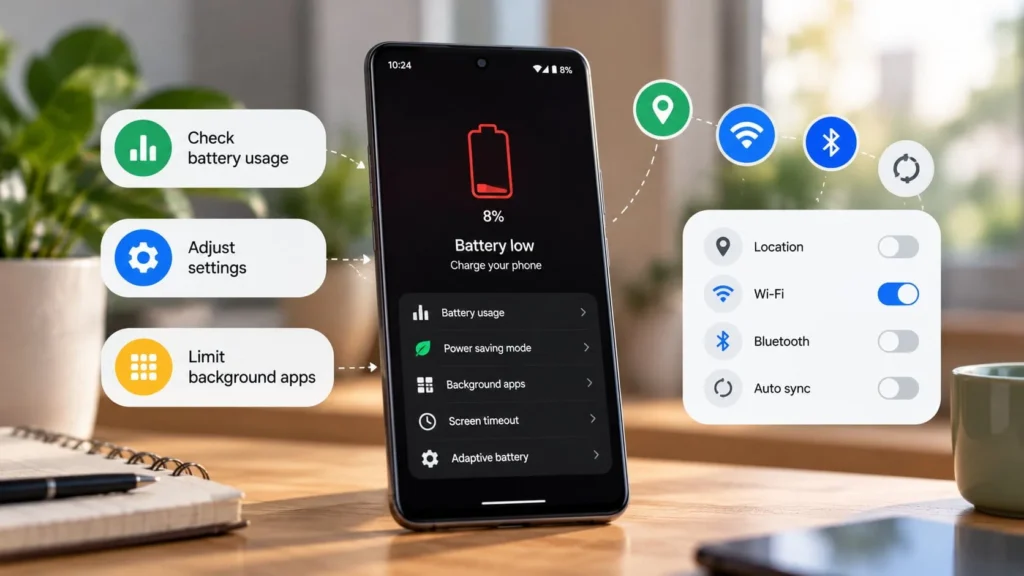
Open Settings and search for battery usage. Examine the period shown and the apps or system components listed. Where the phone separates foreground and background use, compare those figures with what you actually did.
Samsung, Pixel, Xiaomi, OnePlus, and other manufacturers may use different labels and menu locations. Use your phone's Settings search or its official support guide rather than treating one manufacturer's path as universal.
An app near the top of the list may simply be the app you used most. A shopping app with unexpected background activity deserves a different response from a navigation app that guided you for hours. Google's Pixel troubleshooting guide covers usage inspection and selective restrictions.
Adjust the screen before restricting essential apps
For heavy screen use, try a comfortable lower brightness and a shorter screen timeout. Google includes both in its Pixel battery guidance. Change one preference and use the phone normally before deciding whether it helped.
If your device offers display options such as a higher refresh rate or an always-on display, consider whether you need them during a long day away from a charger. Consult the device's own explanation of the tradeoff; do not assume every panel behaves alike.
The goal is a usable phone that lasts through your day. A setting that saves power but makes text difficult to read is not a useful improvement.
Investigate background work selectively
A recently installed app or a repeated upload is worth examining if it matches the start of the problem. Check the app's own download, backup, or synchronization settings before blocking all background activity.
Restricting background use can delay messages, reminders, and uploads. Apply a per-app restriction only after deciding those consequences are acceptable. Keep a note of the original setting so you can restore it.
Samsung offers sleeping and deep sleeping app lists, with deep sleep preventing background operation. Samsung explains these controls. Do not put a critical messaging or backup app into a restrictive list simply because it appears in the battery report. If WhatsApp alerts stop arriving after a change, review that restriction before resetting the app.
Look for a connection pattern
If the problem occurs in one location, note signal quality and whether a transfer repeatedly struggles to finish. Try the same ordinary task on a stable connection and compare the experience.
Pause a nonessential upload until connectivity improves rather than repeatedly restarting it. Turn off a hotspot when you have finished using it. These changes address work you can identify without removing unrelated permissions.
Avoid disabling connectivity you need for calls or timely alerts just to run an unattended test. A useful battery diagnosis should preserve the phone's essential purpose.
Use Battery Saver as a temporary tradeoff
Battery Saver can help when you need more time before charging, but it may limit background work and delay alerts. Pixel's Extreme Battery Saver pauses many apps, which then cannot send notifications. Google describes these tradeoffs.
Use the mode deliberately, keeping essential apps available where supported. It can help you get through the day, but it does not identify the original cause of unusual drain.
Escalate only after targeted checks
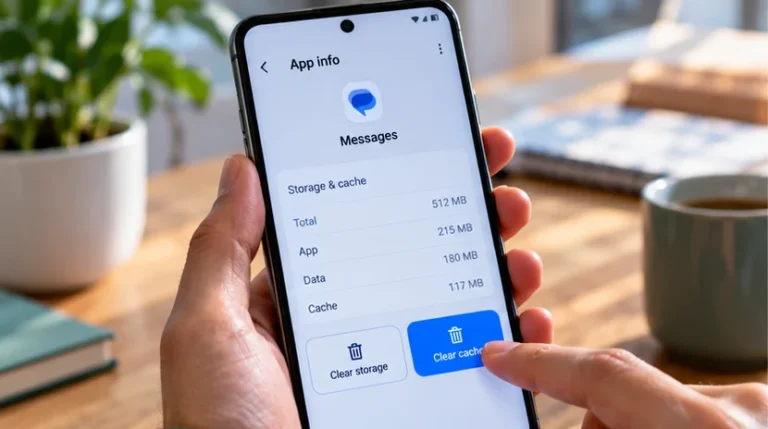
Update the suspected app and check for a supported phone update. If an app remains stuck, Force stop interrupts its current work; save anything possible first and reopen it to test. Do not force-stop unfamiliar system services.
Before uninstalling an app, confirm that local data is saved and you can sign in again. A factory reset removes device data and requires preparation; it belongs after diagnosis and manufacturer support guidance, not at the start of a battery checklist.
If short battery life persists across ordinary use, ask the manufacturer about battery health and service options. Keep your observations, software version, and usage screenshots. They are more useful than an unsupported claim that a particular update or app is definitely at fault.