—
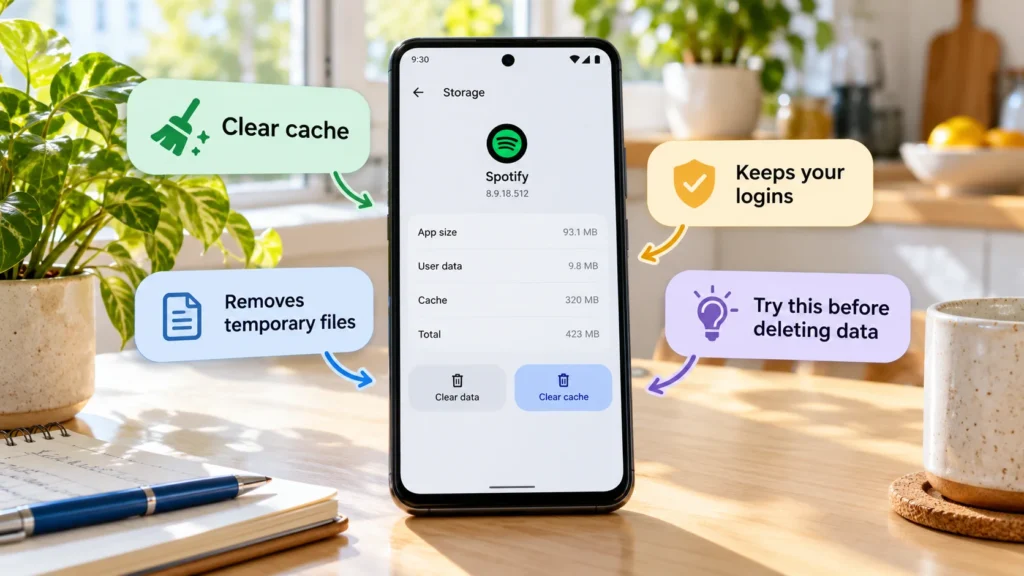
To clear app cache on Android, open the affected app's storage settings and choose Clear cache. This removes temporary files the app can recreate. It does not normally delete your account or reset the app's saved data.
Check the button carefully: Clear storage or Clear data is a different, more disruptive action. You do not need to choose it simply because it appears beside the cache control.
Quick checks first
Before clearing anything for a malfunctioning app:
-
Save your work, close the app, and reopen it.
-
Check its genuine app-store listing for an update.
-
Restart the device if the problem continues.
-
Confirm that the issue is specific to this app rather than a wider connection or service problem.
If the app is displaying old content or still behaving incorrectly, a targeted cache cleanup may be a reasonable next step. Google's Pixel app troubleshooting guidance places restart and update checks before clearing app files.
For example, a feed that refuses to refresh needs a different investigation from every online app failing on the same Wi-Fi. Clearing one app's temporary files will not repair a network outage.
What app cache actually contains
Cache is temporary material saved so an app can reuse it instead of rebuilding or fetching everything again. Depending on the app, that might include image previews or other reusable content.
Android's storage guidance distinguishes deleting temporary cache from deleting app storage. Clearing cache may recover some local space, but the amount depends on the app and what it currently holds.
Cache is useful, so a large cache is not automatically a fault. Nor does repeatedly clearing it universally speed up Android. If the app needs those files again, rebuilding them can make the next opening slower and require another download.
Use cleanup for a defined problem: stale content, suspected damaged temporary files, an app-specific issue after an update, or selective relief from storage pressure. It is not a maintenance schedule that every app needs.
Clear one app's cache using the Pixel example
Samsung, Pixel, Xiaomi, OnePlus, and other Android manufacturers may use different labels or menu locations. These steps follow Google's current Pixel instructions; use your manufacturer's guidance if your screen differs.
-
Open Settings → Apps → See all apps.
-
Select the app you intend to troubleshoot.
-
Open Storage & cache.
-
Select Clear cache.
-
Reopen the app and repeat the task that was failing.
Check the app name before tapping. If you reached the storage page for a system component instead, return to the app list and select the intended app.
If your device only offers an unfamiliar cleanup command, read its explanation rather than assuming it means cache. An in-app “free up space” tool can target downloads or other content instead of the Android cache category.
Expect temporary content to return
After cleanup, pictures or other temporary content may need to load again. Use a suitable connection if an app must download a substantial amount, especially when you have limited mobile data.
Some cache can reappear immediately as you reopen the app. That does not mean the cleanup failed. Android's developer storage documentation separates persistent app files from designated cache files; apps create temporary files as part of normal operation.
Check the original symptom rather than trying to keep the cache number at zero. If the troublesome page now updates correctly, leave the app to manage its ordinary files. If nothing improves, note the error and app version for its support team instead of clearing repeatedly.
Keep cache separate from other kinds of data
These categories can appear close together in storage discussions, but they are not interchangeable:
| Category | What to understand before cleanup |
|---|---|
| App cache | Temporary local files intended to be recreated |
| Persistent app data | Settings, local records, and other saved information |
| Offline downloads | Content deliberately kept for use without a connection |
| Browser cookies and site data | Website information, which can include sign-in state |
| Online account data | Information held by the service rather than just this installation |
Clearing a browser app's Android cache is not the same instruction as deleting cookies or website data within that browser. Our cache versus cookies guide explains that distinction.
For deliberately downloaded music, maps, videos, or documents, use the app's own download manager to review what you can remove. Do not assume everything labelled “downloaded” is disposable cache, or that every app organizes files the same way.
If storage is the real problem, inspect the breakdown
A cache cleanup may create temporary room while leaving the main storage problem untouched. Check whether installed apps, saved media, or offline files account for most of the space.
If you need room for an update, start with known unwanted files whose purpose you understand. Our phone-storage guide covers identifying the category responsible before deleting valuable content.
Do not judge success solely by a changed storage total. A small cache cannot account for a large collection of saved videos, and normal cache growth will eventually use space again.
Treat Clear storage or Clear data as a reset
Warning: Clear storage or Clear data can erase important local app information and sign you out. Depending on the app, that may include preferences, drafts, downloaded or offline content, and information stored only on the device.
Before considering that action under the app developer's guidance, confirm:
-
You know the account and can complete its sign-in and recovery checks.
-
Cloud sync or backup has actually completed for the information you need.
-
Local drafts, downloads, and offline files have been reviewed and exported where necessary.
-
The app's documentation explains which information a reset removes and how restoration works.
If any of those points is unresolved, stop at cache cleanup and ask the developer for help. Use the temporary-file control for the specific problem you identified, and preserve saved information until you have a recovery plan.