—
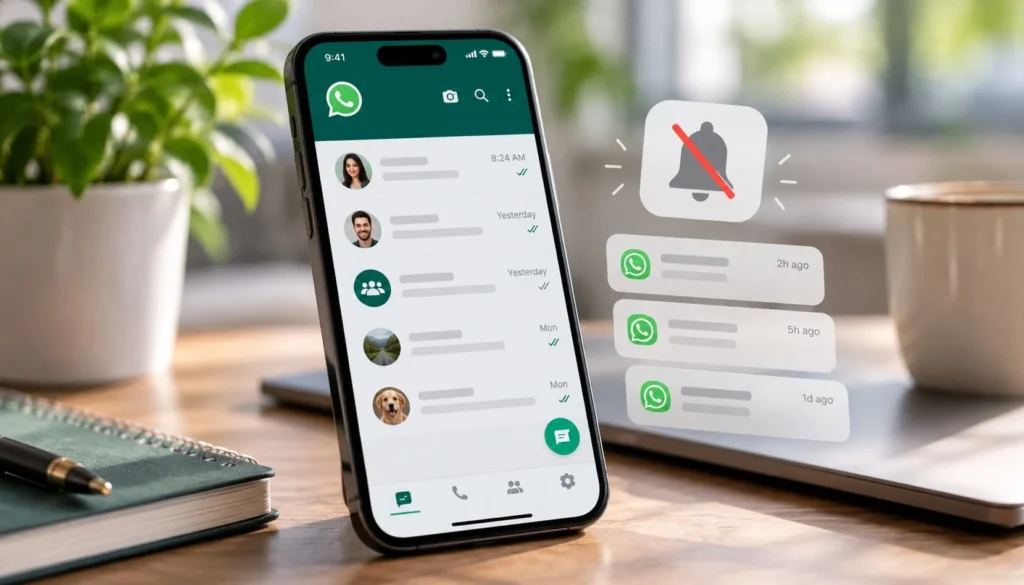
If WhatsApp notifications are not working, check whether messages arrive when you open the app. Messages that appear only after opening WhatsApp suggest a delivery or background issue. Messages already present without an alert point toward notification, sound, or chat settings.
Try these fixes in order. After each change, lock your phone and ask someone to send a test message. Menu names differ across Android manufacturers and iOS versions, so use these as checks rather than a promise that every screen has identical labels.
1. Check whether one chat or every chat is affected
Open an affected conversation and inspect its notification or mute settings. If only that conversation is silent, undo an unintended mute before changing settings for the whole phone.
Test a second conversation too. This separates a chat-specific choice from an app-wide problem. For a group you deliberately muted, restoring notifications may create more interruptions than you want; decide whether all alerts are needed.
2. Check the connection
Open another internet-dependent app or website. If it also fails, switch between Wi-Fi and mobile data where available. A Wi-Fi icon alone does not prove the network can reach the internet.
If WhatsApp works on one connection but not another, investigate that network. Avoid resetting all network settings first. You would lose saved connection settings without knowing whether the phone is the cause.
3. Allow notifications in phone settings
On Android, open WhatsApp's app information and find its notification controls. Enable notifications and inspect any message or group notification categories your phone exposes.
On iPhone, open Settings → Notifications → WhatsApp and check Allow Notifications. Choose where alerts should appear, such as the Lock Screen or banners. Apple explains these controls.
Permission to display an alert and permission to play a sound are distinct. Check both if messages appear silently.
4. Review WhatsApp's own notification settings
Inspect the app's notification settings for messages and groups. Look for a silent tone or a preference that differs from what you intended. Compare the affected chat with one that behaves normally.
WhatsApp distinguishes alerts delivered while the app is closed from its in-app indicators. Its notification guidance also distinguishes a missing alert from an alert without sound. Avoid resetting all preferences before identifying which behavior fails.
5. Check silent mode and alert volume
If a banner appears but you hear nothing, check the phone's silent setting and notification or ringer volume. Media volume is not a reliable indication of alert volume.
Disconnect headphones temporarily and test again if you are unsure where sound is going. Make one change at a time so you can identify the cause without leaving unrelated settings altered.
6. Review Do Not Disturb or Focus
Temporarily turn off an active quiet mode and send another test message. If alerts return, adjust its allowed apps or schedule.
On iPhone, Focus can allow or silence selected apps. A schedule or shared Focus setting may explain why alerts disappear at particular times. Apple documents Focus exceptions. Restore your preferred quiet mode after testing.
7. Check Android battery restrictions
If messages arrive only after opening WhatsApp, inspect its battery settings. Temporarily relax an unusually strict background restriction, then test with the screen locked.
Samsung phones may place apps in sleeping or deep sleeping lists. Remove WhatsApp from a restrictive list if timely messages are important. Samsung explains these controls. Allowing more activity can increase battery use, so change WhatsApp's setting selectively.
8. Check background mobile data restrictions
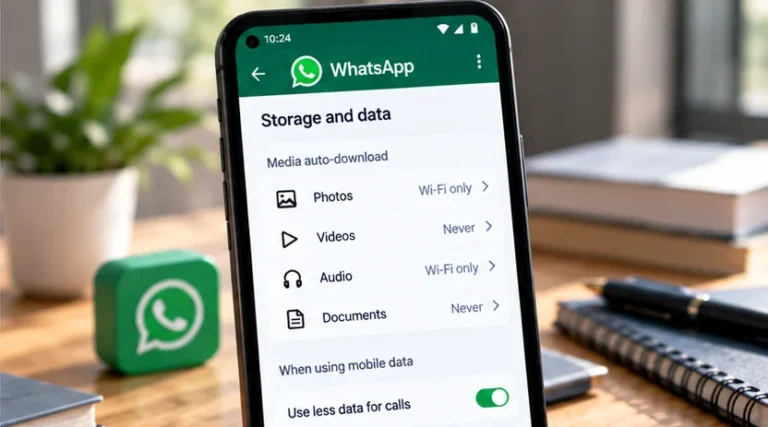
If alerts fail on mobile data but work on Wi-Fi, review Android's Data Saver and app data settings. Give WhatsApp the background access needed for your preferred behavior, then test again on mobile data.
Google explains that Data Saver limits background mobile data and supports exceptions. An exception can increase data use. Keep it selective if your plan is limited.
9. Update WhatsApp and restart the phone
Install an available WhatsApp update through your usual trusted app store, then restart. Check for a phone software update as a separate step if the issue persists.
These are reasonable checks for a temporary app or system fault; they do not establish that a particular bug caused the issue. Test again before making further changes.
10. Confirm backup options before reinstalling
Reinstalling is a last resort. Recovering chat history depends on a suitable backup and access to the account and any backup credentials. Before uninstalling, review current WhatsApp backup guidance, confirm the backup completed, and make sure you can verify your phone number.
If that is uncertain, stop and use WhatsApp support instead. Do not clear Android app storage as a shortcut: it differs from clearing temporary cache and can remove local app data. Record whether alerts fail on Wi-Fi, mobile data, or both so support has a useful starting point.