—
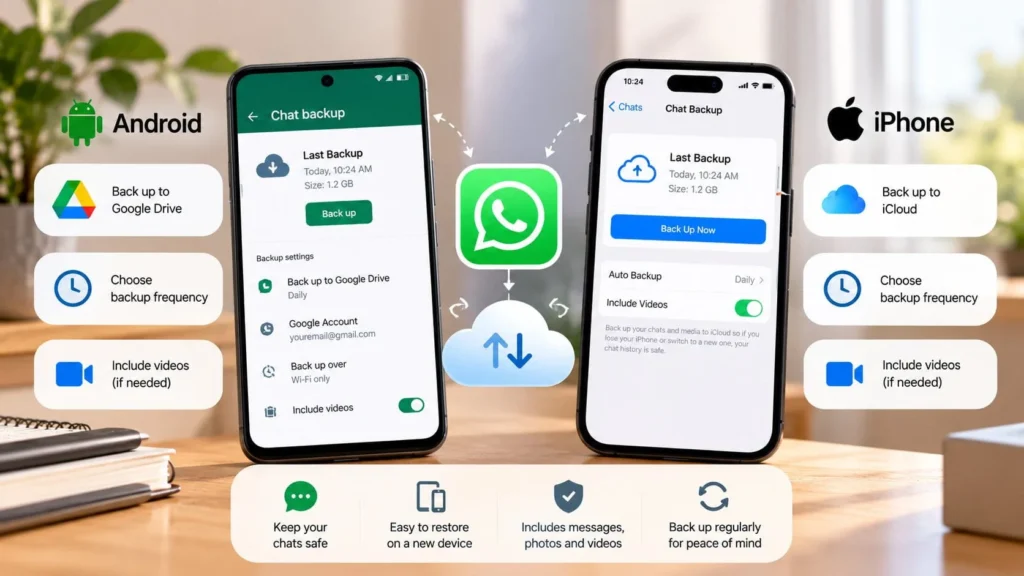
To back up WhatsApp chats, open the app's Chat backup screen and create a backup using the cloud account appropriate to your phone. Android uses a Google Account backup workflow; iPhone uses an iCloud workflow. Check that the backup completed before uninstalling WhatsApp, erasing the phone, or starting a move to another device.
The important details are which account holds the backup, how recent it is, whether the media you need is included, and how you will unlock it later. Turning on a schedule is useful, but it is not proof that the latest backup succeeded.
Prepare the phone and recovery access
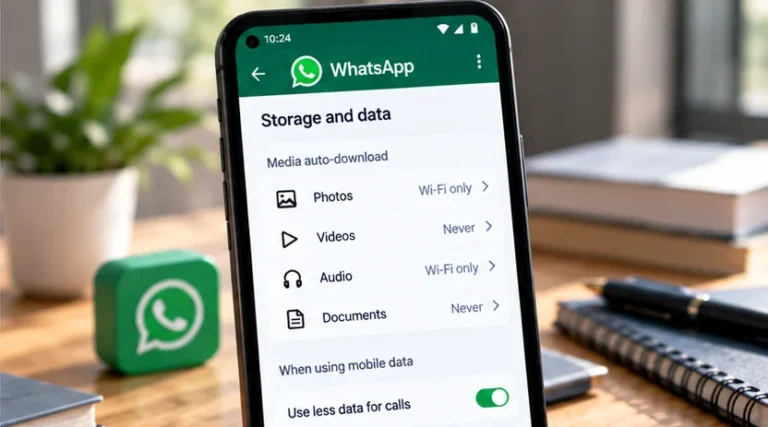
Use a stable connection and enough charge to finish the job. Make sure both the phone and cloud account have space available. If WhatsApp holds much of the phone's data, review its storage use before deciding what to retain. WhatsApp's Android backup guide lists a Google Account, Google Play services, storage, and connectivity among the requirements.
Confirm you can sign into the cloud account and verify the phone number associated with WhatsApp. If you use two-factor authentication on that cloud account, keep its recovery method accessible outside the phone you might lose.
Samsung, Pixel, Xiaomi, OnePlus, and other Android manufacturers can use different labels or locations for account and permission settings. The in-app WhatsApp steps below are separate from those device settings; do not guess a manufacturer-specific path if a prerequisite needs attention.
Back up on Android
-
Open WhatsApp's menu and choose Settings.
-
Open Chats → Chat backup.
-
Confirm the Google Account selected for the backup.
-
Review the media and connection choices shown on that screen.
-
Choose Back up and let the operation finish.
The official Android guide also describes recurring backups. Choose a schedule that fits how much recent chat history you could afford to lose. If videos matter to you, inspect their inclusion setting rather than assuming every large item is included.
Google says Android WhatsApp backups count toward Google account storage. Its storage guidance explains backup accounting. A full cloud account is a different problem from a nearly full phone, and either deserves attention before you rely on the backup.
Back up on iPhone
Open WhatsApp's settings, then Chats → Chat Backup. Review the backup information and use the manual backup control shown there. After completion, set the recurring backup choice you want and review whether videos are included.
Check that the intended Apple Account is signed into iCloud and that iCloud Drive access for WhatsApp is enabled. Enough device and iCloud space is necessary; do not assume the backup will fit merely because the app itself is small.
WhatsApp's iPhone backup troubleshooting guidance explains the account, storage, and iCloud requirements. Use the current Apple and WhatsApp instructions if the iPhone's iCloud controls have different labels.
Choose backup encryption with recovery in mind
WhatsApp offers an end-to-end encrypted backup option in the Chat backup settings. The setup may offer a passkey, password, or encryption key depending on the available options. Meta describes passkey-enabled backup encryption.
Before enabling it, understand how you would regain access on a replacement device. Store any password or key securely and preserve access to the credential provider if you choose a passkey. Do not leave the only recovery information in the chat history that it protects.
Chat encryption and backup encryption are separate settings to understand. Review the backup choice explicitly instead of assuming ordinary encrypted messaging establishes how every copy is protected.
Confirm completion before relying on the backup
Return to Chat backup and inspect the latest successful backup information. Compare it with the time you started the operation. An old completion time means the newest attempt should not yet be treated as your recovery copy.
If the backup fails, note the exact error. Check connection, storage, account access, and supported app updates before disruptive account changes. Avoid switching networks repeatedly during a transfer.
Do not uninstall WhatsApp to “test” a backup while important current messages exist only on the phone. A displayed completion record is a useful check, but a full restoration test is a separate, consequential operation.
Know what recovery can and cannot give you
A backup can only restore information it contains. Messages received after the last successful backup may be missing, and excluded videos will not become included simply because you restore later. WhatsApp's iPhone restoration guide describes those limits.
Recovery also depends on the appropriate phone number, cloud account, and encryption access. If you change your number or move between Android and iPhone, follow WhatsApp's specific migration guidance. Do not treat a Google Account backup as an iCloud backup or assume cross-platform restoration uses the same process.
Leave deletion and reinstalling until the recovery plan is clear
Deleting a cloud backup removes a recovery option. Uninstalling or clearing app storage can remove local data that has not been backed up. Those are poor first responses to a failed backup.
If a routine backup still fails after safe checks, use the current platform-specific support guidance and preserve the phone's existing chats. Before any reset, move, or reinstall, confirm the most recent successful backup and the access needed to use it. Keep the old device intact until the move succeeds.