—
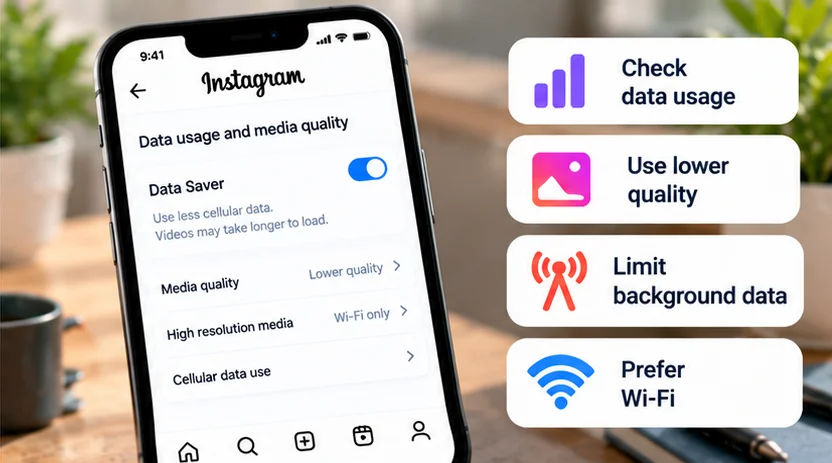
To reduce Instagram's mobile-data use, first check its usage in your phone's settings. Then enable Instagram's available data-saving control, use Wi-Fi for video-heavy sessions, and consider system restrictions if you need a firmer limit. The best choice depends on whether the data is being used while you browse or while the app is in the background.
Data-saving settings can mean slower loading or lower-quality media. That can be an acceptable tradeoff on a limited plan; it is not necessarily a playback fault.
Measure Instagram's usage before changing it
Look at the phone's mobile-data counter for Instagram and compare it with the total for the same period. A large lifetime or cumulative figure does not establish what happened this billing month. Check the selected SIM too if you use more than one line.
On Pixel, Google's documented route is Settings → Network & internet → SIMs → App data usage. Select the relevant period and inspect Instagram. Samsung, Pixel, Xiaomi, OnePlus, and other Android manufacturers may use different labels or menu locations; use your manufacturer's guidance when the screen differs.
On iPhone, open Settings → Cellular or Mobile Data and find Instagram in the app list. Inspect the current-period statistics and when they were last reset. Record an initial reading and date before resetting counters if you need to keep the earlier comparison.
Google's mobile-data guide and Apple's cellular-data guide explain these counters. Carrier measurements can differ, so use your carrier's records for plan usage and billing decisions.
Turn on Instagram's own data-saving control
Meta currently documents different labels for the two phone platforms:
| Platform | Documented route from your profile |
|---|---|
| Android | Menu → Data usage and media quality → Data Saver |
| iPhone | Menu → Media quality → Use less cellular data |
Turn the relevant control on. Meta's Android instructions and iPhone instructions say Instagram normally preloads videos so they can start faster. The control lets you avoid that preloading over cellular connections; videos may take longer to load. Meta says this setting does not change Wi-Fi behavior.
The Android guide also documents High Resolution Media after enabling Data Saver. Where offered, choose WiFi Only to reserve higher-resolution viewing for Wi-Fi, or Never for the more restrictive quality choice. Do not assume this Android option also appears on iPhone.
App menus can vary by release or account. If the documented control is absent, check your installed version and the matching Help Center page. Avoid unrelated privacy or account changes merely to reproduce a screenshot from another version.
Match the control to the kind of data use
Choose a measure that addresses the activity you actually see:
| Pattern | First adjustment to try |
|---|---|
| Usage rises during Reels or video browsing | Use Instagram's saver and move longer sessions to Wi-Fi |
| Usage rises when you are not deliberately browsing | Review background mobile-data controls |
| You need Instagram available but can accept delayed media | Keep cellular access, with conservative data settings |
| You need to avoid Instagram using cellular data | Use an available app-level cellular restriction |
| Total usage is high but Instagram's share is small | Inspect the other apps and system services |
For example, restricting background data will not solve a habit of watching videos throughout a commute. Conversely, shorter browsing sessions may not address a background setting that you specifically wanted to restrict.
Treat quality settings as one part of the decision. A lower-resolution option is not a promise that every photo, video, upload, message, or background request uses a particular amount of data.
Use Android Data Saver deliberately
Android's system Data Saver is separate from Instagram's own saver. Google's Pixel guidance says most apps and services then receive background data through Wi-Fi, while currently active apps can still use mobile data.
On Pixel, the documented control is Settings → Network & internet → Data Saver. Review Unrestricted data as well: an exception allows an app to continue background mobile-data use. An exception for Instagram can therefore work against the restriction you intended.
If your phone exposes an Instagram-specific background-data control, use the official instructions for that model. Turning off background access is not the same as blocking all cellular access while the app is open.
Background limits can interrupt expected updates or communication behavior. After changing one, check an ordinary message or other feature you rely on. If the issue is missing alerts rather than data consumption, our Instagram notifications guide addresses that separate problem.
Do not disable background access for every app at once. Keep necessary communication and other essential services in mind when choosing system-wide restrictions.
Choose between Low Data Mode and Wi-Fi-only access on iPhone
Low Data Mode applies more broadly than Instagram. Apple explains that it restricts background network use, turns off Background App Refresh, and can reduce streaming quality or pause automatic downloads and backups. Different apps respond differently.
For cellular service, start in Settings → Cellular → Cellular Data Options. A 5G plan can place Low Data Mode under Data Mode; Dual SIM and carrier arrangements can change the sequence. Follow the option for the line supplying your data.
For a firmer app-specific choice, turn Instagram's cellular access off in the Cellular/Mobile Data app list. Apple says an app with cellular data disabled uses Wi-Fi for data. Expect Instagram's online functions to be unavailable away from Wi-Fi, rather than treating this as a gentle quality adjustment.
Use Low Data Mode when you want broader conservation while keeping mobile access. Use the app's cellular switch when Wi-Fi-only Instagram fits your routine better.
Change the sessions that consume the data
Save extended Reels browsing, live video, and large media uploads for a trusted Wi-Fi connection where practical. A hotspot supplied by another phone still consumes that phone's mobile plan; a Wi-Fi icon does not make the connection free or unlimited.
Keep an eye on connection changes during a long session. On iPhone, Apple's cellular guide also describes an assist feature that can use cellular data when Wi-Fi is weak. Review the current behavior on your device rather than assuming that joining Wi-Fi always prevents mobile usage.
Storage cleanup is a different task. Deleting downloaded material does not undo cellular data already used. If capacity is also a problem, use our phone-storage guide to inspect it separately; do not repeatedly clear Instagram's local data as a data-saving routine.
Compare the result over a useful period
Note which setting you changed, the date, and the next counter reading. Compare broadly similar days of use: a day of messaging and a day of long video sessions are different workloads.
Keep the least restrictive combination that meets your needs. If browsing remains the main source, shorten or move those sessions. If you need a firm cellular boundary, use a supported system control rather than relying on an unspecified percentage saving from an in-app switch.