—
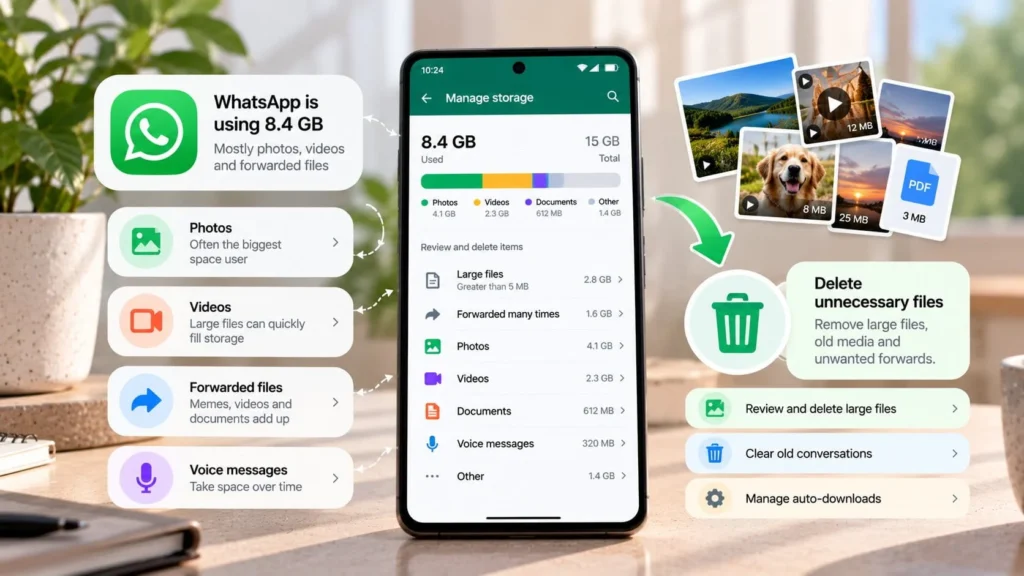
WhatsApp can use substantial phone storage because it holds more than the app itself: photos, videos, voice messages, documents, and chat data accumulate as you use it. The quickest useful diagnosis is to compare the phone's app-storage view with WhatsApp's own media review.
Avoid deleting whole conversations immediately. A few large unwanted videos may explain more of the problem than years of text messages, while an important document may be worth saving outside the app.
Quick checks first
-
Inspect WhatsApp's storage view to identify the biggest chats or media items.
-
Check whether automatic downloads are bringing in media you rarely open.
-
Note whether the warning concerns phone storage or your cloud backup allowance.
These checks do not require deleting anything. They tell you where a selective cleanup can help and whether you are looking at the correct storage problem.
Understand the two storage measurements
Your phone's app information describes storage used by the app and its associated data. WhatsApp's internal storage review focuses on the material it can show and manage. The figures need not match exactly; WhatsApp notes differences in how storage is calculated in its storage help.
On Android, Samsung, Pixel, Xiaomi, OnePlus, and other manufacturers may use different labels or menu locations for app-storage details. Search Settings for the app or storage rather than assuming one exact path fits every phone.
A full Google or iCloud backup allowance is separate from a full phone. Google documents that Android WhatsApp backups count toward its account quota. Its storage guide explains this. Clearing the wrong location may leave the original warning unchanged.
Identify the media worth reviewing
Open WhatsApp's settings or profile controls and look for Storage and data, then Manage storage. Review the largest chats and files, opening uncertain items before deciding what to remove. WhatsApp's storage guide describes this review.
Look for repeated event videos, old forwarded clips, and files that are no longer useful. Keep context in mind: a receipt or work document can be small but important, and a large family video can be irreplaceable.
Do not select an entire chat because its total is high. Separate media you want to keep from material you are comfortable discarding.
Reduce unwanted downloads before cleaning up
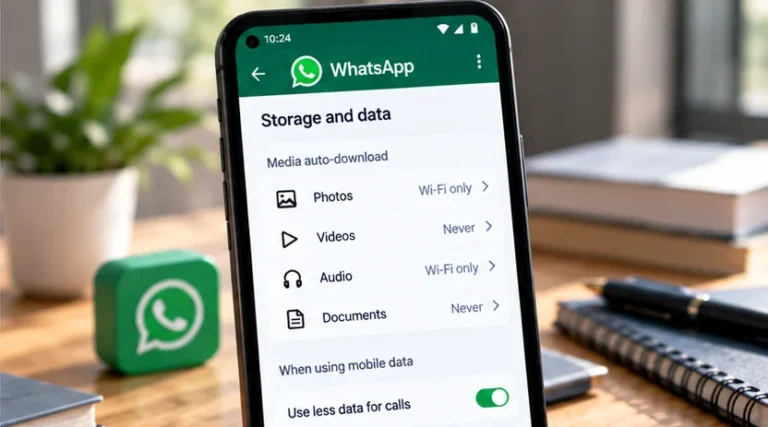
Review the Media auto-download choices in WhatsApp's Storage and data controls. Android and iPhone expose different choices for connections and media types, so read the options shown on your device. WhatsApp explains automatic download configuration.
If a group sends videos you rarely watch, requiring manual downloads may suit you better than downloading them all automatically. Wi-Fi-only downloading can reduce mobile data use, but downloaded content still occupies phone storage.
Changing this preference addresses future growth. It is not a substitute for inspecting media already stored. Likewise, hiding media from a gallery should not be treated as proof that its bytes have been removed from the phone.
Preserve important files and recovery options
Before deleting media, save anything valuable to an independent destination and open the saved copy. For a document, confirm all pages are present. For a video, check playback. Keep important conversation context too if the file alone does not explain it.
If chat history matters, complete and verify a suitable backup before disruptive cleanup. A backup and an independent copy serve different purposes: one helps recover the app, while the other keeps a chosen file accessible outside it.
Do not assume every later backup preserves deleted items forever. Make your intended archive explicit rather than relying on an unknown backup history.
Delete a small, reviewed selection
Deletion removes the selected media from your WhatsApp collection. Copies may remain elsewhere on the device, and multiple copies can need separate review. Read the confirmation carefully, particularly if it offers choices about duplicates or starred items. WhatsApp explains deletion effects.
Start with a few known unwanted items in the storage manager. Confirm their identity, delete that selection, then inspect the result. This is easier to control than selecting every file in a large chat.
You can also review a conversation's Media, Links, and Docs area and remove selected items. WhatsApp's media-deletion guide describes that route. Avoid treating a local cleanup as an action that necessarily removes other people's copies.
Leave chat clearing and app resets until last
Clearing a chat can remove useful message context as well as media. Clearing Android app storage or reinstalling can remove local app data and require account verification and a usable backup. Understand those consequences before touching the controls.
If the app behaves normally, resetting it is a poor way to manage a growing media collection. Use selective media cleanup and download preferences first. If phone space remains critically low, examine large items outside WhatsApp too.
After cleanup, compare the phone's free storage and WhatsApp's media view again. Stop when you have addressed the actual problem. A manageable collection of useful files is a better goal than deleting everything the app has ever received.