—
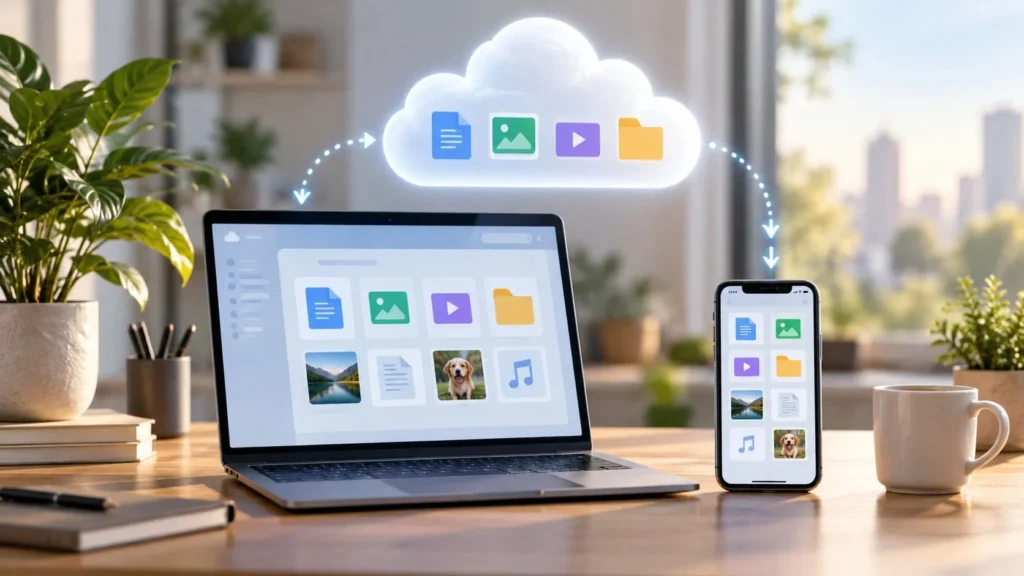
Cloud storage means keeping files on a provider's remote computers and accessing them through an internet connection. Your photos, documents, and videos still live on physical storage hardware. “The cloud” describes how you reach that hardware.
It is useful when you want the same files on several devices or need to share them without sending separate copies. The main thing to understand is whether a file is stored online, downloaded to your device, or kept in both places.
Where your files actually live
A cloud provider operates servers in data centers. When you upload a file, the service stores its data and information needed to find it again, such as its name and ownership. Providers may maintain redundant copies to reduce the impact of hardware failures, though the design depends on the service. AWS explains the underlying storage model.
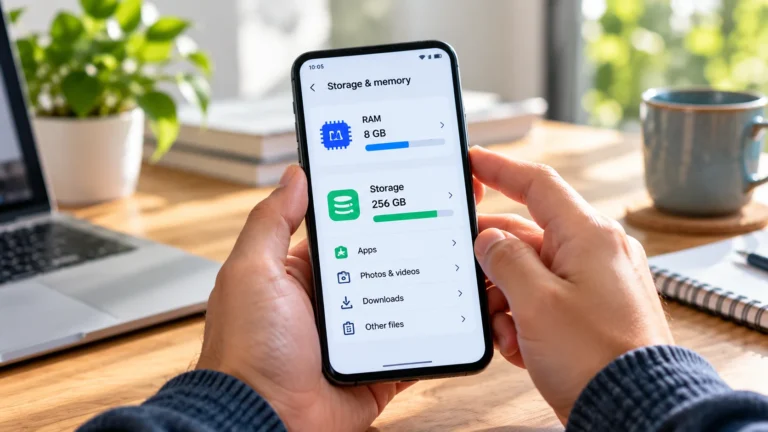
The interface can resemble a familiar folder system even when the underlying storage works differently. You do not need to manage the servers yourself. You do need to manage your account, access permissions, and storage allowance. If that allowance is full, review how to free up Google Drive storage.
For example, a folder called “House documents” might contain scanned receipts and a spreadsheet. Its name helps you organize those items. It does not tell you whether they are also saved on your laptop.
What happens when you upload and open a file
An upload transfers data from your device to the service. Wait for it to finish before assuming the online copy is complete. A file selected for upload is not necessarily a file safely stored online yet.
When you open it later, the service either displays it in a browser or transfers data back to your device. A browser preview is convenient for checking a document, but it is different from saving a complete local copy you can open without internet access.
Imagine uploading a travel itinerary at home, then opening it on your phone at the airport. That works well with a connection. If you need it during a flight, deliberately save an offline copy first and check that it opens with your connection turned off.
Online files, local files, and synced files
An online-only file helps conserve device space because its full contents are not permanently downloaded. A local file occupies storage on the device. A synced file connects copies or changes between your device and the online service.
Google Drive for desktop offers streaming and mirroring approaches. Streaming generally retrieves files when needed, while mirroring keeps files in both the cloud and on the computer; offline options and exceptions depend on the setup. Google's desktop guide describes the distinction.
Before moving a large collection into a sync folder, check what that folder does. Uploading an archive and keeping a working folder synchronized are different intentions. The first is about storing a copy. The second is about keeping changes aligned.
Why syncing needs a separate backup plan
Sync is useful for continuing work across devices. It can also carry an unwanted change to those devices. In Google Drive, deleting a synced file can move it to Trash across the connected locations. Google documents that deletion behavior.
Suppose you accidentally replace a finished report with an empty document. Several synchronized devices do not necessarily give you several independent historical copies. Check your service's recovery and version options, but do not treat them as an unlimited guarantee.
For irreplaceable work, keep an additional backup outside the everyday sync workflow. A periodically updated external drive can serve this purpose if you verify its contents and store it appropriately. Choose a backup schedule based on how much recent work you could afford to lose. Chat history has its own workflow, so check how to back up your WhatsApp chats separately.
Sharing changes who can reach a file
Review the audience and permissions before sending a sharing link. For a family photograph, broader access may be acceptable. For identification documents or financial records, use a narrower audience and the least access the recipient needs.
Do not assume a link is private just because it is long. Read the sharing dialog, check whether access is restricted to named people, and consider whether someone needs editing permission or only viewing permission.
When a collaboration finishes, review access again. A file can remain useful to you long after another person's reason for accessing it has ended.
The practical limits of cloud storage
Cloud storage relies on account access and connectivity. A forgotten password, an unavailable service, or a weak connection can interrupt your work. Keep essential documents available offline where practical, and protect the account with a strong password and an additional sign-in factor.
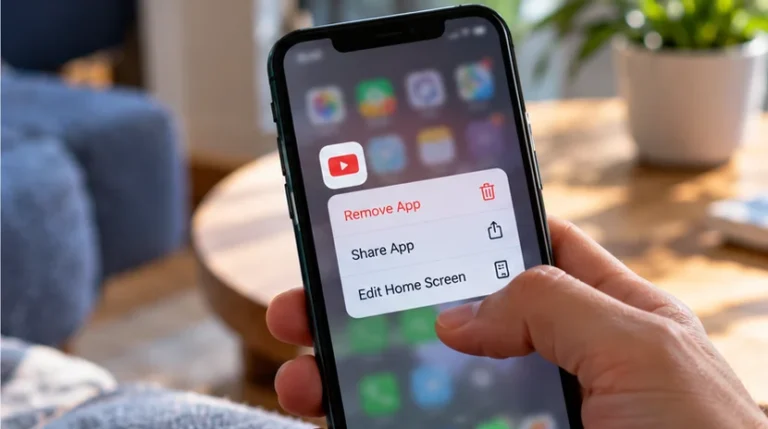
Online storage and device storage are separate resources. Removing a downloaded copy may free phone space without reducing the amount stored online. Deleting an online original can affect access from other devices. Read the wording of the action before confirming it.
Start with a small, nonessential folder. Upload it, open it from another device, check an offline copy, and inspect the sharing controls. Once you understand where each copy lives, choose which files belong in your everyday cloud folder and which deserve a separate backup.