—
To free up Google Drive storage without paying, identify what is using your account's space, remove files you no longer need, and permanently delete only the discarded items you have reviewed. Start with the largest unnecessary items rather than hundreds of small documents.
Check the account before deleting anything. A work account, a personal account, and an account belonging to someone else can look similar in the same browser. The wrong cleanup can remove useful files while leaving your storage problem untouched.
Check which service is using the space
Open your Google storage overview while signed into the affected account. Google account storage is shared among services including Drive, Gmail, and Photos; Android WhatsApp backups can count too. Google explains the shared allowance.
If Photos dominates the breakdown, deleting a few Drive documents will do little. If Gmail is the largest contributor, review large email attachments. Use the breakdown to choose one area to work on first.
Account storage is different from your computer's free disk space. A nearly full laptop needs a local cleanup; a full Google account needs an account cleanup. Do not delete online originals just because your computer needs more room.
Review the largest files in Drive
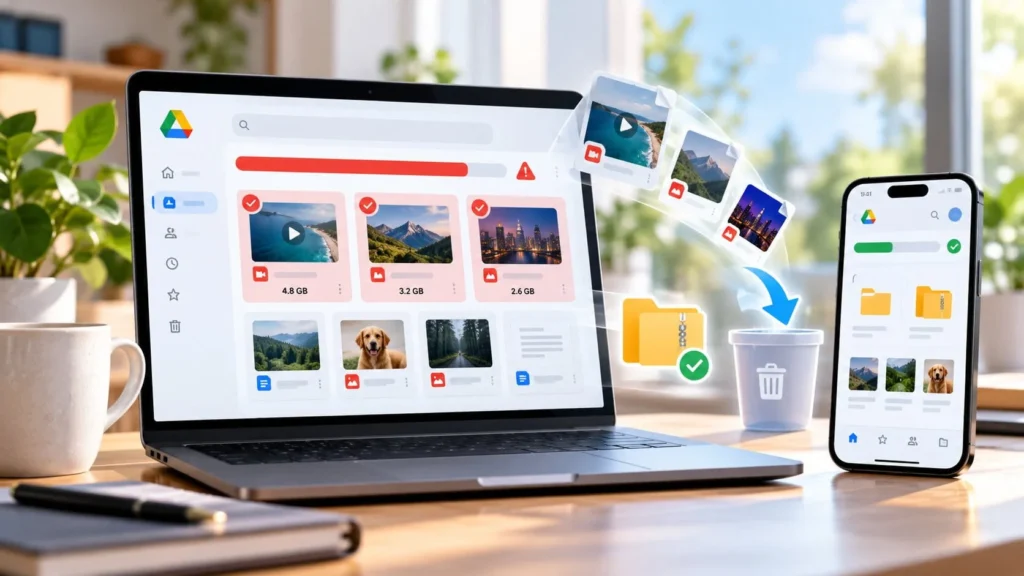
In Drive on a computer, open Storage to see files ordered by storage use. Review large videos, old exports, installation files, and archives before small everyday documents. These are candidates for inspection, not automatic deletion.
For each large item, ask whether it is still needed, whether anyone else relies on it, and whether it has a verified copy elsewhere. A file with “old” in its name can still be the only complete version of a project.
Open likely duplicates rather than trusting filenames. Two files called “Budget” might represent different years. A copy with a newer date might be incomplete. Keep the version you actually need, and leave uncertain files for a second pass.
For a shared project, confirm ownership and access before removing anything. A personal cleanup should not silently break someone else's working link.
Save important archives outside the sync workflow
If you need a large file but rarely use it, consider an offline archive on a computer or external drive. Before deleting the cloud copy, download it to a location outside a folder that synchronizes with Drive.
Open the downloaded file and check that it is complete. For an archive, inspect the contents; for a video, check playback beyond the opening seconds. Keep a second independent copy when losing the archive would be costly.
Moving a synced file around is not a reliable substitute for creating an independent archive. Make your copy locations explicit before proceeding. If you are not sure which folders synchronize, resolve that first.
Remove reviewed files, then inspect Trash
Moving files to Drive's Trash does not immediately reclaim their storage. Permanent deletion does, and it removes your ordinary ability to restore those items. Synced deletion can also affect the connected computer. Google's deletion guide explains these consequences.
Start with a small batch. Move only confirmed unwanted files to Trash, inspect that batch, and permanently delete those specific items when you are certain. Avoid emptying the entire Trash if it contains older files you have not reviewed.
Record what you archived and where. A short note beside your archive is enough; you should not have to remember months later whether the cloud copy was deleted or merely moved.
Review large Gmail attachments
In Gmail, search has:attachment larger:10M to find large attachment-bearing messages. Adjust the threshold if you need a narrower or broader review. Google documents these search operators.
Download important attachments before deleting their emails, and preserve the message itself if its conversation or context matters. A saved PDF may not capture the approval or explanation in the email around it.
Review Gmail Trash and Spam separately before permanently clearing anything. The goal is to remove unwanted material, not trade a storage warning for a missing receipt or contract. Searching gives you a review list; it does not decide what is safe to discard.
Handle Photos and backups cautiously
If Photos uses most of the allowance, review unwanted videos and images there. Deleting through Google Photos can also remove copies from connected devices with backup enabled. Make an independent copy before removing anything important, and read Google's Photos deletion guidance for your setup.
Treat chat and device backups as recovery tools. Do not delete your only usable backup simply because it is large. Decide what it protects and whether you have a replacement before making changes.
Recheck storage and prevent the same buildup
Refresh the storage overview after cleanup and allow time for the figures to update. Do not keep deleting important files simply because the counter has not changed immediately. If you were also troubleshooting Gmail not receiving emails, send a fresh test after freeing space.
Keep large temporary exports out of your permanent cloud folders, and review archives when a project ends. If nearly everything remaining is necessary, stop. Staying within an allowance may require moving selected archives elsewhere, rather than deleting active work to avoid a subscription.