—
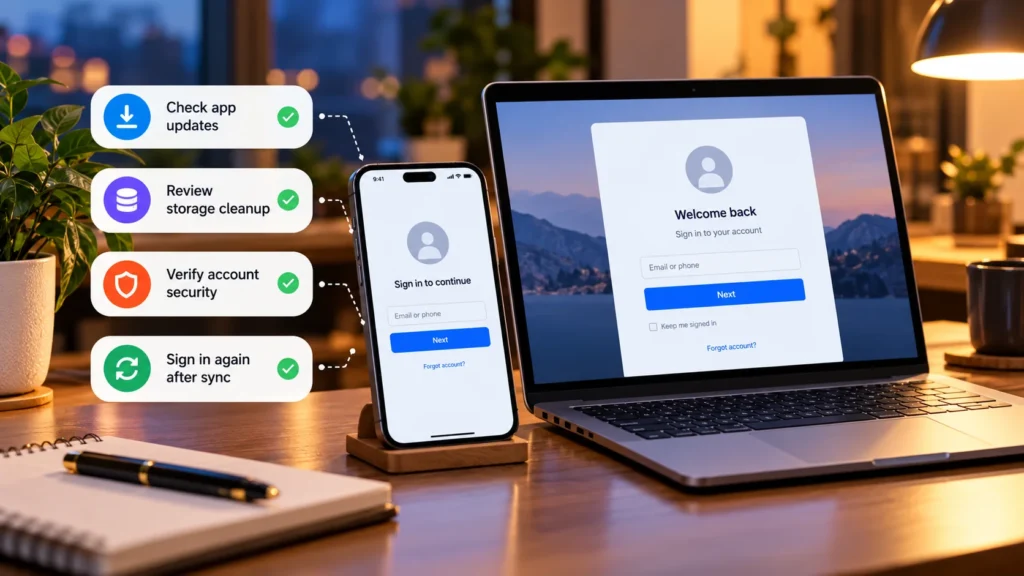
Apps often keep you signed in using a stored token rather than asking for your password every time. If that token expires, disappears, or is rejected by the service, the app may ask you to authenticate again.
Repeated logouts can come from ordinary security rules, cleared data, an app problem, or account changes. They do not automatically mean someone hacked the account. The pattern and any accompanying security alerts help you choose what to investigate.
Quick checks first
-
Check the service's official status or support channel for an incident affecting sign-in.
-
Confirm the device's automatic date, time, and time-zone settings are correct.
-
Update the affected app through its genuine store; update the browser if the problem is on a website.
-
Save work and restart the device, then try the same task again.
Google's Android app troubleshooting guidance includes updates, restart, and date/time checks. These steps address basic device problems without immediately erasing sign-in information.
If you already see an unknown password change or recovery alert, go directly to the account-security review below. Do not delay that response while experimenting with app settings.
Understand what the sign-in request means
A session is the service's way of recognizing an authenticated user. A browser commonly uses cookies for this; a native app can store authentication tokens through its own sign-in system. Some systems refresh tokens in the background so you do not see each renewal.
Microsoft's token documentation explains that refresh tokens can expire or be revoked, after which interactive sign-in may be required. It also shows that the effect of a password or administrator action depends on the token and sign-in method. There is no universal logout timer for all apps.
A request to verify your identity again can therefore be deliberate. But being asked every time you reopen one app, particularly after a recent change, gives you a more specific problem to investigate.
Record when it happens: after closing the browser, after cleaning storage, after using another device, or across every device at once. That observation helps separate local state from service-wide account behavior.
Review password changes and security sign-outs
Think back to password resets, account recovery, or a sign-out you initiated from the account dashboard. Services may invalidate sessions after those actions, suspicious activity, policy changes, or administrator intervention.
Google provides a concrete example: its unfamiliar-activity guidance says reporting a sign-in as not yours signs the account out on other devices. A protective action on one phone can therefore explain a new login request elsewhere.
If you did not initiate the change, open the real service independently and review security activity. Unknown devices, altered recovery details, or an unexpected password reset deserve an account-security response, not repeated reinstalls.
Follow the provider's recovery instructions, change a compromised password, and review two-factor authentication where available. For work or school accounts, ask the administrator whether a session policy or recovery action explains the timing.
Separate browser cookies from native app data
If a website logs out when the browser closes, review cookie and site-data settings, including automatic cleanup. Google's stay-signed-in guidance notes that cookies matter and that related software may remove them.
Check storage-cleaner and privacy tools for rules that run on exit or on a schedule. Change a relevant rule selectively; do not turn off security software broadly just to preserve a session.
Cache and cookies are different. Cache stores reusable content; cookies can hold session information. Our cache versus cookies guide explains why clearing one category is not the same action as clearing the other.
For a native app, investigate whether its storage was cleared or the app was removed and reinstalled. Do not assume a browser-cookie setting governs that app's saved login. Device-level sign-in, such as the account used for the app store, is another layer and may remain active while a particular app is signed out.
Check account, device, and app changes
On a new phone or after switching profiles, confirm you are choosing the intended account and sign-in method. A login created through an identity provider may need that same route rather than a separate password.
Some services also impose device or concurrent-sign-in limits. Microsoft documents automatic sign-out of an older device when its applicable Microsoft 365 sign-in limit is exceeded. That is a service-specific example, not a rule for every app or subscription.
If the issue began after an update, read the developer's release notes or support notice. An update may coincide with a sign-in-flow change or app bug; timing alone does not establish the cause. Google notes that newer app versions can use more secure sign-in technology.
Consider network changes without blaming every VPN
A service may challenge access after an unfamiliar device or location appears. Google's suspicious-sign-in documentation gives those as examples of signals it checks.
A VPN changes the network address a service may see, which can make a network change relevant to a particular sign-in system. It does not mean VPN use always logs you out. Look for a consistent pattern and consult the service or VPN provider rather than repeatedly switching locations or disabling protection indefinitely.
Similarly, a missed notification or delayed refresh does not by itself prove the app lost its session. Do not relax battery or background restrictions across every app as a general logout fix. Investigate those controls only when the affected service's guidance makes them relevant.
Leave clearing storage and reinstalling until later
If one app still fails while the same account works elsewhere, local app state may be damaged. Contact its developer or follow its documented recovery steps before erasing data.
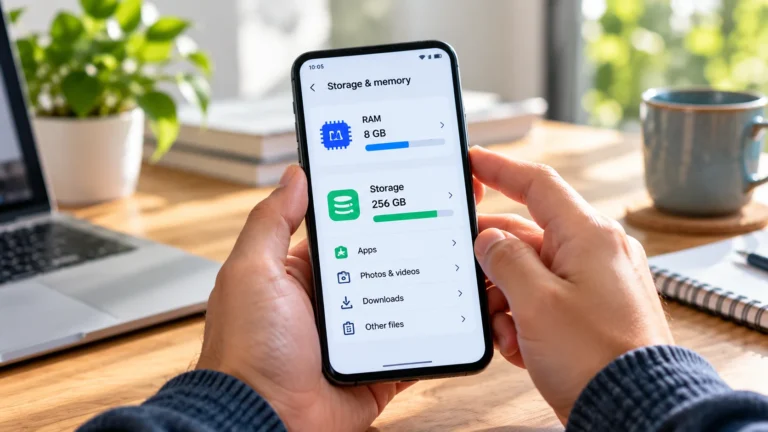
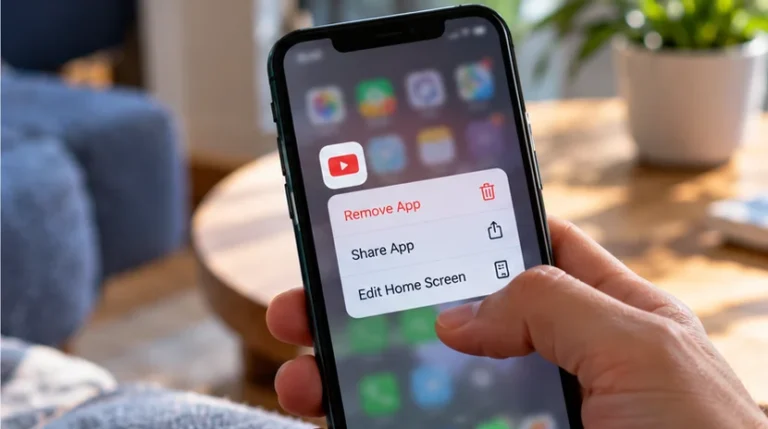
Clearing app storage or deleting and reinstalling can remove local drafts, downloads, offline content, and settings. Confirm the real login works, recovery methods are accessible, and necessary data is synced or backed up first. Apple warns that deleting an app can lose stored data; Android's guidance also warns about app data loss.
On Android, Samsung, Pixel, Xiaomi, OnePlus, and other manufacturers may use different labels and menu locations. Follow the manufacturer's instructions for the exact action; do not mistake a storage reset for clearing temporary cache.
If the problem persists, send official support the app version, device, timing, error text, and whether the account works elsewhere. Keep passwords and verification codes out of that report. This gives support evidence to distinguish a local fault from intentional session policy or an account issue.