—
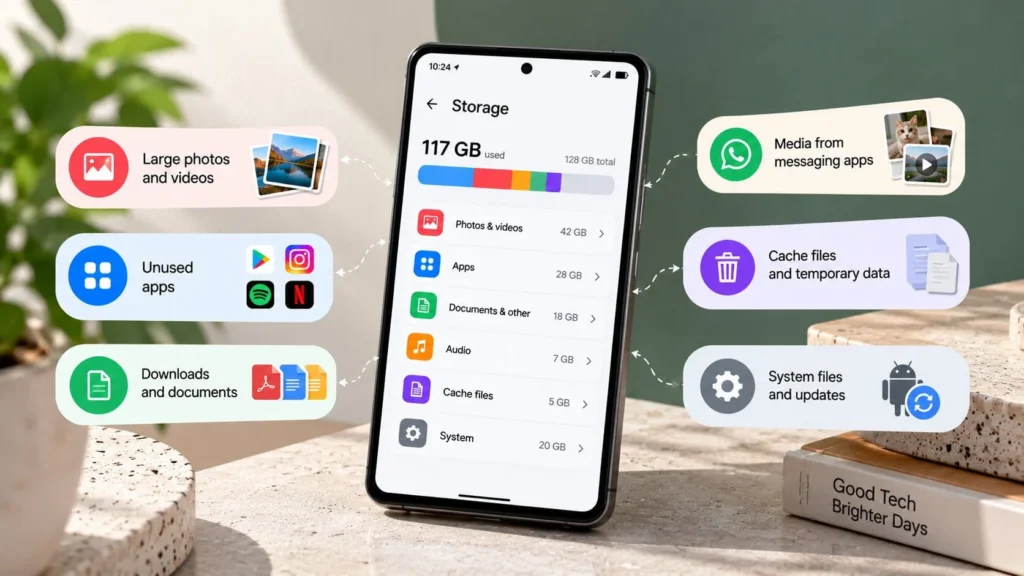
If your phone storage is full, inspect its storage breakdown before deleting anything. Large apps, downloaded media, message attachments, and photos often deserve a closer look, but the largest category is not automatically the safest one to remove.
Phone storage is separate from cloud storage and from working memory, or RAM. Paying for more cloud space does not automatically make room on the device. The immediate task is to identify which local files and app data you can safely remove or archive.
Quick checks first
-
Look at the phone's storage breakdown and identify the largest category.
-
Review Downloads for a known unwanted installer, export, or duplicate file.
-
Check whether a streaming app has offline episodes or music you no longer need.
Avoid deleting a whole folder or clearing an app's storage just because its size looks surprising. First establish what it contains and whether another usable copy exists.
Find the category that explains the warning
On Android, open Settings and look for Storage. Google describes a category-based view in its Android storage guide. Samsung, Pixel, Xiaomi, OnePlus, and other manufacturers may use different labels or menu locations; use Settings search or their official guidance when needed.
Check whether the number describes apps, images, videos, documents, or system-related storage. Open the relevant category or app list to narrow the search. Do not assume “Other” means junk; it can include useful data that is not categorized clearly.
If you are using an iPhone, Apple's documented view is Settings → General → iPhone Storage. It provides app usage and storage recommendations. Apple explains how to interpret it. Treat recommendations as options to review rather than instructions to accept blindly.
Separate the app from the data it holds
An app's total footprint may include the app itself, local content, and temporary files. A small messaging app can hold a large collection of videos. A streaming app can contain hours of offline downloads.
Open the app and look for its own download or storage manager. Remove specific unwanted content there when possible. This keeps the cleanup connected to items you recognize and avoids deleting unrelated settings.
For example, removing a finished podcast download is a more targeted action than clearing the podcast app's entire storage. Check what the app says about offline availability before confirming.
Review Downloads and offline media
Sort or inspect local files by size where your file manager supports it. Look at videos, archives, repeated exports, and old installation files. Filenames are clues, not proof that two items are interchangeable.
Open an uncertain file before removing it. A duplicate-looking document may be a revised version, while an old export may be the only complete record of a project.
Review streaming downloads from inside the streaming app. Removing offline content can mean you need a connection to watch or listen later, which matters if you travel or have limited mobile data.
Verify photo copies before removing local originals
Cloud backup and deleting through a synchronized photo library are different operations. Confirm that the images you want to keep finished backing up and can be opened from the destination before freeing local space.
Google Photos provides a Free up space feature for backed-up device copies. Those removed copies are not available in the device's ordinary offline gallery in the same way; you may need the service and a connection. Google explains the feature's effects.
Do not confuse it with deleting photos from Google Photos, which can remove backed-up content and affect connected devices. For irreplaceable images, keep an additional independent copy before a large cleanup.
Check messaging attachments rather than deleting conversations
Chat apps can accumulate media across many conversations. WhatsApp's storage manager can help you review its collection. Inspect the app's storage view and identify large items you no longer need. Save important documents or images outside the app before deleting them.
Deleting an entire conversation may remove context you still need even if its media is the real storage problem. A selective review is slower than a bulk-delete button, but it is usually easier to understand and reverse before permanent deletion.
If a chat backup matters for recovery, complete it before disruptive cleanup. Keep local app storage and the cloud backup allowance separate in your diagnosis.
Use cache cleanup for temporary files
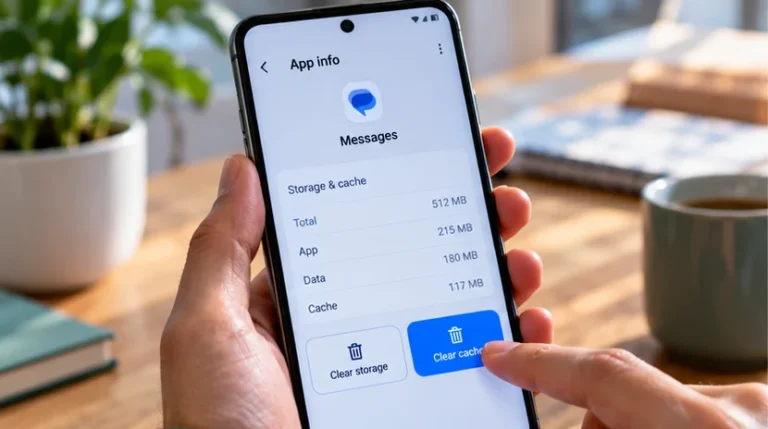
Android distinguishes Clear cache from Clear storage or Clear data. Cache removes temporary data; clearing storage removes app data more broadly. Google explains the difference.
Clear a specific app's cache only after checking the button's wording. Temporary files may return as you use the app, so this is not a permanent solution to a large collection of downloads or media.
Do not install a cleaner solely because it promises to erase “hidden junk.” The built-in breakdown and app-specific controls let you make more informed decisions about what you are removing.
Leave destructive cleanup until you have a recovery plan
Before uninstalling an app or clearing its storage, preserve local files and unsynced work, and confirm you can sign in again. These actions can remove content that has not reached the cloud.
On iPhone, offloading and deleting an app have different effects: Apple describes offloading as keeping documents and data while removing the app. Choose deliberately; retaining a large data collection may leave much of the space problem unresolved.
Recheck the storage breakdown after a small cleanup and allow the view to refresh. If the phone has enough room again, stop rather than deleting every large item. If system storage remains unexplained or the totals seem wrong, collect screenshots and use manufacturer support before attempting a factory reset.