—
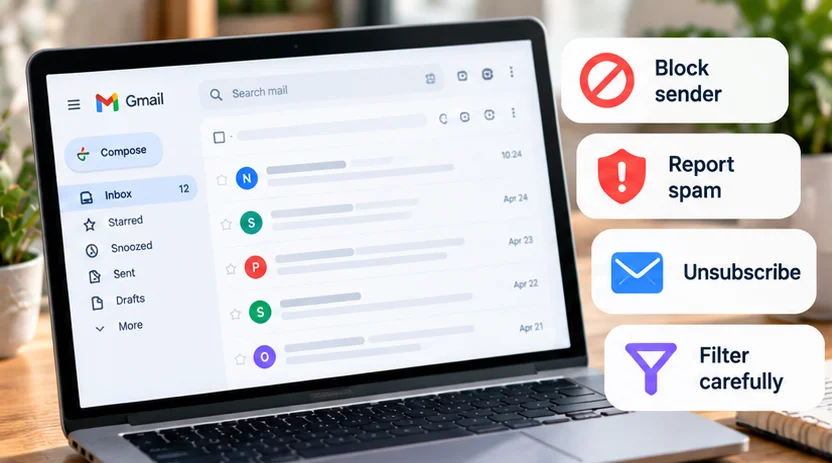
To reduce unwanted Gmail messages safely, choose the action that matches the problem. Unsubscribe from a legitimate newsletter, report obvious spam, report a deceptive credential request as phishing, and block a persistent sender when appropriate. Use filters for predictable mail you still want to organize.
Blocking a sender sends future messages from that address to Spam. It does not prevent the person from sending email, erase old conversations, or unsubscribe you from a mailing list. Google documents what blocking does.
Choose the action before changing settings
| Situation | Useful action | What it is for |
|---|---|---|
| A newsletter you knowingly subscribed to | Unsubscribe | Ask the legitimate mailing list to stop |
| Unsolicited bulk junk | Report spam | Move/report unwanted mail to Gmail |
| A message trying to steal credentials or induce a deceptive payment | Report phishing | Flag the deceptive message |
| Persistent unwanted mail from one address | Block sender | Route future messages from that address to Spam |
| Routine automated messages worth keeping | A narrow filter | Label or organize matching mail |
| A noisy conversation you no longer need to follow | Mute | Reduce that thread's inbox visibility |
| Old messages you simply no longer need | Delete after review | Remove existing messages, not stop future ones |
These actions solve different problems. Deleting yesterday's promotion does not cancel tomorrow's subscription, and muting a thread does not block its participants.
Protect important messages first
Before blocking or creating a hiding rule, search existing mail from the sender and related addresses. Look for receipts, invoices, password resets, delivery updates, and account alerts from the same business.
Prefer an exact address and a recognizable subject to a whole-domain rule. Different departments can use the same domain, and a single sender can deliver both marketing and operational mail.
Use Gmail's search options to inspect what your proposed conditions match. Review several results, including older messages, rather than assuming one unwanted example represents everything the rule will affect.
For example, a fictional shop's promotions and receipts may come from different addresses. Hiding all mail containing the shop name could still catch both. A more useful goal is separating marketing while leaving purchase records visible.
Unsubscribe from legitimate marketing
On Gmail's computer website, open a recognized newsletter and look for Unsubscribe beside the sender's name. Follow the confirmation; some lists use a Go to website option. Google says a subscription may take a few days to stop, and unsubscribing from one list may not cancel every list from that sender. Its unsubscribe guide explains the controls.
Use this for genuine subscriptions you recognize. Do not click a message's unsubscribe link merely because an obviously suspicious email includes one. For deceptive mail, use reporting rather than interacting with the message's website.
If a legitimate sender's unsubscribe process is unclear, reach its official website independently and inspect communication preferences. Keep essential service notifications if you still depend on that account.
Block one persistent sender
On a computer, open a message from the address, select More next to Reply, and choose Block followed by the sender's name. Confirm that you have selected the intended address.
Future mail from that address goes to Spam, where it may be recoverable before Gmail's normal cleanup removes it. Treat blocking as routing, not permanent prevention or secure evidence storage. Other addresses used by the same person are separate considerations.
To review blocks, open Settings → See all settings → Filters and Blocked Addresses. Unblock the intended address there if necessary. Mobile menus differ; these steps describe the computer website.
Blocking does not retroactively sort or delete your full conversation history. Review earlier messages separately if you want to keep records or remove them.
Report spam and phishing for different reasons
Spam is typically unwanted bulk messaging. Phishing uses deception to obtain information, credentials, money, or another sensitive action. A spam message is not automatically phishing.
For obvious spam, select the message and choose Report spam. Gmail puts reported messages in Spam and can use reports to improve detection. Google also says it receives a copy for analysis when mail is reported or moved there. Read its spam-reporting explanation.
For a suspected phishing message on the computer website, open it, select More beside Reply, and choose Report phishing. Avoid following its links or opening an attachment to investigate. Google documents phishing reporting.
If you may have disclosed a password, reporting the email alone does not secure the account. Reach the actual service directly, follow its recovery guidance, and review two-factor authentication where supported.
Create a filter that labels before it hides
Automatic Delete it, Skip Inbox, and Mark as read actions can make useful messages easy to miss. Start with a label while leaving mail visible. Do not apply a broad rule to all historical results without inspecting them first.
On a computer:
-
Open Show search options beside Gmail's search box.
-
Enter the sender, recipient, subject, or relevant words, combining conditions to narrow the match.
-
Choose Search and review the results.
-
Reopen the options, choose Create filter, and select the intended action.
-
Create the filter and inspect subsequent matching mail.
Google's filter guide describes this process. A reply is filtered only if it also matches the criteria.
A fictional starting rule might match updates@club.example and the subject phrase “Weekly digest,” then apply a Club digest label. A keyword alone, such as “payment,” could catch both unwanted promotions and an important invoice. Recipient conditions can help separate mail sent to different addresses you use.
Mute conversations you do not need to follow
Select a conversation, open More, and choose Mute. Replies normally skip the inbox and remain archived. Exceptions include mail sent only to you, mail sent to a Google Group you belong to, or someone adding you to To or Cc. Google explains these exceptions.
Search is:muted to find muted threads and use Unmute when needed. Avoid muting an active thread if you still owe an answer; muting changes visibility, not your responsibilities or participation.
Review the results before permanent cleanup
If an expected message disappears, inspect Spam, Trash, blocked addresses, and filters. Correct a mistaken spam classification with Not spam, and remove or narrow the rule responsible. Our Gmail delivery guide helps distinguish hidden mail from mail that never arrived.
Deleting existing mail sends it to Trash; permanent removal or automatic expiry removes the ordinary recovery option. Google documents those consequences. Preserve useful records before clearing anything.
If storage is the separate problem, review large emails rather than assuming blocks or unsubscribe requests remove old attachments. Make a small number of changes and confirm that wanted mail still reaches you.