—
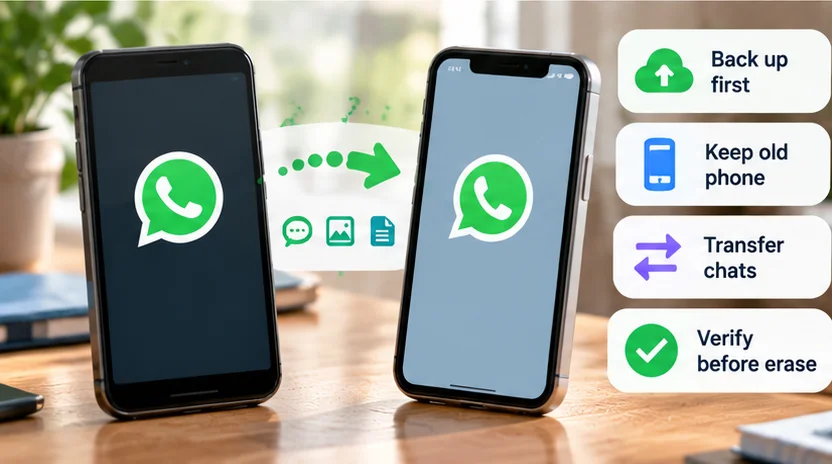
To move WhatsApp to a new phone, choose the official route for your old and new operating systems, prepare account access, and keep the original phone intact until the result is verified. Installing the app alone does not establish that your chat history has moved.
Cloud restoration and direct device transfer are different methods. An Android Google Account backup cannot simply be restored as an iCloud backup on iPhone, or vice versa. Cross-platform moves need a supported migration route.
Choose the route before setting up WhatsApp
| Direction | Supported routes to investigate | Important preparation |
|---|---|---|
| Android to Android | Transfer from the old phone or restore a Google Account backup | Same number; correct Google Account for cloud restoration |
| iPhone to iPhone | WhatsApp Chat Transfer or an existing iCloud backup | Start direct transfer on the old phone before registering the new one |
| Android to iPhone | Move to iOS during iPhone setup | Destination must be new or reset for this route |
| iPhone to Android | WhatsApp's direct transfer; device-setup routes also exist | Follow the chosen route's registration and connection sequence |
WhatsApp's current transfer announcement includes direct iPhone-to-Android transfer. Older advice that always requires a cable or factory reset should not be applied to every available route.
Prepare both devices and recovery access
Confirm access to the phone number used by the account, any WhatsApp verification PIN, and the cloud account or encrypted-backup credentials you will need. These instructions assume the same WhatsApp number. If changing numbers too, complete WhatsApp's supported number-change process on the old phone first.
Update WhatsApp through the official stores and check the linked route's current device requirements. Charge both phones, arrange the required connection, and check destination storage. If the app holds a large collection, review WhatsApp storage without deleting valuable media merely to shorten the move.
Create or verify an appropriate WhatsApp backup where relevant. If trying to recover already missing chats, stop before creating a replacement backup that could overwrite the useful older one. Keep the old device and existing backups until the migration succeeds.
Android to Android
Google's Android migration guide describes both Transfer from old phone over Wi-Fi and Restore from backup through the cloud.
For cloud restoration, confirm a successful backup on the old phone. On the new Android, use the same Google Account and phone number, then choose the restore option during WhatsApp setup. The backup's date determines how recent its contents are.
For direct transfer, use the old-phone option offered during registration and follow its connection prompts. Do not start a fresh conversation collection on the new phone while planning to import the old one: Google says new and old histories cannot be merged through restoration.
Samsung, Pixel, Xiaomi, OnePlus, and other manufacturers may place phone account or migration controls differently. Follow the applicable official device instructions rather than treating one Settings path as universal.
iPhone to iPhone
WhatsApp's iPhone Chat Transfer instructions require both phones nearby, powered, connected to Wi-Fi/internet, and able to grant local-network access. Begin the transfer from the old iPhone before registering WhatsApp on the replacement.
Open the Chats transfer control on the old phone and start. Continue setup on the new phone with the same number, then use the old phone to scan the transfer QR shown on the new one. Keep both phones unlocked and in WhatsApp until completion.
Alternatively, if you already have a usable iCloud backup, confirm its time and size, the Apple Account, and iCloud Drive access. Install WhatsApp on the replacement, verify the same phone number, and choose Restore Chat History when prompted. WhatsApp documents iPhone restoration.
Do not reinstall the old phone's app to test the backup. If restoration fails, preserve its working history while diagnosing the destination.
Android to iPhone
The documented route uses Move to iOS. Erasing an already configured iPhone removes its current device data, so preserve that material and establish a recovery plan before considering a reset. Do not reset the old Android phone.
During iPhone setup, choose the Android transfer route, follow Move to iOS, select WhatsApp on the transfer screen, and let WhatsApp prepare the data. Complete the transfer before installing/opening WhatsApp on iPhone and verifying the same number.
WhatsApp's route-specific guide and Apple's Move to iOS instructions explain the sequence. Wait for the receiving iPhone's completion indicator even if the Android phone appears finished first.
Apple's general list of transferred phone data is broader than WhatsApp's own transfer list. Do not interpret a general “call history” entry as a promise about WhatsApp calls.
iPhone to Android
WhatsApp now documents a direct Wi-Fi route in its iPhone-to-Android guide:
-
On the iPhone, open WhatsApp's Chats → Transfer chat history → Transfer to Android and prepare the data.
-
On Android, follow WhatsApp registration with the same number and the offered device-connection prompts.
-
Scan the destination's transfer QR with the old iPhone and join the requested transfer connection.
-
Wait for completion before viewing and checking the chats on Android.
Start before WhatsApp is already active with new chats on the destination. If you have used it there, preserve that new material before considering any reinstall; the documented flow does not merge the two histories.
Google also documents Android Switch/device-setup routes, with connection and setup requirements that vary by device; Samsung may use Smart Switch. Follow one coherent official route instead of mixing its steps with the direct method.
Check the exclusions for your direction
The iPhone-to-iPhone direct guide excludes peer-to-peer payment messages, call history, and media received through Channels. The Android-to-iPhone guide also excludes WhatsApp call history and peer-to-peer payment messages.
By contrast, the current iPhone-to-Android guide lists call history among transferable data, while excluding display name, status updates, Channel-received media, and peer-to-peer payment messages. These differences are why a blanket “everything transfers” promise is inappropriate.
The linked iPhone-related transfer guides also identify unsupported WhatsApp Business routes. Business users should confirm a specifically supported method before starting.
Verify the replacement before retiring the original
Check the account identity, recent chats, important groups, older conversations, photos, videos, and essential attachments. Open representative files rather than checking thumbnails alone. Compare dates with what exists on the original phone.
A direct move does not itself establish a cloud backup. After verification, configure the destination's backup if you need that recovery option. If chats are present but alerts fail, use our WhatsApp notifications guide instead of repeating the migration.
Only then prepare the old phone for erasure or trade-in. Never share verification codes, scan an unsolicited transfer QR, or hand an unlocked phone to an untrusted migration service. Keep the process within the official apps and the two devices you control.