—
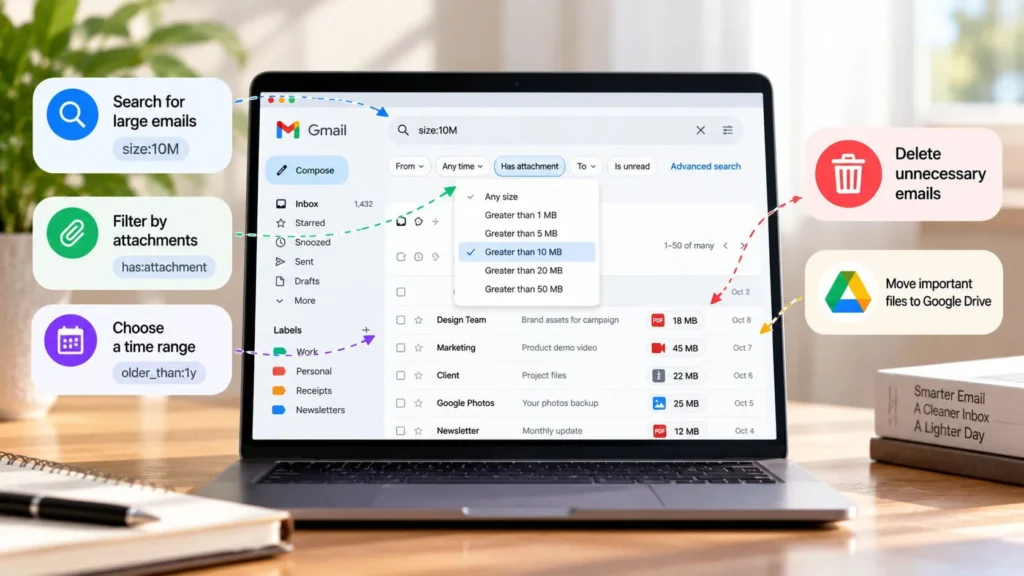
To find large emails in Gmail, enter larger:10M in the search bar. Add has:attachment if you want to concentrate on messages with attachments. Review the results, save anything important, and delete only mail you no longer need.
The search finds messages by size; it does not say an individual attachment is exactly that size. It also does not decide whether the mail is disposable. Use it to build a manageable review list rather than a bulk-deletion shortcut.
Check that Gmail is the storage problem
Open your Google account's storage breakdown before starting. Gmail shares account storage with Drive and Photos, so large files in another service may be the main cause of a full allowance. Google explains the shared storage model.
If Gmail is a small contributor, cleaning hundreds of messages may accomplish less than reviewing a few large files elsewhere. Start with the service that accounts for the warning. If you are cleaning up because Gmail is not receiving messages, test mail delivery again afterward.
Use the correct account, especially if you have several Gmail addresses open. The browser's selected account and the inbox you normally read on your phone may differ.
Build a useful size search
Enter one of the following queries directly into Gmail's search bar. The thresholds are examples for narrowing a review, not recommendations about which messages should be deleted.
| Search | What it helps you inspect |
|---|---|
larger:10M |
Messages above the chosen size threshold |
has:attachment larger:10M |
Large messages containing attachments |
larger:5M smaller:10M |
A smaller size band if the first search finds little |
has:attachment older_than:2y |
Older attachment-bearing messages, regardless of size |
in:anywhere larger:10M |
Large messages including Spam and Trash |
Google documents these operators in its Gmail search guide. Adjust one criterion at a time so you understand why the results change.
For a known sender, use the normal search options or a from: query to narrow the list. An old message can still be important, so adding an age condition should narrow your inspection rather than authorize deletion.
Review the conversation, not just the attachment
Open each likely candidate and inspect what you would lose. A large presentation sent for a completed event may be replaceable; the email approving its use may still matter.
Conversation view can group several messages together. Before selecting a row for deletion, expand and inspect the thread so you understand the scope of the action. Do not assume a size search makes every message in a displayed conversation irrelevant.
Avoid broad negative filters as your only protection for important mail. A rule excluding starred messages, for example, should not replace reading the conversation and identifying the message you intend to remove.
Save what you need before deleting
Download attachments worth retaining to an appropriate archive and open them to confirm the copy works. Use a location you can find again, with a name that explains the file's purpose.
Preserve the message too if its sender, date, explanation, or approval is important. A saved attachment by itself can lose the context you need later. Use Gmail's supported print or download option as appropriate to your recordkeeping needs, and inspect the resulting copy before discarding the original.
If this is a work or school account, follow retention rules before removing business records. Being old or large is not permission to delete material your organization needs.
Delete a small, reviewed batch
Deletion moves mail to Trash, where it remains recoverable for a period unless permanently removed. Emptying Trash or deleting there permanently removes the ordinary recovery option. Google explains Gmail deletion and restoration.
After preserving what you need, select only the messages or conversations you have reviewed and delete them. A small batch is easier to inspect than a search-wide selection containing unfamiliar mail.
Check Trash afterward and confirm the expected items are there. If something important was included, restore it before proceeding. Do not empty all Trash merely because the latest batch looks safe; older items may need their own review.
Reclaim space with a deliberate Trash review
Trash and Spam can continue counting toward Gmail's account storage until permanently cleared. Google's storage guidance describes that effect.
Permanently remove only the items you are certain you no longer need. If you decide to empty an entire folder, review its contents first and understand that the decision covers everything inside it.
Allow time for the storage figures to update after a large cleanup. Do not keep deleting useful messages just because the counter has not refreshed immediately. Reopen the account storage view and compare it with the original breakdown.
Avoid confusing tidying with freeing storage
Archiving mail removes it from the inbox but keeps it in the account. Labels organize messages; they do not turn a large attachment into a smaller one. Google explains archive behavior.
Use archiving for mail you want to keep without seeing it in the inbox. Use deletion for material you have decided to discard. Both can make the inbox look cleaner, but only deletion followed by permanent removal frees the storage used by those messages.
For future large files, consider whether a carefully shared file link is more appropriate than repeatedly emailing copies. Review access permissions before sharing. Keep the cleanup occasional and deliberate rather than setting a rule that automatically deletes every message above an arbitrary size.