Before selling or giving away your phone, make sure you can recover your information and sign in without it. Then release its ownership locks, handle mobile service and removable storage, and erase it. Hand it over only after checking the result.
A factory reset is the final destructive step. It cannot rescue an unfinished backup or replace authenticator codes you have lost.
Decide whether the phone is ready to erase
A reset removes local apps and data; cloud content may remain in your account. Removing an app or signing an account out of the phone is not the same as deleting the online account.
Sync is not always an independent backup. Deleting synced photos to “clean up” a phone can delete them elsewhere too. Understand how cloud storage works before treating an online copy as protection against deletion.
If this is an employer-, school-, carrier-, or company-owned phone, or it has device management, follow the organization's return and de-enrollment process first. Do not treat it as an ordinary personal sale.
Back up and check the destination
Android: check Google device backup, Google Photos or your chosen photo service, and local Downloads and Documents. Contacts, messages, offline media, and app data deserve separate attention. Google's backup guidance warns that not every app can restore all its data. Use our Android backup checklist before a reset for the preparation steps.
iPhone: finish an iCloud or computer backup. Check iCloud Photos separately from the device backup, plus local Files/Downloads and important app content. For iCloud, Apple explains how to confirm the last completed backup.
Open important photos and copied documents from another device. Confirm the backup's account and completion time; where possible, complete the replacement-phone transfer and inspect its contents before unlinking anything. Keep an independent copy of irreplaceable files.
Preserve sign-in and authenticator access
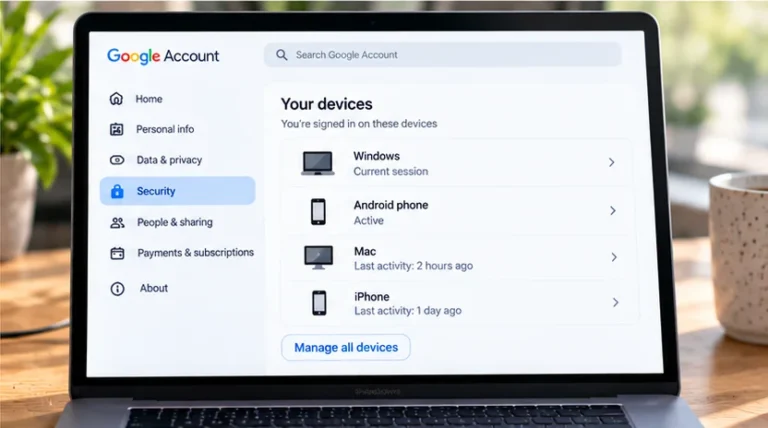
Confirm your Google Account or Apple Account email and password, device unlock code, recovery email, and recovery phone number. Try signing in on another trusted device while the old phone still works.
Check your password manager there too. If you use Google's service, our Google Password Manager guide explains where saved credentials live. Keep recovery codes somewhere secure that survives this reset.
Authenticator apps need particular care: reinstalling one does not guarantee your codes return. Google Authenticator supports account sync or manual transfer, depending on how you use it. Other apps have their own recovery methods. Complete the appropriate transfer, then test a sign-in with the replacement device before erasing. Our two-factor authentication explainer covers alternative sign-in methods.
Finish app-specific moves
WhatsApp has its own backup process. Follow the appropriate WhatsApp phone-transfer route and inspect your chats on the destination. Banking apps, secure notes, and other messaging apps may also require separate activation or migration. Preserve any backup password or recovery key they require.
Release ownership locks
Android: Google Account and Factory Reset Protection
Factory Reset Protection helps prevent someone from resetting and reusing a protected phone without permission. Depending on the reset method, setup can demand a previous Google Account or screen lock.
After the verified transfer, remove your Google Accounts from the phone using its account settings. Google says removing the Google Account turns off device protection. Follow the manufacturer's owner sign-out process for any additional device account too.
Samsung, Pixel, Xiaomi, OnePlus, and other manufacturers use different labels and menu locations. Complete migration before account removal: Google's Pixel guidance warns that removing the account deletes the device backup. Do not rely solely on that backup afterward.
iPhone: Find My and Activation Lock
Activation Lock links an iPhone to its owner's Apple Account through Find My. An erase alone, particularly a remote erase, does not necessarily release that lock.
Follow Apple's handover instructions for your iOS version, including Apple Account sign-out and the authenticated erase. Apple says its completed on-device Erase All Content and Settings process turns off Find My and Activation Lock.
On iOS 26 or later, sign-out can itself offer an erase option. Finish all remaining preparation below before accepting anything that erases the phone. Unpair an Apple Watch first; if switching away from iPhone, also follow Apple's iMessage deregistration guidance.
Handle payments, SIM/eSIM, and storage
Review wallet and payment apps before handover. Apple says erasing the iPhone removes Apple Pay credit and debit cards. Other wallets, transit balances, and banking apps have provider-specific transfer or recovery requirements; do not assume they all behave alike.
Transfer your number or service first and confirm you can receive needed calls or security texts. Remove the physical SIM before handing over the phone.
For eSIM, follow your carrier's transfer instructions, then remove the old profile for handover. Apple's eSIM guidance says its erase flow offers a keep-or-erase choice. Android options vary by device and carrier. Deleting an eSIM or resetting the phone does not automatically cancel your mobile plan; cancellation is a separate carrier action.
Remove a microSD card you are keeping. An internal-storage reset may leave removable media untouched, as Samsung documents. If including the card, handle its data separately using the manufacturer's guidance; ordinary file deletion is not a guarantee against recovery. Copy important contents first, including anything on an encrypted card.
Factory reset: the final destructive step
This erases local information. Stop if a backup, transfer, or sign-in method is still unresolved. Keep the phone charged and follow the manufacturer's reset guidance.
-
Android: use the Settings-based factory reset. On Pixel, the documented path is Settings → System → Reset options → Erase all data (factory reset). Other phones may place reset controls under System or General management; use your model's instructions. Google's reset guide covers preparation and account requirements.
-
iPhone: Apple's documented path is Settings → General → Transfer or Reset iPhone → Erase All Content and Settings. Complete the authentication prompts and remove eSIMs intended to leave this device.
Verify before handing it over
Let the reset finish and confirm the phone starts at its initial welcome/setup screen, rather than your old home screen with personal photos, messages, or files. Do not sign your old account back in.
The welcome screen alone does not prove ownership protection is released. If activation requests the previous owner's account because a lock remains, pause the handover. Resolve it through the owner's official Google, Apple, or manufacturer process. Never give the buyer your password or verification codes.
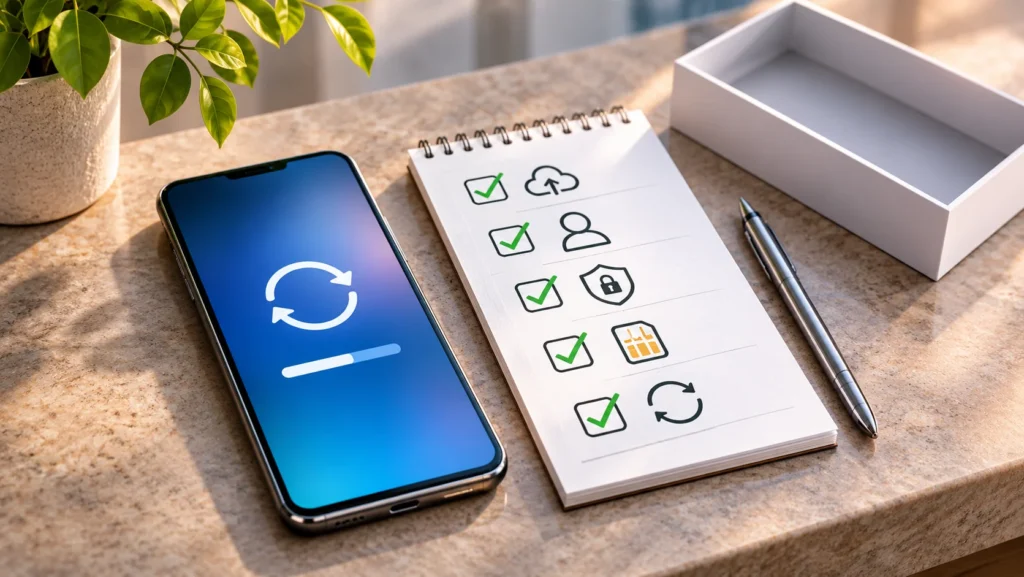
Before you hand it over: final checklist
-
Backup completed; photos, files, and transferred app data checked.
-
Authenticator access transferred and tested.
-
Password manager, account recovery, and recovery codes accessible elsewhere.
-
Google/Apple and manufacturer ownership locks handled.
-
Wallet/payment access reviewed; mobile service transferred.
-
Physical SIM removed; old eSIM profiles handled.
-
SD card removed or separately prepared.
-
Reset completed; setup screen checked and ownership concerns resolved.
-
Charger and agreed accessories prepared separately.