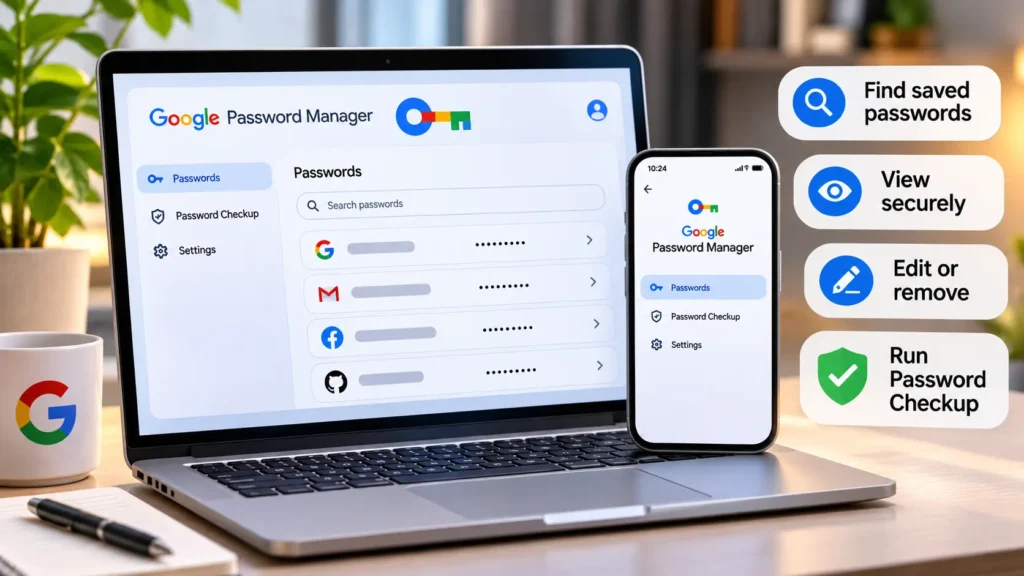
Open Google Password Manager in Chrome or visit passwords.google.com to find credentials saved to your Google Account. Check the account first, then select the saved website and the action you need.
Our Google Password Manager overview explains the broader tool. This guide focuses on finding existing entries, revealing a password, correcting saved details, removing outdated logins, and checking warnings.
Where Google Password Manager stores saved passwords
Google distinguishes credentials saved to a Google Account from those saved locally on a device. Do not assume everything visible in Chrome is also available on the account website. Google's getting-started guidance describes both storage locations.
Check the Google Account address and Chrome profile you are using. A personal profile, work profile, and another Google Account can lead to different collections. Credentials may also exist in another browser, Apple's password tools, or a separate manager.
If an entry is missing online, inspect the original device and profile before resetting the website password. Account-saved entries can be used across devices signed into the appropriate account; local storage should not be assumed to follow you.
Find your saved passwords on a computer
In Chrome, open More → Passwords and autofill → Google Password Manager. This is the route in Google's computer instructions.
Search the saved collection for the website or app, then inspect the matching username. Two entries for the same service may represent different accounts rather than an unnecessary duplicate.
Alternatively, open passwords.google.com in a browser for account-stored credentials. Confirm the account there too; signing into the wrong one can make the collection look empty.
View a saved password securely
Select the entry, then choose Show password, usually represented by an eye icon. Complete any authentication prompt before the password appears.
Depending on the device and setup, Google or the operating system may ask for account authentication, a device password, a PIN, or biometric confirmation. The prompt is not identical everywhere; use the verification requested on your trusted device.
Do not reveal a password while screen sharing or where someone can read your display. Avoid including credentials in screenshots or support messages.
Edit saved details without changing the website account
Open the matching entry, choose Edit, correct the stored username or password, and save the change. On desktop Chrome the finishing control is Save; on iPhone or iPad it can be Done.
Editing the saved entry alone does not change the password accepted by the website. If the actual account password needs replacing, open the genuine service first and use its password-change process. After it succeeds, accept the save/update prompt or edit the stored entry to match.
For example, correcting an outdated saved password after a successful website change is appropriate. Typing a new password only into Password Manager leaves the website expecting its existing password.
To save an existing login manually on desktop, choose Add, enter the website, username, and current password, then save. This records credentials; it does not create an account at that website.
Delete an outdated saved password carefully
Before deleting, confirm that you can still sign in or recover the account. Then select the specific desktop entry and choose Delete. Review the selected username first, particularly when several accounts share a site.
Deleting a saved credential does not delete the website account, cancel its subscription, or necessarily end active sessions. To end access, use that service's session controls. For Google specifically, review the devices and sessions signed into your Google Account separately.
Avoid bulk deletion as a way to fix one stale login. Treat an account-stored entry as part of that account's collection, not merely a disposable copy on the computer in front of you.
Find saved passwords on Android
Google's Android Chrome instructions use More → Settings → Autofill and passwords → Google Password Manager.
Search for an entry and open it. Use Show password to reveal it, Edit and Save to correct it, or Delete to remove the selected saved login. Open Checkup for password warnings. To record a login manually, use Add password below the search bar.
Android system entry points and labels can differ across Samsung, Pixel, Xiaomi, OnePlus, and other manufacturers. These are documented Chrome steps; update Chrome or consult the device's guidance if your menus differ.
Find saved passwords on iPhone or iPad
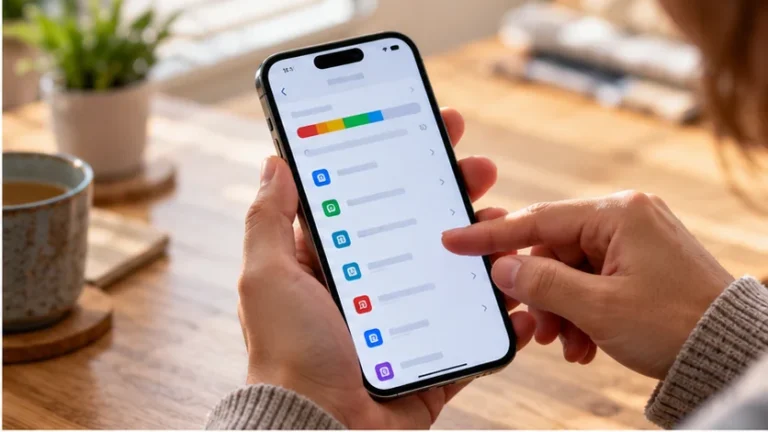
In Chrome, open More → Settings → Autofill and passwords → Password Manager, following Google's iPhone/iPad instructions.
Select the saved entry to show or edit it. For removal, Google's current instructions use Edit in the saved-password list, the selected site, then Delete. Add Password records a login manually.
Chrome is not necessarily your system-wide autofill provider. For use in other apps, Google's documented route starts in Password Manager's Settings → Passwords in Other Apps → Open Settings. Follow the device's AutoFill settings to enable Chrome if desired. iOS/iPadOS version differences affect those controls; keep this choice separate from simply viewing Chrome's entries.
Check compromised, reused, or weak passwords
Open Checkup in desktop or Android Google Password Manager. On iPhone or iPad, find Password Checkup and use Check Now or the available recheck control.
Google's unsafe-password guidance covers three categories:
-
Compromised: credentials identified as exposed online.
-
Reused: a password used for multiple accounts.
-
Weak: a password that is easier to guess.
For a flagged entry, open the real service independently, change its password there, then update the saved credential. Do not follow an unexpected email's login link; check for a fake login page if the destination or request is unfamiliar.
A clean Checkup result does not establish that every possible compromise has been detected. Account activity and recovery concerns need their own review.
Review useful password settings
Open Password Manager's Settings. Useful controls include:
-
Offer to save passwords, or Offer to save passwords and passkeys on some platforms: controls future save offers.
-
Sign in automatically, called Auto sign-in in Android instructions: turn it off if you want confirmation of saved sign-in information.
-
Declined sites and apps on desktop: remove a site from this list if you want save offers there again.
Google documents these account and cross-device settings. Availability and wording can vary, including administrator-managed settings. Protect the account holding the collection with an appropriate two-factor authentication method.
Before exporting passwords
A password export file can contain readable credentials. Anyone who obtains the file may be able to read them. Export only when necessary, such as a planned migration, rather than to inspect a few entries.
On desktop, Password Manager's Settings → Export passwords → Download file provides the export. Google's export guidance warns about access to the resulting file.
Store it securely, import promptly into the intended manager, and confirm the transfer. Delete the export and unnecessary copies afterward, including copies in synced folders or the trash. Avoid emailing or casually uploading it. Individual viewing and editing do not require creating this additional credential file.