To back up your Android phone before a reset, check each place where important information lives: the device backup, photo library, accounts, local folders, and individual apps. Then confirm that you can sign in and reach those copies without relying entirely on the phone you are about to erase.
A factory reset removes data from the device, including installed apps and their local data. It does not turn unsaved information into a backup. If you cannot explain how you would recover something important, leave the phone intact while you investigate.
Separate backup, sync, and local storage
A device backup can restore supported settings and data. Sync keeps selected information aligned with an account. Local storage contains files that may exist only on this phone. These are different recovery situations.
For example, a synced calendar might reappear after sign-in, while a PDF in Downloads needs a separate copy. Sync can also carry deletions between devices. Our explanation of where cloud files actually live helps distinguish an online copy from an independent backup.
Make a short inventory: irreplaceable photos, contacts, messages, documents, work, and ways to sign in. A checklist based on your actual use is more useful than assuming one backup service covers every app.
Confirm the account and recovery route first
Write down the Google Account address used for backup. Confirm its password by signing in through a trusted browser on another device. Know the phone’s screen-lock PIN, pattern, or password too.
Google’s reset preparation guidance says to verify the account credentials before resetting. It also advises waiting 24 hours after a recent Google Account password reset. Follow the current guidance if that applies to you.
Review your Google Account recovery settings before proceeding. A recovery address you no longer control is not a dependable fallback. Do not remove the only working sign-in method just to tidy the account.
Check the Android device backup
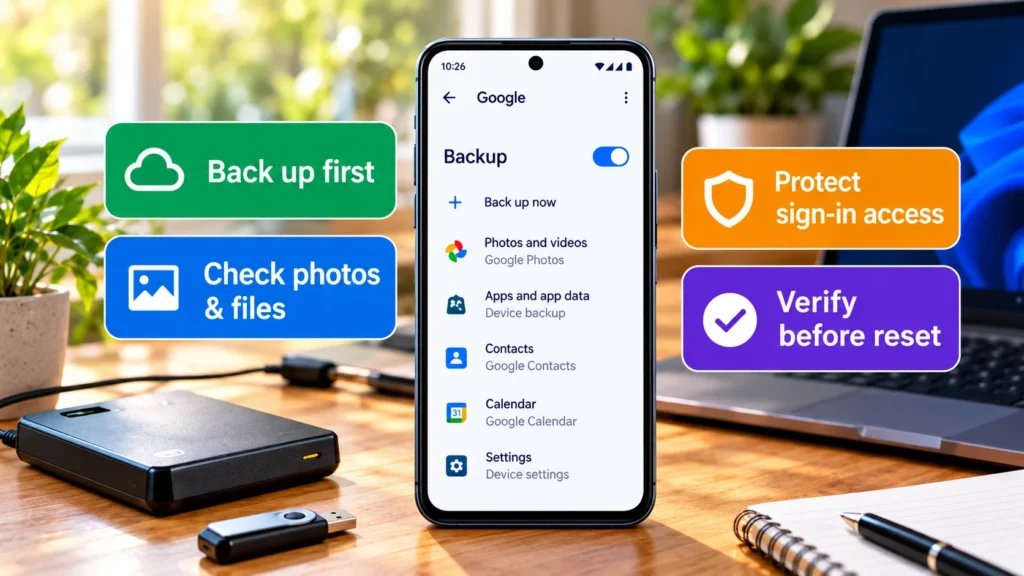
Google’s documented route is Settings → Google → All services → Backup, under Backup and restore. Open the backup details, verify the account, review the included data, and use Back up now where offered. Samsung, Pixel, Xiaomi, OnePlus, and other phones may organize these controls differently; search Settings for “backup” if necessary.
Android’s backup documentation lists supported categories and warns that not every app can back up or restore its data. Review the completion information rather than treating “backup on” as proof of a finished copy.
Allow time and a reliable connection. A backup may not finish immediately. If setup will involve another phone, check Android-version compatibility: Google does not support restoring a newer-version backup onto an older Android version.
Verify photos and videos separately
Open your chosen photo-backup app and confirm the destination account. In Google Photos, look for the backup status and inspect important items individually. Google’s photo-backup instructions explain the settings and completion checks.
Check folders containing screenshots, downloaded pictures, or images saved by messaging apps. Their inclusion can differ from the camera folder. Seeing a picture in the phone’s gallery does not establish that it has uploaded.
Use another device or a browser signed into the same destination to open several important photos and a recent video. This is a practical access check, not proof that every item is present. For irreplaceable material, consider a second independent copy as well.
Check contacts, calendars, and local files
Inspect which account owns important contacts and calendar entries. Device-only or SIM-held contacts need attention separately from contacts already saved to an online account. If you export contacts, open or inspect the exported file before trusting it.
Look through Downloads, Documents, recordings, scanned documents, and folders you created yourself. Include removable storage if you use it, but do not assume every manufacturer’s reset screen treats an SD card identically.
Copy needed files to a computer, external storage, or a chosen cloud destination. Open representative copies there and check that folders are complete. If something is an app shortcut or an offline placeholder, copying its name may not preserve the actual document.
Review chats and app-specific work
Open apps that contain projects, drafts, notes, saved games, or downloaded material. Check whether each uses its own account, export function, backup, or transfer process. Downloaded entertainment may be replaceable; an unfinished recording or local project may not be.
WhatsApp is a separate example. Use its current chat-backup controls and verify the destination and successful completion. Our WhatsApp backup checklist covers the app-specific checks. Keep access to the registered number and any backup protection method.
Do not uninstall apps or clear their storage to “prepare” the reset. That can remove the very local information you still need to preserve.
Protect authenticator and password-manager access
Check every authenticator or security app before erasing it. Some synchronize codes; others require an explicit transfer or a service-specific recovery process. Google Authenticator’s documentation distinguishes account synchronization from manual transfer when used without an account.
Keep recovery codes or another approved sign-in method somewhere accessible without this phone. Treat exported authenticator QR codes as secrets, not ordinary screenshots. Our explanation of two-factor authentication recovery shows why a password alone may be insufficient.
Likewise, confirm you can unlock or recover your password manager. If you use Google’s service, review access to your saved passwords before removing the device containing your usual sign-in route.
Reset only after the checklist passes
For a work or school device, ask the administrator first. Management policies can restrict backup and restoration, and personal backup instructions may not apply to managed profiles or devices.
Before the final reset, confirm that essential copies open elsewhere, app-specific recovery is understood, and sign-in does not depend solely on the phone. Google recommends at least 70% battery and a network connection for the reset and subsequent setup. Use your manufacturer’s current reset instructions, and read any storage or eSIM choices before confirming.
If any important item remains uncertain, postpone the reset. The useful milestone is verified access to your information, not reaching the erase button quickly.