—
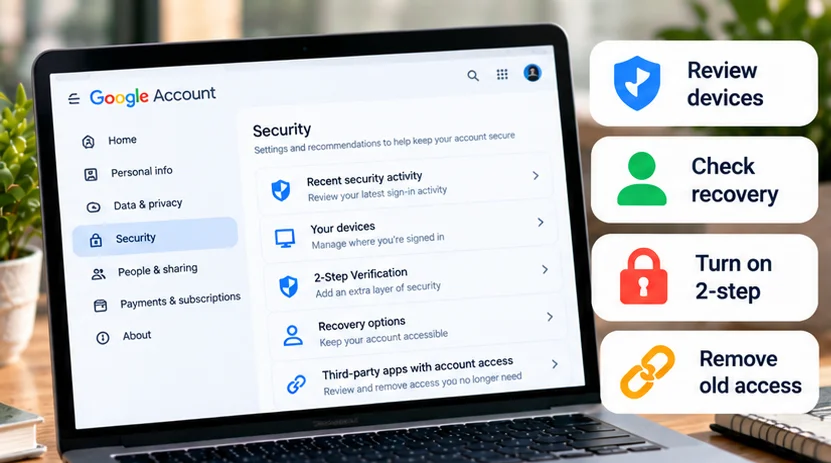
To secure your Google Account, start with Security Checkup, inspect recent activity and signed-in devices, confirm recovery details, and review how you sign in. Then check connected apps and prepare a way back in if your main phone becomes unavailable.
If you already see activity you did not authorize, follow Google's compromised-account guidance promptly rather than treating this as routine maintenance. Otherwise, use the review below to identify specific changes without switching everything off.
Start from your account, not an alarming email
Open Google Account directly in a trusted browser and confirm the account address, especially if you use several accounts. Choose Security & sign-in and open Security Checkup. Google may also show Recommended actions from your profile menu.
Google's security checklist explains the personalized recommendations. Resolve warnings you understand, then review the areas below even if no urgent action appears. A completed checkup is useful housekeeping, not a promise that every future message or app is trustworthy.
These instructions focus on an ordinary personal account. Work or school administrators can control sign-in and recovery choices, so use their approved process when settings are managed.
Review recent security activity
In Security & sign-in, inspect recent security events or activity. Look for sign-ins and changes to important settings that you cannot explain. Open an entry and compare its device, time, and location with your own use.
Use context before deciding an event is unfamiliar. A new browser or a recently replaced phone can explain a new entry. A nearby location is not necessarily your exact location, and a background connection can have a more recent timestamp than your last deliberate visit.
If an event was not yours, use the account's option to secure it and follow the prompts. Google's compromised-account guide describes reviewing events, correcting unauthorized settings, and changing a password when someone else may be using the account. If locked out, reach recovery through that official guide; do not pay someone promising guaranteed restoration.
Check devices and sessions individually
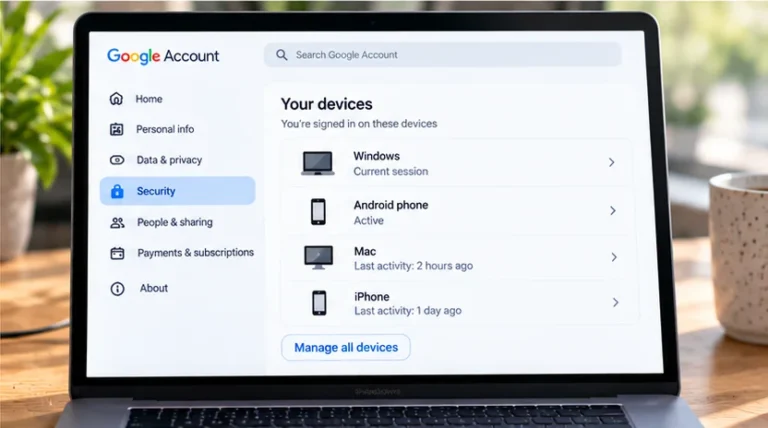
Open Your devices, then Manage all devices. Select an entry to inspect its details rather than judging only its name.
| Entry you find | Sensible next step |
|---|---|
| Current phone with several sessions | Compare browsers/apps and session details |
| Old laptop you sold or gave away | Sign out its remaining sessions |
| Recently reset device appearing again | Compare its history with the reset |
| Device or activity you cannot account for | Follow Google's account-security response |
Google explains that one device can have multiple sessions, and recently signed-out devices can remain listed. A remembered entry alone is not proof of compromise.
Signing out interrupts access on the selected session, so save work on a device you still control first. For an unfamiliar or lost device, prioritize stopping its access. If several sessions share its name and you cannot establish which are yours, Google's guidance recommends signing out all of those sessions.
Replace outdated recovery details carefully
Check the recovery email and phone under the account's sign-in settings. Confirm that you control them now, can receive messages, and expect to retain access. An old work mailbox or a number you no longer own is a poor recovery route.
Before removing an old option, establish another working route and complete the required confirmation. Do not delete your only usable recovery method merely because you intend to add a replacement afterward.
Google's recovery instructions recommend a regularly used recovery email different from the account's sign-in address and a phone that belongs to you. Changes can involve security waiting periods or continued use of previous details; do not assume removal instantly invalidates every earlier recovery channel.
Recovery information helps establish ownership and deliver alerts, but it does not guarantee recovery. Protect the recovery mailbox too: it should not be the weakest account in the chain.
Review password health and sign-in protection
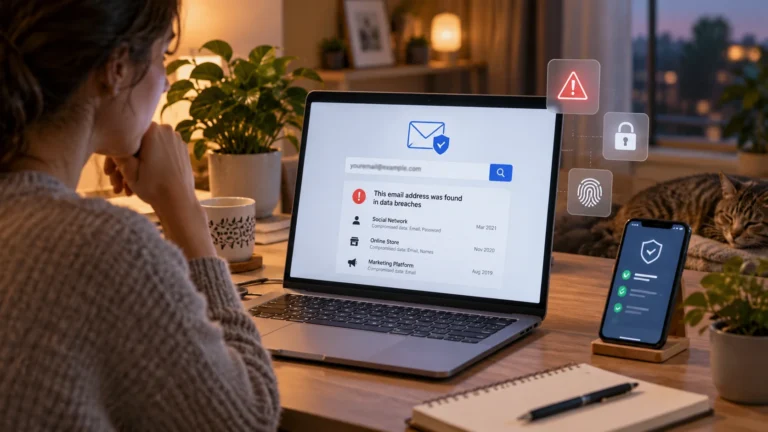
Where a password remains in use, make it unique to Google and change it if it is reused, exposed, or otherwise compromised. Run Password Checkup for credentials saved in your account. Our Google Password Manager guide explains how to interpret those results without confusing a saved entry with the service's actual password.
Check whether 2-Step Verification is enabled and which methods you can still use. Remove obsolete methods only after preparing a replacement. Google's 2-Step Verification guidance covers prompts, authenticator codes, and security keys; our two-factor authentication explainer covers the underlying choices.
Passkeys are another supported sign-in option. Review the listed devices or keys and keep them on devices you personally own and control. Google warns that someone able to unlock a device with your passkey may be able to access the account even after you sign out. Its passkey guide explains the requirements and removal options.
Adding a passkey does not automatically remove existing password or recovery methods. Review the whole arrangement rather than assuming a new sign-in method replaces everything else.
Inspect what connected apps can actually do
Review the account's linked apps or third-party connections and open each unfamiliar entry's details. Distinguish two common relationships:
-
Sign in with Google helps you authenticate to another service.
-
Permission to access Google data can let an app read, copy, or manage specified information, depending on what you authorized.
An app does not automatically get your entire account. Google's access explanation describes permission scope, including the difference between viewing and modifying data.
Before removing a connection you use, consider what will stop working and establish another supported sign-in method if needed. Then remove access you no longer want through the entry's controls. Google documents the different removal actions. Revoking access does not automatically delete information the developer already received or close your account with that service.
Prepare recovery and respond to alerts
Where available, keep a protected copy of current backup codes somewhere you can reach without the lost phone. Each code is single-use; creating a replacement set invalidates the old set. Google's backup-code guide explains the controls and account exceptions. Never give these codes to a caller or helper.
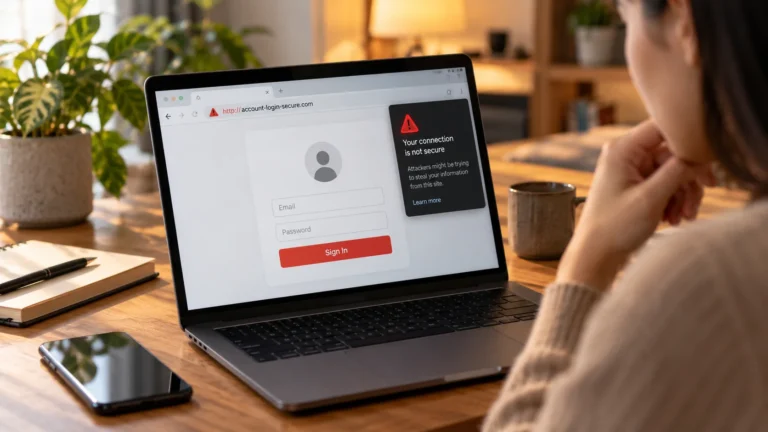
For an unexpected security email, open your account independently and review the event there. Do not follow a suspicious link or approve a sign-in prompt you did not initiate. Google's alert guidance explains how to respond when the activity was or was not yours.
Finish with a short access check: recovery details still yours, sign-in methods usable, old devices addressed, and unwanted connections removed. Repeat the review after changing phones, losing a device, or leaving a job whose contact details you previously used.