—
A device can connect to Wi-Fi while the router has no working internet connection. The Wi-Fi icon tells you about the local wireless connection; it does not prove that websites and online services are reachable.
The most useful first step is to find the scope of the problem. One failing website, one offline phone, and an entire household without access need different fixes.
Quick checks first
-
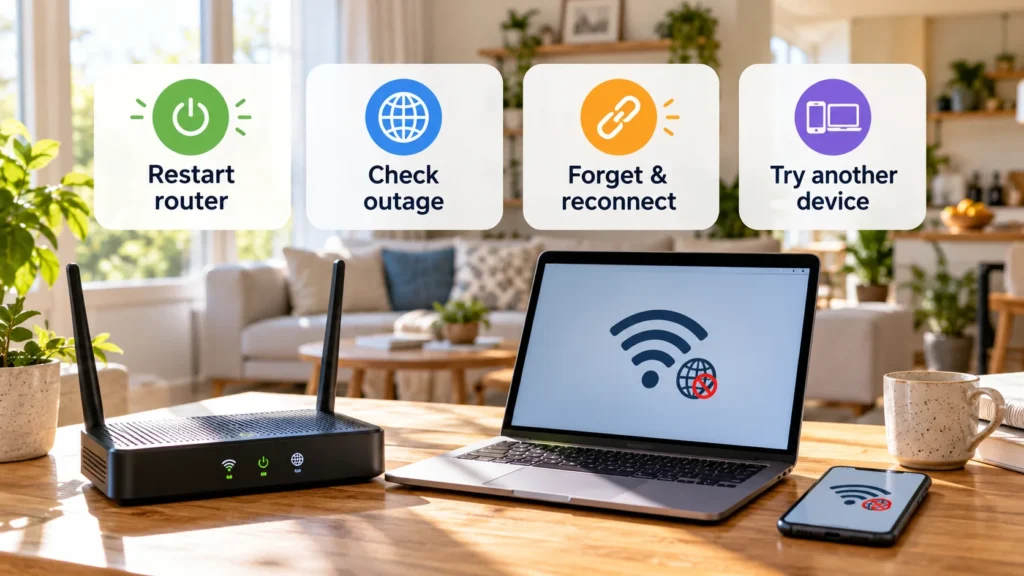
Open another website and an unrelated app. A single service may be down.
-
Try another device on the same Wi-Fi, making sure it is not using mobile data instead.
-
Look at the modem/router's status indicators and check its manual for their meaning.
-
Check your ISP's official outage page or support channel using a separate connection, if available.
If there is a confirmed outage, follow the ISP's updates. Repeatedly changing your device settings will not repair the provider's service.
Identify what is actually failing
| What you find | Where to focus next |
|---|---|
| Only one website or app fails | That service, its address, or the affected app/browser |
| One device fails; others work on the same Wi-Fi | That device's saved connection, VPN, proxy, or network configuration |
| All devices fail on the same Wi-Fi | Router/modem connection, network login requirements, or ISP |
| The device works on another network | The original network or a setting specific to it |
| A public network connects but browsing is blocked | Its sign-in or terms page |
Google's Pixel Wi-Fi troubleshooting guide uses tests with another device and another network to distinguish phone, network, and internet problems.
For a fair comparison, use the same Wi-Fi network and a newly loaded page. A previously downloaded document or cached page is not evidence that the internet connection works. Note the actual error message instead of assuming every failure means the router is broken.
If only one website or app fails
Check the address and try the service's official status page through a connection that works. If the site fails in one browser, try another installed browser to narrow the problem without erasing data.
If everything else loads, leave household network equipment alone initially. Record whether the failure is limited to sign-in, a particular page, or the entire service. That information is more useful to support than a list of unrelated settings you changed.
Cloud files deserve the same distinction: a locally available copy may open while an upload remains pending. Our explanation of how cloud storage works covers why access to an existing file and a new online transfer are separate things.
Complete the public Wi-Fi sign-in
Hotels, airports, and cafés may require a browser sign-in or acceptance of terms after the wireless connection succeeds. This is often called a captive portal. Apple's captive-network guidance explains that joining the Wi-Fi and completing its login can be separate steps.
Look for a system notification asking you to sign in, then open a browser if needed. On iPhone or iPad, the network's information screen can offer Join Network to display the welcome page.
Confirm the network name and expected login process with staff if anything seems unusual. Do not enter email, banking, or other sensitive account credentials into a suspicious portal, and do not bypass certificate warnings to make it load. If the page requests unexpected software installation, stop and ask the operator.
If only one device is affected
Save ongoing work, turn Wi-Fi off and back on, and restart the device if the problem continues. Check whether the device can use another known, trusted network.
Review changes made just before the failure. A manually configured proxy or VPN can affect connectivity. On a personal device, compare with your own VPN disconnected only if doing so fits your privacy needs; ordinary traffic may then use the underlying network. If that restores access, ask the VPN provider about the connection rather than leaving protections off indefinitely.
For work or school equipment, contact IT before altering required VPN or proxy settings. Do not remove organizational profiles, disable the firewall, or turn off security software broadly as an experiment.
Before forgetting a network, make sure you can reconnect: preserve the password and obtain any organization-specific instructions first. Forgetting removes its saved connection information. Then use the device's Wi-Fi settings to forget that network and join it again.
Android labels differ across Samsung, Pixel, Xiaomi, OnePlus, and other manufacturers. Use your device's documented Wi-Fi controls rather than applying a Pixel menu path universally.
If every device is offline, restart equipment carefully
Check visible power and network cables without disconnecting unfamiliar equipment. Status-light meanings vary; a particular colour is not a universal diagnosis. If the ISP reports no outage, a normal restart may clear a temporary router or modem problem.
Restarting disconnects everyone using that equipment. Arrange a suitable moment, especially during calls or uploads. Only restart equipment you own or are authorized to manage.
Follow the provider's instructions for your model. With a separate modem and router, Microsoft's Wi-Fi guidance describes restoring the modem first, waiting for it to become ready, then restoring the router. Allow startup to finish before testing again.
Use the documented restart control or power procedure. Do not press a reset or factory-reset button. A factory reset can erase network configuration and require setup again; it is a different operation from a normal restart.
Treat DNS as a possibility, not the default fix
DNS converts domain names into addresses that devices can use, as Cloudflare's DNS explanation describes. If name lookups fail while some established connections still work, DNS is one possible cause.
That pattern is a clue, not proof. Record errors mentioning DNS or name resolution and tell your ISP or administrator which devices are affected. If you recently changed a custom DNS setting, consult its documentation about restoring the previous configuration.
Avoid immediately substituting a public DNS service or entering random command-line resets. A DNS change affects who handles lookups and may interfere with organizational settings. It also will not repair a disconnected modem or an ISP outage.
Leave broad resets until support identifies a need
If the problem persists, provide support with the affected devices, network name, status-light observations, error messages, and results on another network.
Network resets are more disruptive than reconnecting one Wi-Fi network. On iPhone and iPad, Apple warns that resetting network settings removes saved networks and passwords as well as cellular, VPN, and APN settings. Other platforms have their own consequences. Preserve the information needed to reconnect and follow guidance for the exact device before considering a reset.
When all devices fail, take the network evidence to the ISP. When one device fails across working networks, take it to the device maker or administrator. That keeps the next action tied to the fault you have actually narrowed down.