—
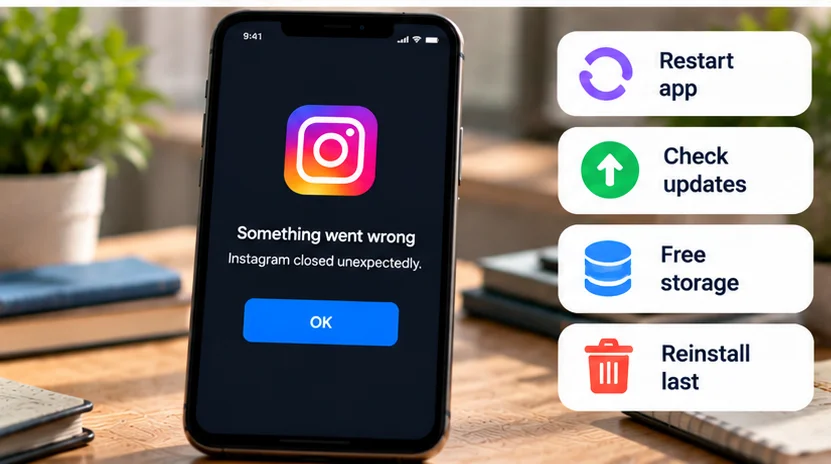
If Instagram keeps crashing, reopen it once, check whether the problem is broader than your phone, then restart and update before clearing anything. Note whether the app closes on launch or only during a particular action. That distinction helps avoid deleting local data for an issue a reinstall cannot resolve.
A crash usually means the app exits unexpectedly or stops responding. A feed that stays open but will not refresh, a login warning, and missing notifications are different symptoms with different checks.
Quick checks first
-
Reopen Instagram once and note whether it immediately closes again.
-
Check for an official Instagram service announcement if others are reporting failures too.
-
Preserve any accessible work, then restart the phone.
-
Check Instagram updates in the official app store and supported system updates.
-
Check free device storage and note the action that triggers the crash.
Test after each meaningful change. Do not keep recording the same long Reel or composing the same unsaved caption to reproduce a crash; use a disposable example after protecting the original material.
Work out what is actually failing
| Pattern | Most useful next check |
|---|---|
| One crash followed by normal use | Observe before resetting anything |
| Repeated exits before the home screen appears | App/system updates, restart, storage, then platform cleanup |
| Crashes only when opening the camera or an editor | Record that feature, media type, and permission state |
| The app stays open but content will not load | Connection or service availability |
| Several unrelated apps crash too | Device or operating-system support |
These patterns help choose an investigation; they do not identify a confirmed cause. A failure that began after an update may be a compatibility issue, but timing alone does not establish a defective Instagram release.
If the app opens normally and only alerts are missing, use our Instagram notifications guide instead of resetting the app's storage.
Check service and connection symptoms separately
Look for an official announcement relevant to the service and the time of the problem. Other people's reports can be useful clues, but they do not confirm a current outage or explain every local crash. Check what product a status notice actually covers before applying it to ordinary Instagram use.
If content fails to load while the app remains open, compare Wi-Fi with mobile data where your plan allows. Instagram's troubleshooting guidance recommends restarting, updating, and comparing connections. If the same problem occurs across devices or the website, avoid repeatedly reinstalling while investigating a service-side failure.
Using the website can also provide a temporary way to check essential account information. It is a separate interface, so success there does not prove that every camera, editing, or app-only function should work.
Restart and update through official channels
Close the unresponsive app and reopen it. On iPhone, use the app switcher; if that does not help, restart the device. Apple places close/reopen, restart, and updates before deletion.
On Android, a stuck app can be force-stopped through its app information in Settings, then opened again. This interrupts its current work, so preserve anything accessible first. It is a troubleshooting step, not a routine requirement to stop every background app.
Check the Instagram listing in Google Play or the App Store for updates. Review system updates supported by your phone as well. Google's Android app guide covers those checks and contacting the developer when one app continues failing.
Use the supported version offered for your device. Do not install an old APK or a modified Instagram build from an unknown download site as a shortcut around a suspected update problem.
Check storage and narrow the triggering action
Open the phone's storage overview and inspect which categories are large. On iPhone, Apple's documented route is Settings → General → iPhone Storage. On Android, use your device's storage screen. Our phone-storage guide helps identify what occupies space without immediately deleting photos or conversations.
Free space by reviewing material you recognize and can safely remove. Confirm another usable copy before deleting originals. There is no universal amount of free space that guarantees Instagram will stop crashing.
For a feature-specific failure, note the sequence: for example, open the editor, select a particular video, then apply an effect. Compare with a small, non-private test clip if practical. If Instagram explicitly requests camera or microphone access, inspect that specific permission; granting every permission is not a general crash fix.
If the whole phone is unstable, return to device support rather than treating Instagram as the only cause.
On Android, try cache before storage clearing
Android settings differ across Samsung, Pixel, Xiaomi, OnePlus, and other manufacturers. Use Instagram's app-information/storage screen and the manufacturer's documentation when labels differ.
For a Pixel, Google's documented app route is Settings → Apps → See all apps → Instagram → Storage & cache. Choose Clear cache, not Clear storage, for the initial cleanup. Google distinguishes the effects: cache clearing removes temporary data, while storage clearing permanently removes app data. The next opening can be slower as temporary content is rebuilt.
Reopen Instagram and test the original symptom. Cache clearing is a limited attempt to address temporary state, not a guaranteed fix or a substitute for resolving an unsupported app/OS combination.
Protect account access before resetting or reinstalling
Clearing app storage or deleting/reinstalling can remove local app data and require another sign-in. Do not assume unpublished drafts survive. First confirm your password or supported login method, recovery email/phone access, and any two-factor method. Preserve accessible original media and captions outside Instagram where possible.
For Android, consider full storage clearing only after the earlier checks, using the device's explicitly labeled control. Reinstallation is a later alternative through Google Play; there is no need to repeat both blindly if the first attempt changes nothing.
For iPhone, Offload App and Delete App are different. Apple's storage guide says offloading removes the app but keeps documents and data; deletion removes the app and related data. Offloading therefore does not establish that retained state has been cleared. Neither should be treated as a guarantee that a particular Instagram draft can be recovered.
iOS does not provide the same general per-app Clear cache workflow described above for Android. If deletion and redownload become appropriate, use Apple's official instructions and the App Store. Deleting the installed app is not a request to delete the Instagram account.
Report a repeatable crash instead of repeating resets
If the app opens long enough, Instagram documents Profile → Menu → Help under More info and support → Report a Problem. Its technical-report guide also explains reporting without shaking the phone.
Include the phone model, OS and app versions, the precise action, and what changed after each attempted fix. Review screenshots before attaching them so they do not expose messages or personal media. Instagram says device/account information related to the issue is included automatically and describes optional additional diagnostics; review those choices before sending.
When launch itself fails, use the official Help Center or the developer contact available through the app store. Keep a concise record of the symptom and stop destructive cleanup once it stops yielding useful information.