—
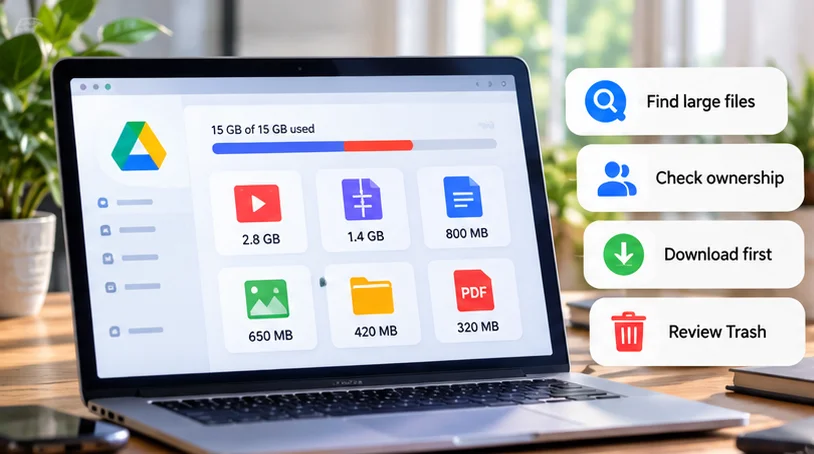
To find large files in Google Drive, open Drive on a computer, select Storage, and use Storage used to put the largest items first. Review the files you own, preserve anything important, and only then move unwanted items to Trash. Permanent deletion comes after a separate review.
The largest file is a useful place to investigate, not an automatic deletion candidate. An old video might be expendable; an equally large archive might hold the only complete copy of a project.
Open the storage list in the correct account
-
Open Google Drive in a browser on your computer.
-
Check the account icon to confirm the intended personal or work account.
-
Select Storage in the left navigation.
-
Select Storage used to change the order if necessary, with the largest usage at the top.
Google documents this size-sorting method. These are computer-web instructions; the mobile app may present different controls.
Use the reported cloud usage rather than a file's apparent size in a synchronized desktop folder. Local downloads, streamed placeholders, and cloud storage are different measurements. Clearing a downloaded copy on a phone is not the same as removing the online file.
Gmail and Google Photos can also use the account's shared storage pool. If the overall warning is much larger than your Drive files explain, examine the account breakdown separately rather than deleting useful documents from the wrong service. For a Gmail-heavy breakdown, review large emails separately.
Narrow the review without losing the size context
Start with the storage list when the goal is reclaiming cloud space. Use Drive's search filters when you need to examine a particular category, such as videos or PDFs, or files associated with a person or project.
Google supports file-type and owner searches. For example, owner:me type:video helps identify videos you own; it is a search to review, not permission to delete the results. Search sorting and the Storage list are different views, so return to Storage used when comparing the largest contributors.
Make a small review list rather than selecting every large item. Note its name, reported usage, owner, whether anyone relies on it, and your intended action. Even three or four candidates can reveal whether exports, recordings, or archives explain the space problem.
Confirm ownership before counting potential savings
Files in Shared with me generally count against the owner's storage, not yours. Removing someone else's shared file from your view usually does not reduce your allowance. However, making your own copy or uploading your own file into a shared folder can use your storage. Google explains those distinctions.
Inspect the file's details or sharing information to identify its owner. Do not infer ownership from the folder containing it, who last edited it, or whether its name appears in My Drive.
If a file belongs to a workplace shared drive, follow the organization's storage and retention rules. Google explains that shared-drive files belong to the organization, rather than an individual. Ask the administrator about authority to remove organizational records.
For a file you own, check who has access before changing anything. A recording may still support training, and an archived PDF may be linked from an active document. Google's sharing guidance explains how to inspect and manage access.
Decide what to keep, archive, or remove
| Candidate | A useful check before deciding |
|---|---|
| Large video | Is it the original, a finished export, or a redundant working copy? |
| ZIP/archive | Can you open its contents, and are any files unique to this archive? |
| PDF or scanned document | Does it contain records or annotations missing from another version? |
| Similar filenames | Compare content and dates; a suffix does not prove duplication |
| Backup/export file | Identify what it restores and whether a newer usable replacement exists |
A large backup is not inherently waste. Keep recovery files until you understand what depends on them. Some account backups are managed separately from ordinary Drive files; do not assume everything in the account-storage total appears in this list or follows the same deletion process.
For a fictional example, suppose you find a raw event recording, its edited delivery file, and an archive of both. Keeping the delivery file alone may meet a viewing need but lose the ability to re-edit. Decide the purpose before choosing which copy to remove.
Make a usable independent copy where needed
Before removing something valuable, download it to a location outside the folders that synchronize with Drive. On the computer website, right-click the selected file and choose Download. Google documents downloading and export formats.
Wait for completion, open the downloaded file, and check the content you need. Inspect an archive's contents and test a video's playback beyond its opening. A browser download notification is not enough to establish that a recovery copy works.
For Google Docs, Sheets, or Slides, select an appropriate export format and check the result. Treat it as an exported document rather than assuming it preserves every collaborative feature or the complete online history. Keep the original if that history or ongoing collaboration matters.
Move a reviewed batch to Trash
Deleting through synchronized folders can affect connected copies. Preserve independent archives first. If you own a file, permanently deleting it also removes collaborators' access to that original; a download elsewhere does not preserve their existing link. Google describes the deletion consequences.
On the computer website, select a confirmed unwanted file and use Move to Trash from its context menu. Review a small batch before continuing.
If you included the wrong item, open Trash, right-click it, and choose Restore. Google's recovery guide documents those steps. Open the restored item to confirm it is the one you intended to keep.
Review Trash before permanent deletion
Items in Trash still consume storage. Google says ordinary Drive files remain there for 30 days before automatic permanent deletion; you can delete them forever earlier. Do not treat Trash as a long-term archive. Google explains the retention and storage effects.
Permanent deletion removes the normal Restore option. Inspect the whole selection and verify any archive before confirming Delete forever. Empty trash affects older discarded files too, so use it only after reviewing everything inside.
Google One's storage manager offers another review route, but its confirmation may proceed directly to permanent deletion. Read that wording instead of assuming every cleanup action first goes to Trash. Google One documents its workflow.
After a large deletion, Google says storage accounting can take up to 48–72 hours to update. This is not an exact completion promise for an individual file. Record the cleanup and allow recalculation before deleting more useful material merely because the number has not changed.