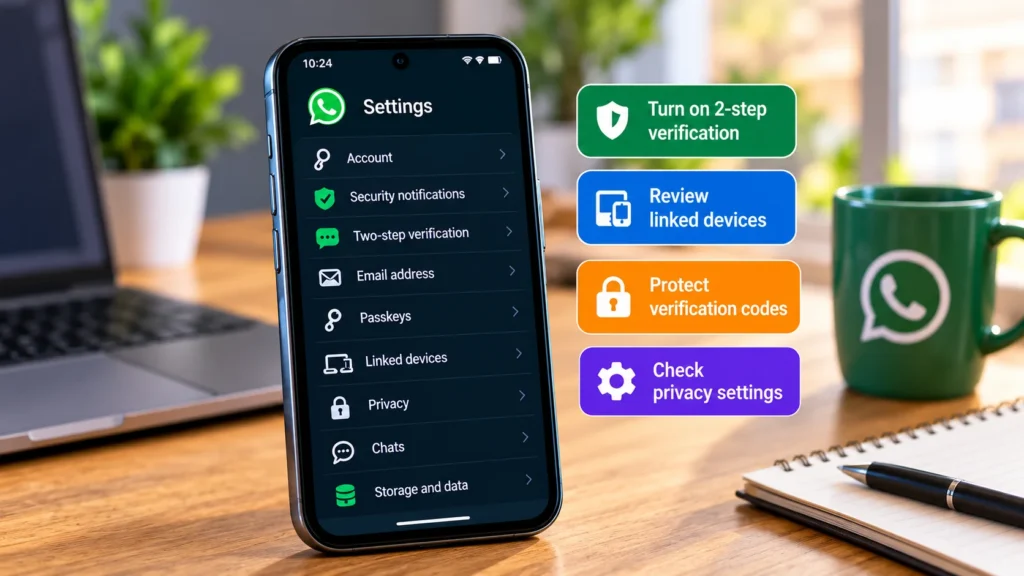
To secure your WhatsApp account, review how you sign in, which devices are linked, and how you would recover access after losing the phone. Then check the phone’s lock, WhatsApp’s available app-lock controls, backup protection, and privacy settings. Each covers a different part of the account.
If you are already locked out or someone is actively using your account without permission, use WhatsApp’s compromised-account recovery instructions first. Turning on a security feature should not be treated as proof that an existing intruder has been removed.
Start with official, updated software
Install WhatsApp updates through its official distribution channels and keep the phone’s operating system supported and updated. Avoid modified WhatsApp apps or unofficial linking services that promise extra capabilities.
WhatsApp’s account-security guidance distinguishes several protection layers. None removes the need to keep control of the device and registered number. If you are unsure about an unfamiliar app, check the warning signs before installing it.
Start the review from WhatsApp itself. Do not follow an unsolicited “security upgrade” link and enter your credentials just because the message uses a familiar logo.
Review two-step verification without assuming a PIN-only screen
Look in WhatsApp’s account settings for two-step verification and follow the current setup or management prompts. This is separate from the temporary registration code sent when verifying your number.
WhatsApp’s two-step verification controls may differ by account, platform, and rollout stage. Some users may still see the familiar six-digit PIN, while newer account-security controls may offer updated password-based options. Follow the wording shown in your current app and WhatsApp’s latest official guidance rather than assuming every account uses the same setup.
Use a unique password where offered and keep it in a trusted password manager. If your screen still uses a PIN, protect it and follow official upgrade guidance when available. Our explanation of two-factor authentication helps separate an additional account check from a one-time registration code.
Verify recovery email and passkey access
Check the email address associated with the account and complete any verification requested. WhatsApp documents Settings → Account → Email Address for managing it in its email-verification guidance.
Use an email account you can actually access and protect it separately. Do not assume that adding email makes continued control of your registered number unnecessary; WhatsApp’s available registration and recovery routes have specific requirements.
The current official account-security announcement documents Settings → Account → Passkeys. Check this section where supported and follow the setup prompts. Understand how passkeys differ from passwords and how your chosen credential manager makes them available after a device change. Do not assume a passkey stored only on a lost device will remain accessible.
Secure your WhatsApp account by reviewing linked devices
Open Linked devices and inspect the sessions you recognize. On Android, WhatsApp’s documented route starts from the three-dot menu. Select an unfamiliar device and choose Log out. Other platforms may organize the entry differently; use the Help Center’s matching platform tab.
WhatsApp’s unlinking instructions distinguish logging out a linked device from actions on the primary phone. Disconnect unused shared-computer sessions as well as obviously unfamiliar ones.
If you discover an unexpected session, remove it, check again, and review how it could have been authorized. Logging it out cannot recall information already copied. If access is lost or suspicious activity continues, follow the official recovery process rather than repeatedly changing unrelated privacy options.
Protect registration codes and linking approvals
Never share a registration code, two-step verification secret, or recovery credential with someone claiming to be support, a friend, or a colleague. A request to “send back the code” is not made safe by coming from an account you recognize.
Treat device-linking approvals with the same care. Scan a linking QR code or enter a linking code only when you deliberately initiated the process on your own trusted device. An invitation promising a reward or asking you to verify membership should not lead you into WhatsApp’s device-linking flow.
For unexpected requests, contact the person through another established route. Knowing how fake login pages work helps you inspect the destination rather than trusting the message’s appearance.
Keep local access and the phone number protected
Use a strong device lock and review who can unlock the phone. Where WhatsApp offers app lock or biometric controls, consider them as an additional barrier, particularly on a shared device.
For example, WhatsApp’s iPhone app-lock documentation describes Privacy → App Lock and notes that calls or notification replies can remain available while the app is locked. Check notification previews separately. Available controls differ across phones and desktop versions.
Keep your mobile-provider account protected and ask about any available account PIN or number-transfer safeguards. If your number unexpectedly stops working, contact the provider through a trusted channel. Two-step verification is not a replacement for control of the phone or SIM.
Review backup protection separately
Personal-message encryption does not automatically describe the protection of a cloud backup. Open Settings → Chats → Chat backup → End-to-end encrypted backup where available and inspect the options actually offered.
WhatsApp’s encrypted-backup update describes a passkey-based option introduced through a rollout. Other supported backup setups may involve a password or encryption key. Account sign-in passkeys and backup-unlocking arrangements should not be assumed to be the same setting.
Before changing anything, understand what restores your chosen backup and preserve the required credentials. Use our WhatsApp backup checklist to verify the destination and completion rather than deleting an existing copy during a security tidy-up.
Separate privacy preferences from account security
In Privacy, review the audience for your profile photo, last-seen/online information, and group invitations, using the choices available in your version. WhatsApp’s Privacy Checkup can guide the review; Silence Unknown Callers is another available control to consider.
These settings manage visibility and interruptions. They do not replace sign-in protection or guarantee that an account cannot be taken over. Likewise, end-to-end encryption does not stop someone reading messages on an accessible endpoint, and it does not make a phishing link safe.
Before changing phones, check the registered number, recovery email, credentials, and backup access while the old phone still works. Follow the phone-move checklist before erasing or surrendering it. Finish by confirming that only intended devices remain linked and that your recovery plan does not depend entirely on the phone you might lose.