—
To reduce mobile data usage on Android, first identify which apps use your allowance. Then adjust their media settings, move large transfers to suitable Wi-Fi, and restrict background access selectively. Disabling everything can save data at the cost of missed messages or unfinished backups.
Samsung, Pixel, Xiaomi, OnePlus, and other manufacturers may use different labels and menu locations. The paths below are documented Pixel examples; use Settings search or your manufacturer's guidance if your menus differ.
Check which apps are using mobile data
On a Pixel, open Settings → Network & internet → SIMs → App data usage. Use the date selector and review the apps below the graph. Google's data-usage guidance also explains that phone measurements can differ from your carrier's records.
Match the displayed period to your billing cycle before drawing conclusions. A calendar-month total and an allowance renewing mid-month describe different periods. With multiple SIMs, check the connection actually supplying mobile data. Use the carrier's account information to understand billing and remaining allowance.
Start with the largest relevant entry. A video app you watched throughout a journey calls for different changes from a photo app uploading while your phone sat in a pocket. Where your phone separates foreground and background usage, that distinction helps you choose the right control.
Use Data Saver with a small exception list
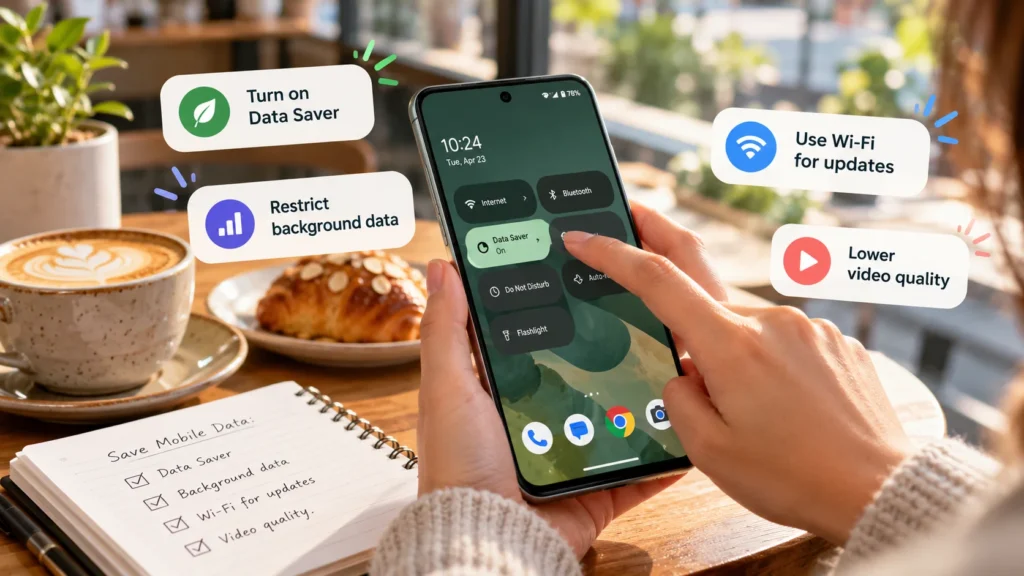
On Pixel, find Settings → Network & internet → Data Saver. Google's Data Saver documentation says most apps and services then get background data only over Wi-Fi. An app you are actively using can still access mobile data.
That makes Data Saver useful for reducing unattended transfers. It does not make a long video stream free of mobile-data use.
Review Unrestricted data in the Data Saver settings. Allow exceptions for apps whose background connection you need, rather than exempting every installed app. Messaging, work communication, or time-sensitive services may need that access to behave as expected.
After enabling it, check an important message and a service you rely on while away from Wi-Fi. If something stops updating until you open it, review that app's restrictions before abandoning Data Saver altogether.
Change the biggest app's own settings
For video, social feeds, music, and messaging, look inside the app for controls covering streaming quality, autoplay, automatic downloads, or uploads over mobile data. Available controls depend on the app; there is no single Android switch that sets every service's video quality.
Useful choices include downloading a playlist over home Wi-Fi before travelling, choosing a lower streaming quality, or making large media downloads manual. Keep essential text communication available while targeting heavier transfers.
If an app uses substantial background data, inspect its Android app-information screen for background-data controls where supported. Restrict one candidate at a time. Background restrictions can delay messages, sync, or notifications, so begin with a nonessential app rather than your main communication service.
If most usage happens while the app is open, focus on what it loads. A background restriction will not solve hours of foreground streaming. For Instagram, review its data-saving controls.
Move app updates to suitable Wi-Fi
Google Play has a separate automatic-update preference. Open your profile picture → Settings → Network preferences → Auto-update apps, then choose the Wi-Fi option if that suits your connection. These controls are described in Google Play's update instructions.
Keeping updates enabled over Wi-Fi is a practical compromise: apps can receive improvements without routinely using your cellular allowance. Turning updates off indefinitely creates a maintenance task you must remember.
This setting governs Google Play app updates, not every transfer on the phone. A game may download content after launching, and the phone's system updater has its own controls. Google also notes that certain critical security updates may occur regardless of the selected update setting.
Review photo backup and cloud transfers
An afternoon of recording video can leave a large upload queue. In Google Photos, open profile picture → Photos settings → Backup → Mobile data usage. Google documents controls for a daily mobile-data backup limit, video backup over data, and roaming in its Android backup guide.
Prefer Wi-Fi for large uploads if your allowance is tight. Then reconnect to suitable Wi-Fi and confirm backup completes before deleting originals. Waiting for Wi-Fi means the latest photos may not yet have an online copy.
Review other cloud apps separately: an upload started manually and an automatic camera backup are different jobs. Avoid disabling every sync function when one transfer is responsible.
Deleting downloaded files does not refund data already transferred. If your problem is local space, see what to do when phone storage is full; storage cleanup and data budgeting solve different problems.
Watch hotspot use and metered Wi-Fi
A laptop connected to your phone's hotspot can consume the phone's mobile allowance through its own downloads, updates, and cloud activity. Google's tethering guide also notes that carrier restrictions or extra charges can apply.
Before sharing, pause unnecessary large transfers on the connected device. Disconnect the hotspot when finished. Do not assume phone-level saving controls cover everything another device does; Google's Pixel instructions require turning Data Saver off for Wi-Fi tethering.
Wi-Fi itself can have a data allowance, including another phone's hotspot. On Pixel, the network's Network usage setting can mark it as metered, as explained in Google's network settings guidance. This helps manage usage but is not a guarantee that no background traffic occurs.
Review roaming and set a useful warning
Before travelling, check your carrier's roaming terms and the selected data SIM. Roaming can involve different allowances or charges. Turning data roaming off may also remove your mobile internet connection in places where roaming is required.
Where supported, set a usage warning early enough to leave room for essential tasks. A hard limit is more disruptive: reaching it can turn mobile data off. Choose it only after considering navigation, messaging, and other services you need away from Wi-Fi.
Keep the changes that address your actual usage: lighter media settings for streaming, Wi-Fi scheduling for uploads, and selective restrictions for unnecessary background transfers. Review the same billing period again to see which category still needs attention.