—
To remove unused apps safely, review what each app does before uninstalling it. Check local files, account access, subscriptions, and any role in authentication or device management. An app you rarely open can still be essential.
Make a short list of candidates rather than deleting everything with an old last-used date. A completed event app and an authenticator kept for emergencies deserve very different decisions.
Review the installed list and storage use
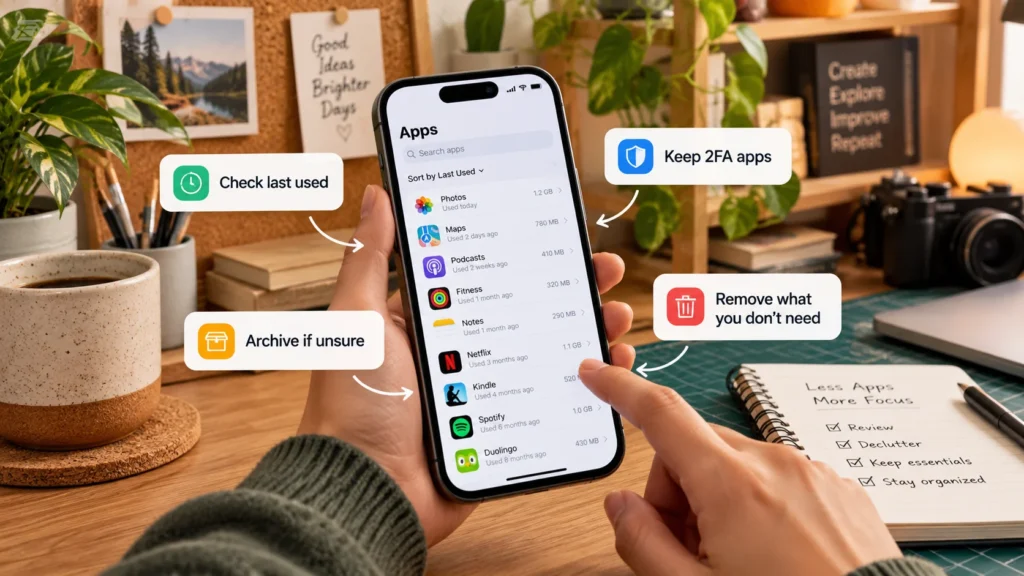
On Android, inspect the app list in Settings or Google Play's app manager. On iPhone, Settings → General → iPhone Storage shows apps and their storage use, as Apple documents.
Use last-used information or sorting where your device offers it. Treat the date as a clue to investigate, not a command to delete. A travel app might be used only on trips, and a recovery tool may be valuable precisely because you seldom need it.
For unfamiliar apps, inspect the full name, developer, and genuine store listing. Consider whether it arrived with the phone, a work profile, or another service you use. Do not assume an unfamiliar name is malware or an unnecessary app.
The largest entry is not always the best candidate. It may include offline music, maps, or downloaded video that you can manage inside the app. Our phone-storage guide helps separate app size from saved content.
Decide whether the app is genuinely dispensable
Review each candidate against its present purpose:
| App or situation | Decision to make before removal |
|---|---|
| One-time event or trial app | Check for saved tickets, receipts, exports, and active billing. |
| Banking or account app | Confirm another approved way to access the account and authorize activity. |
| Smart-home controller | Check whether you still need it to operate or reconfigure devices. |
| Work or school tool | Ask the administrator if it is required or managed. |
| App with local projects or conversations | Export or back up the information you need. |
| Unknown system-looking component | Identify it through manufacturer guidance before changing anything. |
Keeping an online account does not necessarily require keeping its phone app, but confirm the alternative actually works. Use the account's supported sign-in method rather than assuming a browser login can replace every app function.
Protect authentication and security tools
Do not remove or archive an authenticator, password manager, security app, or device-management tool until recovery or migration is confirmed. Removing the tool you need to sign in can make reinstalling it difficult.
For an authenticator, check how its codes are stored and whether a transfer, backup, or alternative authentication method is available. Google Authenticator's official guidance distinguishes account synchronization from manually transferring locally held codes. Do not assume every authenticator automatically backs up everything.
For a password manager, confirm access to the account and necessary recovery information. For work or school security tools, get the administrator's instructions. Test the approved replacement or recovery route before removing the original, without sharing codes or export secrets with others.
Save local data and check subscriptions
Open the candidate app's own storage or project tools and identify drafts, offline files, downloads, and other information you want to keep. Export important material to an appropriate destination and confirm it opens there.
Check sync status rather than assuming the presence of a cloud icon means everything is saved. Android backup guidance warns that not every app supports backup or restoration of all data and settings.
Removing an app does not itself cancel its subscription. Review Apple-billed subscriptions, Google Play subscriptions, or direct service billing as applicable. Keep the cancellation confirmation if you no longer want to pay; uninstalling is not that confirmation.
Consider offloading or archiving for occasional apps
On iPhone, Offload App removes the application while retaining its documents and data for reinstallation. It differs from Delete App, which removes the app and its related data. Offloading can suit an occasional app when you want to preserve local information but reclaim the software's space.
It is less useful when the retained documents are the main storage burden. You also need the app to be available for reinstallation, so do not treat offloading as a substitute for exporting irreplaceable work.
Android has its own app-archiving feature. Google's documentation says archiving removes software, permissions, and temporary files, stops notifications, and retains the app icon and data. Manual archiving steps depend on Android version and device support; on supported devices, the app's Settings information page offers Archive.
Restoration requires the relevant app store and an app still available to download. Because an archived app stops operating and notifying you, keep essential communication and security tools available. Android archiving and Apple offloading are separate platform features, not identical universal commands.
Remove reviewed apps one at a time
After saving data and confirming access and billing, uninstall the chosen app. Google's Android removal instructions use Play Store → profile → Manage apps & devices → Manage, then the selected app's Uninstall control.
On iPhone, Apple's removal instructions distinguish Remove App, Delete App, and the final confirmation. Read the choice rather than merely hiding the icon.
Android menu labels can differ across Samsung, Pixel, Xiaomi, OnePlus, and other manufacturers. If a removal control is missing, identify why before trying a different method.
Leave unfamiliar system components alone
Some built-in Android apps cannot be uninstalled normally; some devices allow selected apps to be disabled. Google directs users to manufacturer guidance for this distinction. Disabling an unknown component can disrupt functions you still need.
Similarly, managed devices can prevent removal of required tools. Contact the administrator rather than bypassing restrictions or using unofficial debloating commands.
After each removal, check that your important daily tasks still work and review the storage difference. Keep a simple record of what you removed and any exports or cancellations completed. A deliberate cleanup should leave fewer unnecessary apps without creating missing-data or account-access problems.