—
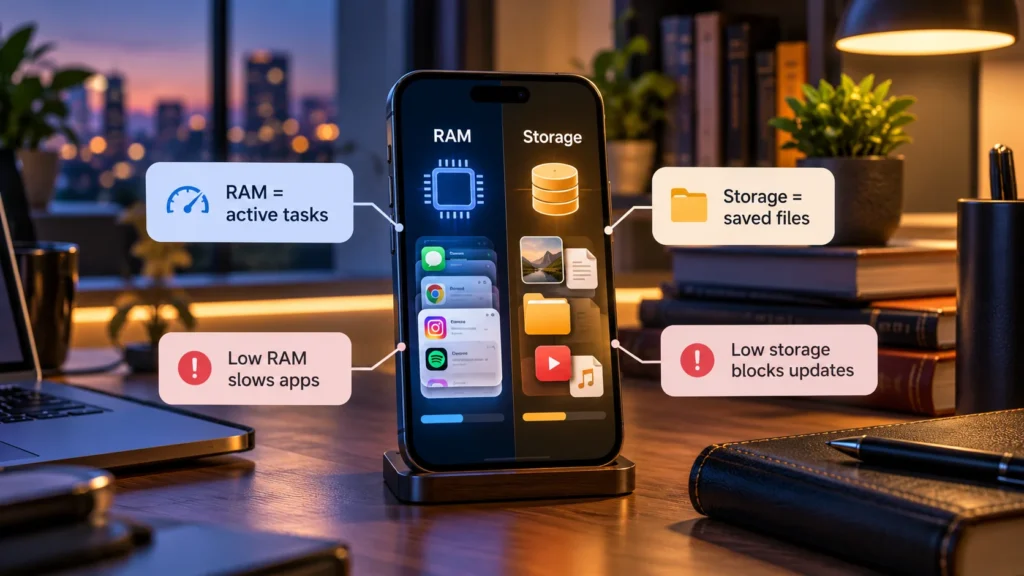
RAM is your phone's temporary working memory. Storage is the longer-term space holding installed apps, photos, videos, downloads, documents, and system files. Both matter, but they solve different needs.
RAM vs Storage: Quick Answer
If you need room for photos, downloads, or updates, focus on storage. If you want smoother switching between demanding apps, RAM is one relevant specification, alongside the operating system and the rest of the hardware.
Buying more storage does not automatically add physical RAM, and more RAM does not create space for saved videos. Choose according to the work you actually do rather than treating the larger number as the better phone.
| Question | RAM | Storage |
|---|---|---|
| Main job | Holds working information for the system and apps | Holds installed software and saved files |
| Does it keep its working contents after a restart? | No; working memory is temporary | Saved files normally remain |
| What can more capacity help with? | Keeping more app work available in memory | Keeping more apps, media, and documents locally |
| What can pressure look like? | Apps may need to reload when you return | Downloads, updates, or saves may lack room |
| Is capacity the whole performance story? | No | No |
RAM helps the phone keep work ready
When you open an app, the phone uses RAM for information it is actively working with. The operating system also needs part of that memory, so the advertised total is not a dedicated allowance for one app.
Think of RAM as a work surface and storage as the place where saved material is kept. A larger work surface can hold more open tasks; it does not increase the size of the filing area.
On Android, the system can keep a recently used app's process ready so returning to it is quicker. Google's memory-management overview explains that these cached processes can be terminated when resources are needed elsewhere.
For example, switching from a game to a camera app and then back may require the game to reload. Memory pressure is one possible explanation, but the app's design and system policies also affect what happens.
Low RAM does not mean saved files were deleted
Closing an app process to reclaim RAM is different from erasing its stored documents. Saved photos do not disappear simply because the system needs working memory for another task.
Unsaved work needs more care. What returns after an app reload depends on what the app saved and how it restores its state. Save a draft or project through the app's normal controls before moving on from important work.
Very little unused RAM is not automatically a problem. Android deliberately uses available memory for useful work, including keeping apps ready. Its memory-allocation documentation describes reclaiming memory and, when necessary, ending lower-priority processes.
The useful question is whether your actual tasks are interrupted, not whether a memory meter looks full. More physical RAM can help accommodate heavier multitasking, but it does not automatically accelerate every calculation, network request, or camera operation.
Storage keeps the things you save
Storage holds the app itself and its persistent content: downloaded episodes, offline maps, messages or projects stored locally, and files saved by the system. Unlike RAM's working contents, these normally survive a restart.
When free storage becomes scarce, the phone may lack room for a new download, an update, another video recording, or temporary working files. Google Play's troubleshooting guidance identifies insufficient space as a reason apps cannot download or install.
That problem requires storage management. Continually closing recent apps does not remove a collection of saved videos. If you see a capacity warning, use the phone-storage guide to identify which content occupies the space before deleting anything.
Capacity and speed are separate properties. Storage speed can affect reading app content or writing files, while free space determines room for those operations. A large capacity alone is not proof of faster performance.
Advertised capacity is not all available for your files
The operating system, built-in software, and formatting use part of the device's storage. Your own apps and their data consume more as you use the phone.
Apple's storage-capacity explanation describes why formatting and the operating system reduce usable space relative to the stated capacity. The difference varies; there is no single percentage to subtract from every phone.
When comparing models, consider the room you need after setup, not just the number on the box. Leave practical room for future updates and ordinary temporary files instead of planning to keep the device continuously at its limit.
Virtual or extended RAM is not more physical RAM
Some manufacturers offer features using storage as additional virtual memory. Samsung, for example, documents RAM Plus as using internal storage on supported Galaxy devices. Names, availability, and settings vary by model and software.
Do not add an advertised virtual-memory amount to physical RAM and assume the result behaves like that much hardware memory. RAM and storage have different characteristics, and the benefit depends on implementation and workload.
Android also uses memory-management techniques such as compressed memory within RAM. That is another reason “virtual memory” labels need interpretation rather than a universal speed claim. Check the chosen model's documentation for what its feature actually does.
Cloud storage is a separate location
An online storage allowance does not expand the physical memory or storage installed in your phone. Apple distinguishes device storage from iCloud storage; the broader distinction also applies when considering other cloud services.
Cloud features can reduce local use when they support removing or optimizing local copies appropriately. Files marked for offline access still occupy device space. Read our cloud-storage explanation before treating an online copy as a reason to remove the only local original.
Choose capacity around your habits
For light use, consider the apps and saved media you keep, rather than automatically choosing the largest RAM figure. Processor capability, software support, and app behavior still matter.
For gaming or heavy multitasking, look at physical RAM alongside the processor, graphics capability, thermal behavior, and how the particular phone handles your intended apps.
For photography, video, and offline entertainment, prioritize enough storage for the material you want on the device, plus a workable transfer or backup routine.
For long-term ownership, allow for changing app and file needs and check the model's expansion options before relying on an upgrade later. There is no universal RAM or storage amount that suits every operating system, workload, and ownership plan.