—
Google Drive is usually the more convenient working location for files you share or use across devices. Local storage is useful when you need dependable offline access or work with large projects on one machine. Important files often deserve both, plus a separate recovery copy that ordinary synchronization cannot overwrite or delete.
The choice is about how you use and recover each file. A cloud copy can survive a broken laptop, while a local copy can remain usable without an internet connection. Neither arrangement alone covers every failure.
Quick verdict: choose by workflow
-
Choose Drive as the working location for shared documents, collaborative projects, and files you regularly open on different devices.
-
Choose local storage as the working location for substantial media projects, offline work, or an application's demanding file-access needs. Back up valuable work separately.
-
Keep both kinds of copy for important records and active projects that must remain available through device or account problems. Add independent backup where losing the current version would matter.
These are starting recommendations, not rules that every file must follow. An employer's restrictions or a project's software requirements can determine the location before convenience enters the decision.
Compare the everyday tradeoffs
| Consideration | Google Drive | Local-only file |
|---|---|---|
| Access from another device | Available through supported apps/browser after sign-in | Requires transfer or another access arrangement |
| Offline work | Must prepare appropriate offline access | Available if the file and required app are on the device |
| Space | Cloud quota; offline copies/cache can also use disk | Uses device or attached-drive capacity |
| Sharing | Links, permissions, and supported collaboration | Usually involves sending or transferring a copy |
| Changes | Sync can update other connected locations | Changes stay with that copy unless transferred |
| Device failure | Uploaded content can remain in the account | A sole copy can be lost with the device |
| Account access | Depends on the right account and permissions | No cloud sign-in needed for an ordinary local file |
| Recovery | Trash/history can help within their rules | Depends on local recovery and backup arrangements |
Our cloud-storage explainer covers the underlying model. The practical question here is which copy you expect to work on tomorrow and which copy you could restore after a mistake.
Drive can include local files too
Drive for desktop offers streaming and mirroring. Streaming keeps files primarily in the cloud and uses local space for accessed or offline content. Mirroring keeps a full local copy of My Drive alongside the cloud copy. Google compares these modes.
That means “in Drive” and “on my computer” are not mutually exclusive. A mirrored file occupies both locations, while a visible streamed entry does not establish that the complete file is available without a connection.
For travel, prepare the files you need while online, then check that they open offline with the required application. Google Docs, Sheets, and Slides have their own offline setup; they should not be treated as ordinary downloaded documents. Google's offline guide explains the distinction.
A useful test is opening the actual itinerary, spreadsheet, or project asset before leaving. Seeing a filename in a folder is weaker evidence than successfully opening its contents.
Compare both storage budgets
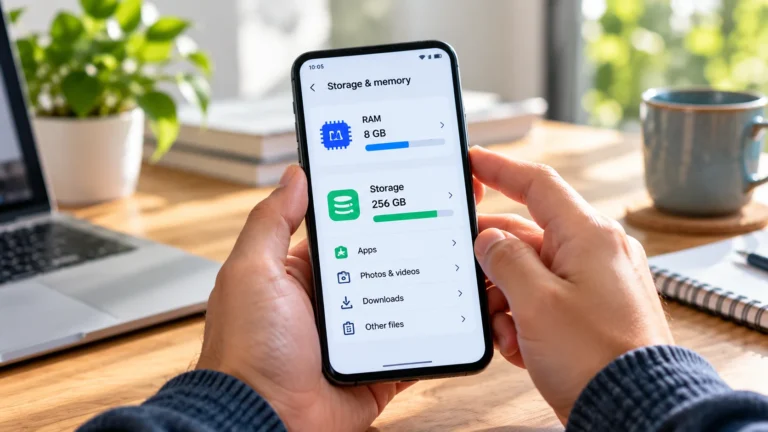
A file kept only on a local drive does not consume Google storage, but the drive still has a finite capacity. Buying cloud space does not increase the laptop's physical disk capacity either.
For an ordinary personal Google Account, storage is shared across Drive, Gmail, and Google Photos. Google documents quota behavior, including restrictions when storage is full. Work and school arrangements can differ; there is no single quota to assume for every reader.
Streaming may suit a small laptop that accesses a larger cloud collection. Offline selections still need space, so reserving an entire large folder can defeat that purpose. Mirroring can suit frequent local editing if the computer has room for the complete collection.
If Drive capacity is the constraint, review its storage before paying for more. Treat any deletion as a separate, reviewed cleanup task.
Separate synchronization from backup
Synchronization keeps working locations aligned. Backup preserves a recovery copy or earlier state under a separate retention arrangement. Another folder participating in the same sync is not automatically an independent backup.
For example, imagine a student keeps coursework in a mirrored Drive folder. If they delete the project there, the cloud copy is not a protected archive: Google says trashing mirrored or streamed files trashes them everywhere. An accidental edit can also become the current version across locations.
Drive's file-version tools and Trash restoration can help, but their rules and availability are not unlimited. Account loss is another obstacle if every recovery copy requires the same inaccessible account.
For valuable coursework, a practical arrangement is the working Drive folder plus a periodically updated backup outside that sync relationship. On a Mac, Time Machine is one official backup option. Whatever method you choose, verify that the actual files are included and that you can restore them; a cloud placeholder is not a substitute for file content.
Match the file to the job
For a household budget edited from two computers, Drive can reduce confusion over emailed copies. Share with the intended people and give only the access needed; Google distinguishes viewing, commenting, and editing.
For a large video-editing project, a suitable local working drive may be more practical. Keep the media and project dependencies together, then make a separate recovery copy. Exporting a finished video alone does not preserve everything needed to edit the project again.
For important documents and irreplaceable photos, prioritize recovery over choosing a single winning location. Keep usable copies in more than one failure context, with permissions and protection appropriate to the material.
Keep security and cleanup responsibilities clear
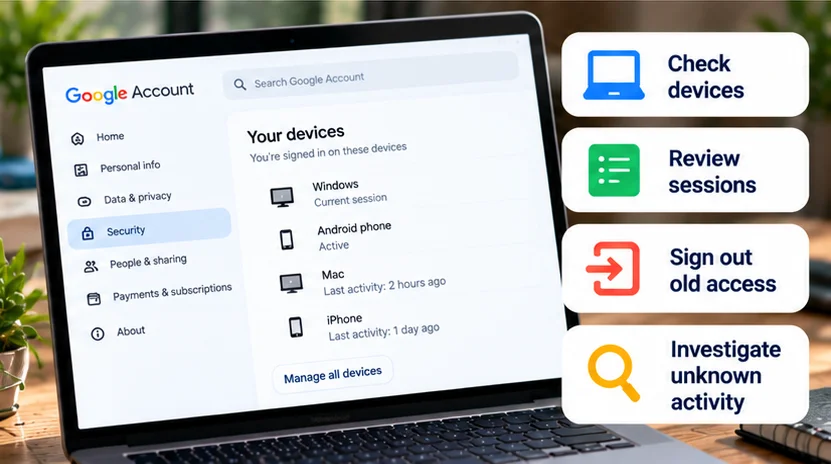
Drive requires attention to account access, recovery methods, and sharing permissions. Local files require attention to device locks, available encryption, physical possession, and backup storage. Local control does not prevent theft, and a cloud link does not establish that a file was shared privately.
Before deleting a source or changing a sync mode, confirm that the intended destination has the completed, usable file. Preserve independent copies first; do not empty Trash or delete a mirrored folder as an experiment to see which copy survives.
For everyday shared work, use Drive with prepared offline access where needed. For substantial offline projects, use appropriate local storage. For anything difficult to replace, plan the backup and restoration separately from the working location.