—
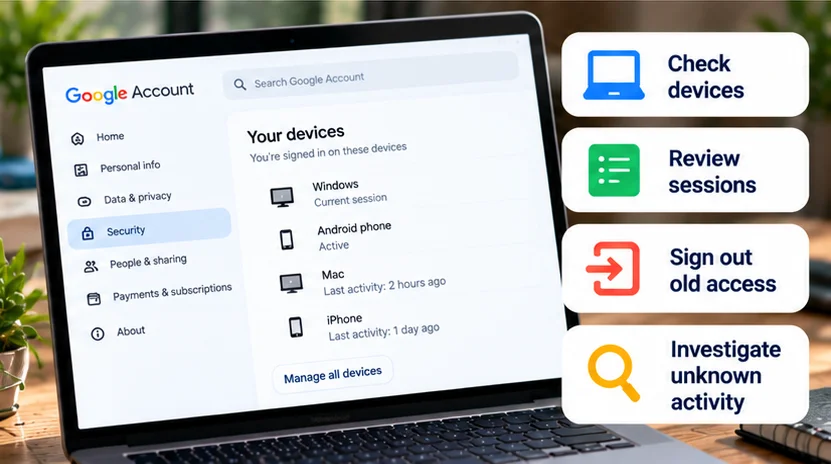
To check devices logged into your Google Account, open Google Account → Security & sign-in → Your devices → Manage all devices. Select an entry to inspect its sessions and activity, then sign out access that is old or not yours.
The list can include recent sessions and signed-out entries as well as current access. It is not a live inventory of who is physically holding each device. Read the details before interpreting an unfamiliar name as a confirmed intrusion.
Open the list for the correct account
Use a device you trust and open Google Account directly, rather than following an unexpected security-email link. If several accounts are signed in, check the address before reviewing the list.
-
Choose Security & sign-in.
-
Find Your devices and select Manage all devices.
-
Select a device or session to view the available details.
Google's device-access instructions document this route. The same account website is useful from a computer or phone browser; smaller screens can arrange the panels differently. Work or school accounts may also be subject to administrator controls.
For a personal and work account on the same phone, review each account separately. A familiar phone's absence from one list does not establish whether it is signed in to your other account.
Read an entry as a set of clues
Inspect what the page actually shows, including device type, session status, activity time, location, and browser or app where available. Not every entry supplies the same level of detail.
| Detail | Useful question to ask |
|---|---|
| Device/model label | Does it fit a phone, tablet, or computer you used? |
| Browser or app | Did you use that software, including on a shared computer? |
| Activity time | Does it fit your use or expected background syncing? |
| Location | Is there a plausible network or travel explanation? |
| Signed-out status | Is this recent history rather than remaining access? |
For example, a fictional reader who replaced an Android phone might see the old model, the new one, and browser sessions from a laptop. The useful comparison is with that replacement and sign-in history, not simply with the number of physical devices on the desk.
If you need help from an administrator, describe the unfamiliar entry and relevant time without publishing screenshots containing your account address, device identifiers, or location history.
Understand multiple sessions on one device
A session represents account use through a browser, app, or service. One physical device can have several; another browser, an app, or private browsing can explain additional entries. Matching names do not establish that every session is the same device either.
Consider your own routine: a laptop used for Gmail in one browser and a separate browser profile can create a more complicated list than “one laptop, one entry.” Compare the available session details instead of counting duplicates as separate intruders.
Before changing access, identify what you still need. For routine cleanup, removing the session associated with the computer you are currently using can interrupt your own work and require another sign-in.
Interpret timestamps and locations together
An activity time can reflect communication with Google's systems, including background syncing. A recent timestamp is therefore not necessarily the moment someone opened the device or read a message.
Locations are approximate. Google explains that IP addresses indicate a general area, and mobile-network activity can appear somewhere other than your actual location. An unknown location can also mean Google could not estimate one from the IP address.
Travel, the network/provider connection, or a VPN you intentionally used are possible context to investigate. None establishes by itself that an entry is harmless. A far-away location paired with an unfamiliar browser and activity you cannot explain needs a different response from a nearby city on your usual phone.
Compare more than one clue. A recognized browser alone is weak evidence because many people use the same software; a location label is likewise not proof of a device's physical position.
Sign out old or unexplained access deliberately
Signing out can interrupt the selected session's account access. Save work on devices you still control, confirm that you have a usable sign-in method, and avoid accidentally removing your own working session during routine cleanup.
In Manage all devices, select the relevant entry and choose Sign out, following the confirmation. Google recommends signing out lost devices and devices you no longer own. If several sessions share an unfamiliar device name and you cannot establish that they are yours, address all of those sessions rather than assuming one sign-out covers the group.
A recently signed-out entry may remain visible with that status. Reappearing text alone does not prove that sign-out failed; inspect the status and any subsequent activity.
For a borrowed computer, also consider which browser/profile you used and whether you saved anything there. Signing out is an account-access action, not a file-deletion procedure.
Escalate when the activity does not fit
If an entry remains unexplained, use this sequence:
-
Review the device/session details and compare them with your activity.
-
Sign out the old or unrecognized access.
-
Review recent security events in Security & sign-in.
-
Follow Google's response for an event you did not authorize.
-
Change your password if compromise is suspected, and review recovery information and sign-in methods for unauthorized changes.
Google's compromised-account guide covers that response and official recovery if you cannot sign in. Do not wait for a perfect explanation if you already know that someone changed settings or accessed the account without permission.
Also review Google's security alerts. Open the account independently and decline an unexpected sign-in prompt. You do not need to approve an unfamiliar attempt to investigate it.
Our two-factor authentication explainer covers the protection choices. Here, the priority is establishing which access belongs to you and correcting unauthorized access, rather than automatically replacing every security setting.
Separate sign-out from erasing a lost or sold device
Google Account sign-out does not remotely factory-reset a phone or erase downloaded files. For a lost device, use the applicable operating-system recovery tools separately; Google's lost-device guidance explains the different actions.
Remote erasure can permanently remove device data, so review consequences, backup availability, and device identity before considering it. Google's Android Find Hub instructions cover supported secure/erase options and their requirements. Do not treat an account-device entry as an erase control.
Passkeys may also need separate attention. Google warns that a passkey on a device someone can unlock can allow account access even after sign-out; its passkey guide explains removal. This matters especially for lost or shared devices.
Finish by checking that intended access still works, old sessions are addressed, and unexplained events received a security response. Review the list again after replacing a phone, using a shared computer, or losing a device.