—
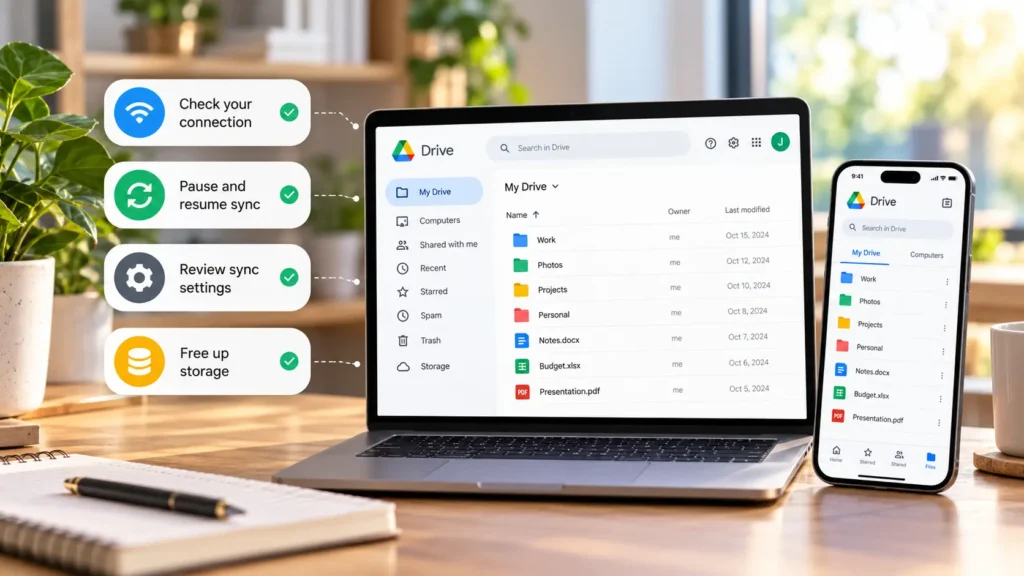
When Google Drive is not syncing, first check whether the latest file exists at Drive on the web in the correct Google Account. If it does, investigate the device that cannot see or download it. If it does not, start with the device holding the unsent file.
Keep that original intact. A file visible in a computer folder is not proof that its latest changes reached Google, and an item visible on your phone is not necessarily downloaded for offline use.
Quick checks first
-
Compare the signed-in account on both devices, including work and personal profiles.
-
Open Drive in a browser and search for the file rather than relying on one folder view.
-
Check the connection and any displayed upload or sync error.
-
On a computer, open Drive for desktop and see whether syncing is paused.
Before restarting an editing app, save your work. Do not delete or move the only current copy to make Drive “notice” it.
Identify which part is failing
| What you observe | Start here |
|---|---|
| New local file never appears online | Upload status and whether its folder is configured to sync |
| Web copy is current, desktop copy is old | Desktop account, sync status, and selected folder |
| File is online but will not open offline | Download/offline availability and device space |
| File is missing only in the mobile app | Account, search, refresh, and connection |
| Shared link says access denied | Ownership, sharing permission, or organization policy |
| Several users encounter similar failures | Service status and the shared network |
A renamed file, removed share, or wrong account can look like failed synchronization. If you need the underlying distinction, our cloud-storage explanation separates online, local, and synchronized copies.
Check the account and the file itself
Use the account shown in the sharing invitation or the account that uploaded the file. On the web, open the item and inspect whether it contains the expected changes; matching filenames alone are not enough.
For a shared file, test the original link. If access was removed, ask the owner to confirm sharing with the correct address. Reinstalling Drive cannot restore a permission the owner withdrew. Google's desktop troubleshooting guide identifies deleted or unshared files among sync-error causes.
If the file exists only locally, confirm it is inside a folder selected for synchronization. A folder somewhere else on the computer does not upload merely because Drive is installed.
Separate account storage from device space
A full Google storage allowance can block new uploads or file creation. Check the affected account's storage breakdown. Drive, Gmail, and Photos share account storage, while the free disk space on the device is a separate resource. Google documents both kinds of storage.
If the account is full, follow a reviewed cleanup such as freeing Google Drive storage. If the device cannot download a file, inspect its local free space instead; our phone-storage guide helps identify safe candidates.
Preserve important copies before deleting anything. Buying cloud capacity does not increase a laptop's physical disk space, and clearing a phone does not necessarily reduce its cloud allowance.
Check the connection and service status
Try loading another website, then a small existing Drive file. A working web page does not prove that a large transfer can finish, but it helps distinguish no connection from a file-specific failure.
Check the Google Workspace Status Dashboard for a Drive incident and its stated scope. An incident may explain a matching symptom; an empty dashboard does not rule out an individual account or network problem.
On a managed network, ask the administrator about proxy or firewall restrictions. Avoid disabling security software as a general troubleshooting experiment. If possible, compare with another trusted connection and note which one fails.
Inspect Drive for desktop before restarting it
Open Drive for desktop from the Windows system tray or Mac menu bar. Check its selected account, activity, and error message.
If paused, use Settings → Resume syncing. If activity appears stuck without a specific error, a brief pause followed by resume is a reasonable next test after saving open work. Google documents these controls.
Streaming makes files available through Drive without keeping every file fully downloaded. Mirroring keeps a local copy of My Drive. Offline availability therefore matters when a streamed file will not open without a connection. Google explains streaming and mirroring.
Do not switch modes simply to clear an error. That changes storage requirements and copy locations rather than diagnosing the cause.
On phones, inspect the upload rather than assuming desktop behavior
Reopen the Drive app, confirm the account, and refresh the file list using the control available in your version. Try opening the same file on the web. The mobile app's upload and offline-file controls are different from Drive for desktop's folder syncing.
On Android, an upload may be waiting for Wi-Fi if Transfer files only over Wi-Fi is enabled. Google documents that setting. Allowing mobile transfers can use your data allowance, so change it deliberately.
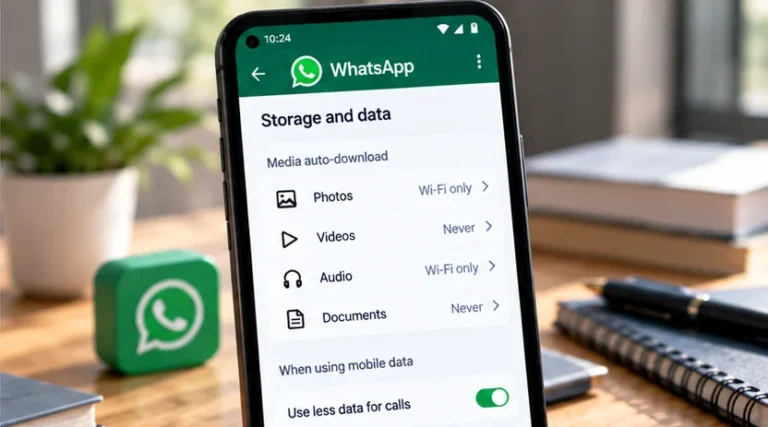
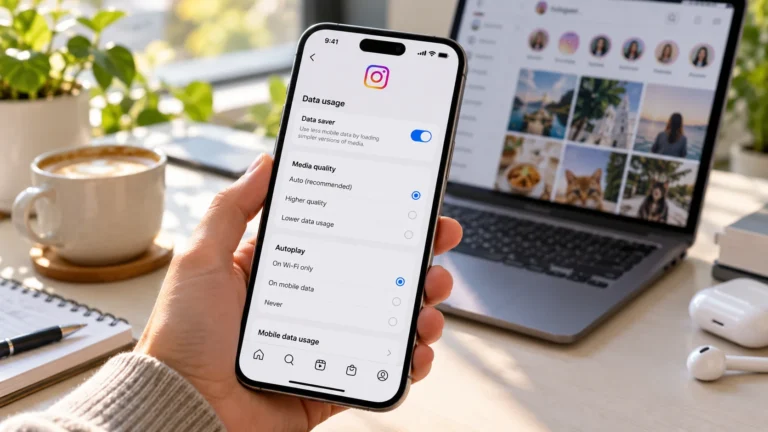
If transfers work while the app is open but stop in the background, inspect relevant battery and data restrictions. Samsung, Pixel, Xiaomi, OnePlus, and other Android manufacturers may use different labels and menu locations. Google's Data Saver guide explains background mobile-data limits; relax only the relevant restriction for a controlled test.
On iPhone, check the upload in Drive with the app open and a stable connection. Follow the iPhone upload guidance rather than applying Android-only menu instructions.
Use the error message to choose the next step
If one item fails while others work, record its exact error. Check whether the file is still open or changing in another app, whether its location exists, and whether you can read or edit it. A path or filename issue needs the rules for that operating system; do not apply an invented universal forbidden-character list.
Google also documents special handling for damaged Google Docs shortcut files and inaccessible originals. Use the specific help entry rather than deleting the source. Save a separate copy of unsynced work outside the sync folder before any consequential repair.
After saving work, quit and reopen Drive for desktop, or restart the device. Check for supported app and system updates if the problem continues. Repeat the original operation once so the result is clear.
Leave disconnection, reinstalling, and data clearing until last
Disconnecting an account can remove offline files. Google also warns that a desktop Lost & Found folder containing failed sync items is deleted on disconnection. Copy needed files to a safe independent location first; see its desktop recovery precautions.
Clearing mobile app data or reinstalling may remove local state and offline content. Preserve local-only work and confirm account access before considering either. Do not remove cache folders, unlink accounts, or delete files to force synchronization while the copy locations remain uncertain.
For an unresolved problem, give support the device, app version, exact error, affected account type, and whether the latest file opens online. That narrows the repair without risking the only usable copy.