—
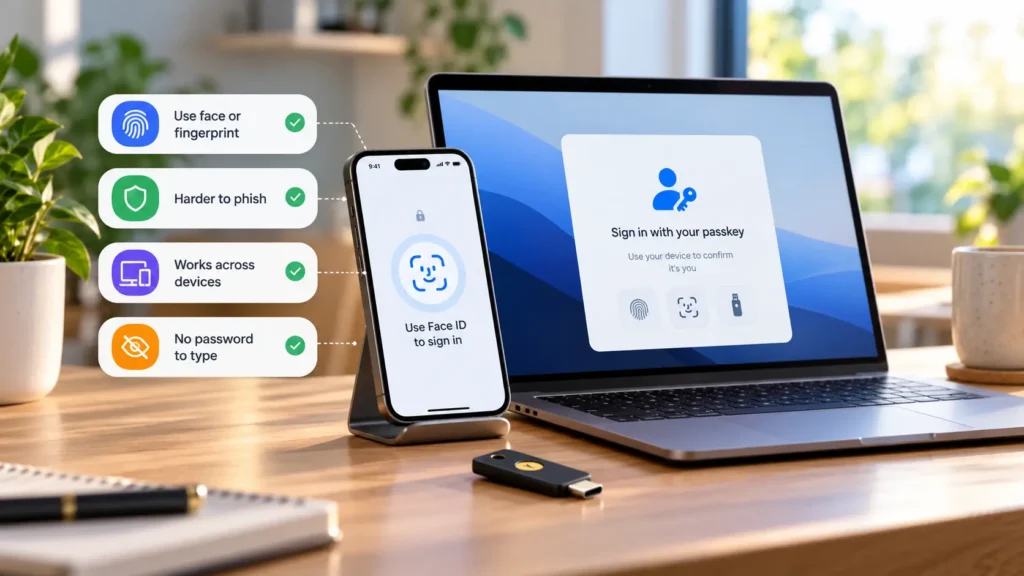
A passkey is a digital sign-in credential that can replace a password for a supported website or app. Instead of typing a secret, you authorize your device or credential provider to sign in, usually with a fingerprint, face recognition, or a device PIN.
Your fingerprint does not become your password. It normally stays on the device and authorizes use of the stored credential. The website receives proof of a successful sign-in, not your fingerprint. FIDO Alliance explains this distinction.
The practical choice: passkey or password
Use a passkey where the service supports it and you understand how to reach it from your everyday devices. It is particularly useful for avoiding manually typed passwords on sign-in pages. Keep supported fallback methods until you have confirmed another way to access the account.
For a service without suitable passkey support, a unique password stored in a trusted manager remains a practical choice. The decision depends on compatibility and recovery, rather than whether a sign-in prompt looks newer.
How a passkey works without a shared secret
Creating a passkey produces two related cryptographic keys. The service stores the public key with your account. Your device or credential provider holds the private key used to prove you can sign in.
During authentication, the device signs a challenge from the service. The public key checks that proof. The private key itself is not sent to the website. Apple describes this public/private-key arrangement.
Think of the public key as a way to check a signature, not a spare key that opens the account. You do not need to memorize, type, or manually create these keys.
Passkey vs password: the everyday differences
| Question | Passkey | Password |
|---|---|---|
| What do you remember? | Usually the device or provider unlock method | The password, unless a manager remembers it |
| What does the website store? | A public key and credential/account information | A password verifier; properly designed storage uses a salted hash |
| Phishing resistance | Bound to the legitimate service | A manually entered password can be submitted to a fake page |
| Reuse | A separate credential for the service/account | People can reuse a password, although they should not |
| Device dependency | Needs access to a device, provider, or security key holding it | Can be entered on another compatible sign-in page |
| Synchronization | Available for synced passkeys; device-bound ones stay on their authenticator | Managers can sync saved passwords |
| Recovery | Depends on provider access, other authenticators, and service recovery | Depends on the manager or service's reset/recovery options |
| Another-device sign-in | May use provider sync, a security key, or a nearby phone | Usually typing or autofill, plus any extra verification |
| Compatibility | Requires suitable service, browser, device, and provider support | More widely supported, with service-specific rules |
| Fallback methods | Password or another recovery route may remain | Extra methods may be needed if the password is forgotten |
The password-storage distinction describes good implementation, not a guarantee about every site. NIST specifies salted, hashed storage for covered password verifiers. Microsoft's passkey guidance illustrates the different storage and device choices.
What the sign-in looks like
On a supported service, select its passkey option, choose the intended account if prompted, and approve the device's unlock request. The exact screens vary. A fingerprint reader, face check, or PIN may all authorize the same type of credential.
Using a phone to unlock a website on a laptop does not necessarily copy its passkey to that laptop. A supported cross-device flow can use a QR code and a proximity check; Google's implementation requires Bluetooth for this route. Google documents its another-device sign-in flow.
Only approve a sign-in you started, on a device you trust. Do not create a lasting credential on a borrowed or shared computer merely to finish a one-time login.
Where passkeys live matters
A synced passkey is available through a credential provider on supported devices. A device-bound passkey stays on its particular authenticator, such as a hardware security key. FIDO distinguishes these two storage models.
For example, Apple describes passkey synchronization through iCloud Keychain. Microsoft documents both synced credential managers and passkeys saved locally using Windows Hello. These are different arrangements; “saved on my laptop” does not establish which one you chose.
Read the save-location prompt before accepting it. If you use Google Password Manager, identify the account and provider involved. Our password-manager comparison covers choosing a manager around the devices you actually use.
Changing or losing a device
Losing a phone does not automatically mean losing every passkey. You may still have access through a synced provider, another trusted device, a registered security key, or the service's recovery methods. Recovery is not universal: losing the only device-bound credential is different from replacing a phone whose passkeys are synchronized.
Before erasing an old device, test sign-in from its replacement. Confirm access to the credential provider and keep recovery details available independently. Do not assume a password export also transfers passkeys.
If a device is lost, use the service and provider's official lost-device guidance to secure it and review registered credentials. Google, for example, documents removing a passkey associated with a lost device. Keep a working sign-in route while making changes rather than deleting credentials indiscriminately.
Phishing resistance has a specific meaning
A passkey is associated with the legitimate service. A lookalike domain cannot simply request the original service's credential as though it were a typed password. Microsoft explains this domain binding.
That protects against a familiar credential-stealing technique. It does not eliminate malware, fraudulent purchases, stolen sessions, account-recovery scams, or social engineering. A genuine sign-in can still lead to approving an action you did not intend.
Why passwords and 2FA may still appear
Creating a passkey does not necessarily delete an account's password. Google explicitly says adding one leaves existing authentication and recovery factors in place. Other services set their own fallback rules.
A passkey is not a temporary 2FA code. Some flows use possession of the credential plus a local unlock check in place of password-and-code steps. For the broader distinction, see how two-factor authentication works.
Begin with a supported account, note where its passkey is saved, and confirm recovery before removing older methods. That is a more useful first step than trying to make every account passwordless at once.