
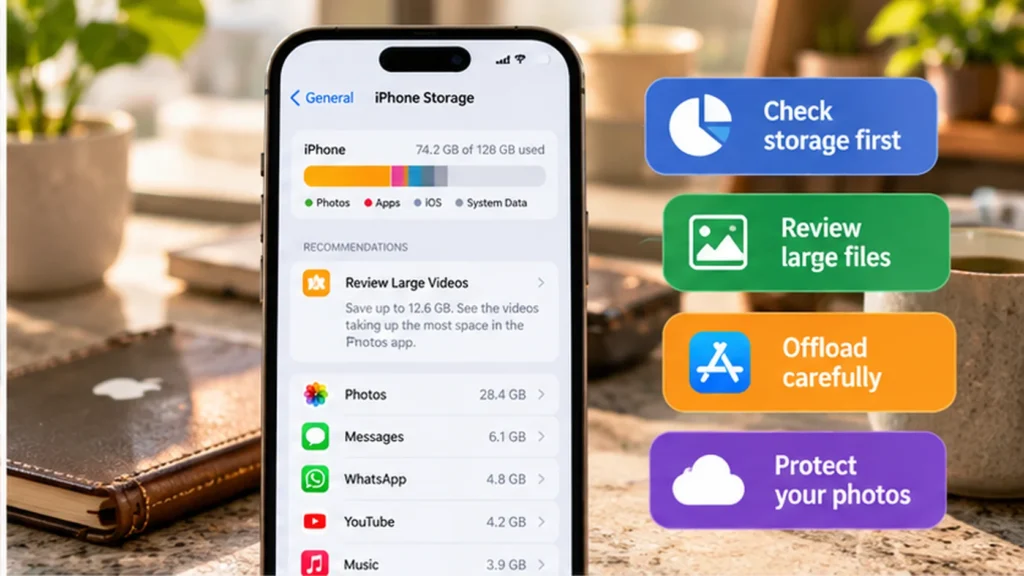
To free up iPhone storage safely, first check Settings → General → iPhone Storage, then target things you can replace: downloaded shows, offline music, and unused app installations. Check photo synchronization and app data before deleting anything you cannot easily recover.
There is no single cleanup button that knows which memories, documents, or conversations matter to you. A short review is safer than accepting every deletion recommendation at once.
Check what is using the space
Open iPhone Storage and allow the breakdown to finish updating. Review the largest categories and individual apps. An app’s documents and downloads may use more space than its installation.
Apple’s storage guide documents this screen and its recommendations. Labels and available suggestions can vary with iOS version and the content on your phone. Read what each recommendation will do before enabling it.
If Photos dominates, investigate photos. If a streaming app dominates, investigate its downloads. Removing ten tiny apps may achieve less than removing one completed series.
The broader explanation of what fills phone storage can help you identify the category before choosing a cleanup method.
Separate iPhone storage, iCloud storage, and backups
Your iPhone has a fixed amount of device storage. iCloud storage belongs to your online account. Apple distinguishes these two capacities: buying more iCloud space does not physically enlarge the phone.
Synchronization keeps selected information up to date across devices. A backup serves a different recovery purpose. Apple’s backup documentation explains that information already synchronized through services such as iCloud Photos is not duplicated in the ordinary daily iCloud backup.
Therefore, “it is in iCloud” does not automatically mean you have an independent copy that survives a synchronized deletion. Our explanation of how cloud storage works provides useful background before moving files around.
Freeing cloud storage may leave device storage largely unchanged. Removing a replaceable local download may free device space without deleting its cloud original. Check which action you are taking.
Protect photos before reviewing large videos
Start by identifying large videos, accidental recordings, and images you genuinely do not need. Do not delete them just because you can see them on another Apple device.
With iCloud Photos enabled, deleting a photo or video can delete it across devices using the same synchronized library. Apple’s deletion guidance explains this behavior. Make a separate, verified copy of irreplaceable items before deleting them from that library.
For photos you want to keep, review Optimize iPhone Storage instead. Apple’s photo-storage instructions describe keeping full-resolution originals in iCloud and smaller device copies when needed.
Look under Settings → your name → iCloud → Photos, then follow the current storage controls. Some versions place the optimization option in a further iPhone Storage screen. Confirm that syncing is progressing and that iCloud has enough capacity; optimization is not an instant promise to free a particular amount.
If you choose deletion, review the selection carefully. Do not immediately empty Recently Deleted to chase a larger free-space number: permanent deletion removes that recovery opportunity.
Remove offline media you can download again
Open the apps you use for films, television, podcasts, music, or offline maps. Find their downloaded-content controls and remove completed or unnecessary downloads, rather than deleting the account or its entire library.
Check the wording. Removing a download and deleting an item from a synchronized library can have different consequences. If the app does not make that distinction clear, consult its current help before confirming.
Keep anything needed for an upcoming trip or an unreliable connection. A cloud copy is less useful on a flight if you removed the only offline version you planned to use.
Review Messages attachments and Files separately
Large videos in conversations can accumulate quietly. Use the attachment review available in Messages or the relevant iPhone Storage recommendation, when offered. Save important attachments somewhere appropriate before removing them.
If Messages in iCloud is enabled, deletions can synchronize across your devices. Apple’s Messages deletion guide explains why another device should not be treated as an untouched archive.
In Files, inspect the location as well as the filename. A file under On My iPhone is not the same as a downloaded file in iCloud Drive.
For an iCloud Drive file whose cloud copy is available, Apple documents Remove Download as the action for removing the device copy while keeping it in iCloud. In Files, browse to iCloud Drive, select the downloaded item, and use the available Remove Download control.
Delete is different: it can remove the cloud file and synchronize that deletion. Third-party storage providers may expose different controls. Do not assume every Downloads folder is disposable or safely backed up.
Offload an app before considering deletion
In an app’s iPhone Storage details, Offload App removes the installation while retaining its documents and data. Delete App removes the app and its related device data. Apple’s iPhone storage documentation describes both options.
Offloading is useful when an installation is large and you expect to return to it. Reusing it still depends on being able to reinstall the app, so be cautious with discontinued apps or anything you rely on without internet access.
Before deleting an app, check where its information lives: locally, in an account, in iCloud, or in an app-specific backup. Verify access to that account and any important exports. Reinstallation is not a general guarantee of recovery; what app deletion actually removes depends on the app and data involved.
Use app-specific cleanup, then recheck
Some apps provide controls for downloaded media or cached files. Use those controls selectively when their purpose is clear. Do not follow Android-style “clear storage” advice as if every iPhone app has an equivalent safe switch.
If WhatsApp is a major contributor, review WhatsApp’s storage use and media cleanup rather than deleting the messaging app as a first step. Important chats and media deserve their own backup check.
After a cleanup, return to iPhone Storage and give it time to recalculate. If the display appears stale, restarting and checking again is a reasonable next step; repeatedly deleting unrelated items is not.
If the content you genuinely need still exceeds the available space, consider a computer or external archive, suitable cloud storage with understood sync behavior, or a higher-capacity device when replacing the phone. Extra cloud capacity can support optimization, but it does not turn into extra physical storage. Stop once you have useful breathing room and your important data remains accessible.