—
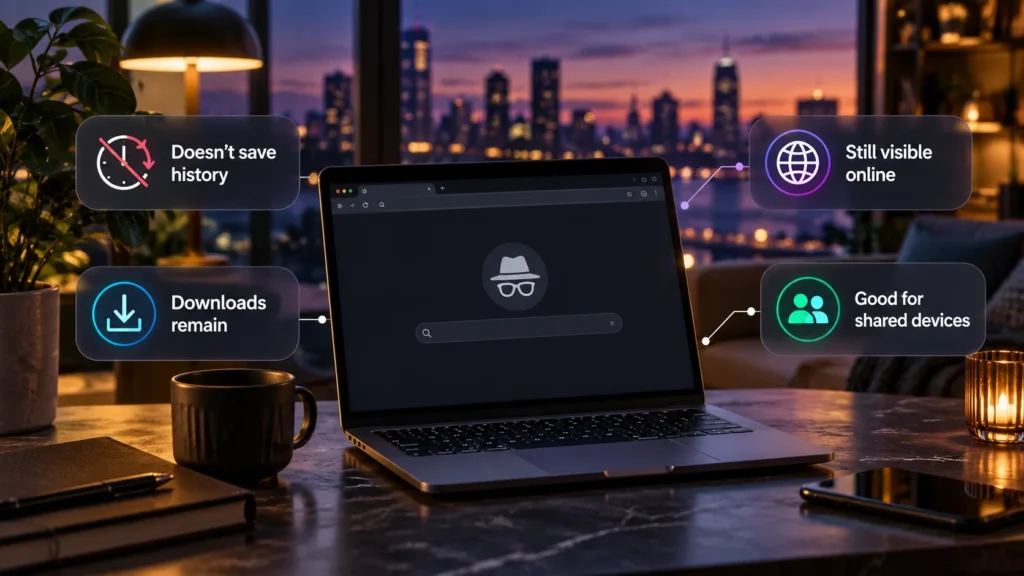
Private browsing creates a temporary browser session that limits what is retained locally after you finish. It is useful for keeping visits out of the regular browser history or signing into another account temporarily. It does not make you anonymous to websites or hide all activity from the network you use.
Chrome calls it Incognito, Edge uses InPrivate, and Firefox and Safari offer private windows. Their exact storage rules and protections differ, so think of a temporary session rather than a promise that every trace disappears.
What changes inside a private session
A private window generally starts without your regular session's website cookies. You may need to sign into services again, and the browser limits how it retains the new session's history and site data.
For desktop Chrome, the session ends when all Incognito windows close. Temporary cookies and site data are then removed, and Chrome does not retain a record of those visited sites. Google's Incognito documentation explains this local scope.
Opening another private window does not necessarily create an independent session. In Chrome, additional Incognito windows continue the existing one. Switching back to a normal tab also does not end it.
This is useful separation from ordinary browsing, but it is not the same as removing previous history or data already saved in your normal profile.
Use it for tasks that benefit from a fresh session
Private browsing fits several ordinary situations:
-
A temporary account sign-in: Use a second account without first signing out of the normal session.
-
A shared computer you trust: Avoid adding the visit to its regular browsing history, then finish the session properly.
-
A site troubleshooting check: Compare how a page behaves without the regular session's cookies and login state.
-
A private local search: Keep gift research or another ordinary activity out of the browser's usual history suggestions.
Treat a troubleshooting result as a clue. If a page works privately, cookies, sign-in state, or extension differences may be involved; it does not identify the cause by itself.
Firefox documents private-window behavior, including temporary cookies and limits on saved history. A useful routine on a shared device is to sign out of the website, finish the browser session, and check for anything you deliberately saved before handing it back.
What it does not automatically hide
| Observer or record | What private mode does not guarantee |
|---|---|
| Websites you visit | They can still receive requests and collect information during the visit. |
| A service you sign into | It can associate activity with that account. |
| Your ISP, employer, or school network | Private mode does not itself conceal network traffic from them. |
| A VPN provider handling the connection | A private window does not remove its position in the traffic route. |
| Someone inspecting saved files | Downloads and deliberately saved items may remain. |
| Monitoring software on the device | Private mode is not protection from malware or device monitoring. |
Network visibility depends on encryption, network configuration, and the observer. This does not mean an ISP can automatically read every HTTPS page or password. It means the private-window setting itself provides no additional network tunnel.
For example, searching while signed into a search account can create account activity even when the browser does not retain the local visit. Local history and a service's own records are separate systems.
If the computer is untrusted or monitored, a private window is a poor place for a sensitive sign-in. Firefox explicitly warns that private browsing does not protect against keyloggers or spyware. Use a device you control for sensitive accounts whenever possible.
Cookies can still work while the window is open
Private browsing does not mean websites stop using cookies altogether. A session can need them to keep you signed in, maintain a shopping basket, or remember choices while you navigate.
Microsoft's Edge InPrivate guide explains that sites can use cookies and other data during a session and that cleanup occurs after all InPrivate windows close. A personalized page during that visit is therefore not proof that private mode has failed.
If you want the distinction between temporary website data and other stored information, our cache versus cookies explanation covers their different roles.
Websites may collect information without relying only on cookies. The FTC describes tracking methods including pixels and device fingerprinting. Signing in gives a service an even more direct way to recognize your account.
Fingerprinting combines characteristics exposed by a browser or device to help distinguish visitors. Mozilla's fingerprinting guidance describes both this mechanism and protections against it. Browsers may reduce some tracking, but private mode should not be treated as a guarantee that visits cannot be linked.
Downloads and saved items need separate attention
Closing the private window does not delete a file you downloaded to the computer. The browser's list of downloads and the actual document in a folder are different records.
Chrome retains saved bookmarks; Edge retains favorites; Firefox also documents that bookmarks created privately remain. Do not bookmark a page you expect to disappear automatically when you finish.
Apple's Safari guide for Mac similarly distinguishes the private download list from files saved on the computer. Safari's local privacy behavior does not remove a downloaded statement or attachment from its destination folder.
Before using private mode on someone else's device, decide whether you need to download anything at all. If a file must be saved, arrange where it belongs and remove unwanted copies afterward. Do not assume closing the browser completes that task.
Avoid a blanket assumption that all saved information is discarded: Firefox's desktop documentation, for example, says newly created passwords and bookmarks can be saved during private browsing. Check what you explicitly agree to save.
Review extensions separately
Extensions do not follow one universal private-mode rule across browsers. In Chrome, an extension needs explicit Allow in incognito permission to run there, according to Google's extension controls.
Edge likewise allows selected extensions in InPrivate and warns that it cannot prevent permitted extensions from saving browsing history. Grant private access only when the extension has a purpose you need and a developer you trust.
Finish the session before handing over the device
On desktop Chrome and Edge, close every Incognito or InPrivate window, not just the tab containing the account. Follow the current private-session controls for your browser and platform; a mobile tab switcher can behave differently from desktop windows.
Use private browsing when your goal is a temporary local session or separation from everyday cookies. For account privacy, review the service's own activity settings. For network privacy, assess the connection separately. That gives private browsing a useful role without expecting it to erase records it never controlled.