—
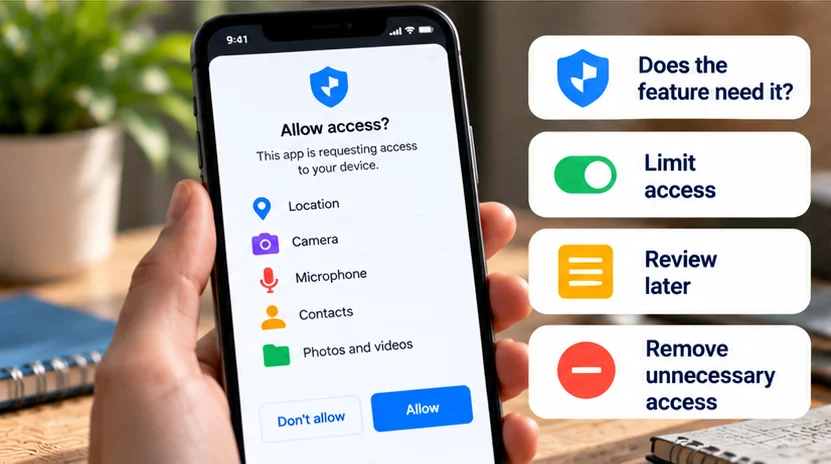
Avoid granting a permission that does not make sense for the feature you are using, especially when it exposes sensitive information or control over the device. A camera app needs camera access; a basic calculator asking to record audio needs a clear explanation before you approve it.
There is no useful universal blacklist of microphone, camera, or location access. The better rule is to match the request to the job, choose the narrowest workable option, and reconsider broader access if the app's purpose does not justify it.
Check the feature, scope, and publisher
Before selecting Allow, establish three things:
-
Purpose: Which action you requested needs this access?
-
Scope: Does it need one selected file, access while in use, or an ongoing connection to more information?
-
Trust: Is this the intended app from a developer whose explanation you can verify?
A fictional flashlight app asking for contacts is different from a calling app using the microphone during a call. A casual game asking to control other apps through accessibility needs more scrutiny than its ordinary graphics or sound features.
Our app-safety guide covers publisher and installation checks. A familiar icon or a plausible permission explanation alone does not establish that a particular download is trustworthy.
Treat sensitive data access according to its purpose
| Access requested | A reasonable feature example | What to question |
|---|---|---|
| Precise location | Turn-by-turn navigation | Exact or background location for a feature that only needs a city |
| Microphone | Recording a voice message | Recording access unrelated to anything you chose to record |
| Camera | Taking a photo or scanning a document | A requirement to use the camera for a text-only function |
| Contacts | Finding people in a communication app | Uploading an address book for an unrelated tool |
| Photos/files | Attaching a chosen image or document | Broad collection access when selection would work |
| SMS, phone, or call logs on supported platforms | An appropriate messaging or calling function | Access to messages or call records without a relevant feature |
Android's permission guide describes these capabilities, including the difference between microphone recording, managing calls, reading/writing call logs, and sending/checking SMS. Those are separate powers, not a single generic “phone permission.”
This table is a decision aid, not a claim that every platform presents every listed request. iPhone and Android expose different capabilities and approval mechanisms.
Prefer narrower location and media choices
Where offered, use a one-time, ask-each-time, or while-using option instead of ongoing access if the task is occasional. Android documents while-using and ask-every-time choices for relevant permissions; available choices depend on the permission and device version.
For location, distinguish duration from precision. An app may need your general area without needing an exact position. Android and Apple document approximate/precise choices. A weather feature may work with a broader area, while navigation may need more detail.
For photos, select the image needed for the task where a supported picker or limited-library option is available. Android's Photo Picker limits access to the media selected through it; Apple documents Limited Photos Library access. Selecting an attachment should not be confused with granting ongoing access to the whole library.
If limited access prevents a feature you genuinely need, consider a proportionate change. Do not expand access simply because a prompt makes the broad option easier to select.
Give accessibility and notification-reading access extra attention
On Android, accessibility access can allow an app to read screen content and interact with other apps. Google's restricted-settings guidance explains both the sensitivity and legitimate uses, such as tools for people with disabilities. Supported automation can also have a real reason for powerful access.
Before enabling it, verify the developer and the exact function. A delivery message telling you to install an unfamiliar app and bypass restricted settings is not a sufficient explanation. Do not treat a protection warning as a routine obstacle to dismiss.
Notification-reading access is different from allowing an app to send its own notifications. Android's notification-listener documentation describes access to notifications and related events. This can expose information from other apps, depending on the system's restrictions and notification contents. It should not be casually approved for an unrelated function.
A password manager can legitimately support autofill, and an accessibility or security tool can require special capabilities. Assess each specific request; the product category does not justify every permission it could ask for.
Review management, VPN, and installation requests separately
Device administration and management are broader than ordinary camera or photo approval. Depending on the platform, enrollment mode, and policy, a management tool can enforce settings or support actions such as locking or wiping. Android's administration documentation describes examples of these capabilities.
Employer or school management can be legitimate. Confirm the organization, intended device, and scope through its established support channel before enrolling, particularly on a personal phone.
A VPN request also deserves a specific explanation. Android's VPN documentation describes routing traffic through a VPN interface. A legitimate network/security feature can require it, but approving a VPN is not merely allowing an app to display an icon. Check whose service it is and why your chosen feature needs that routing.
Treat requests to install unknown apps or enable another installer as separate decisions too. Google warns about downloads from unknown sources. A legitimate distribution requirement should still have a verifiable source and purpose.
Revisit permissions after installation
On Android, inspect the app's Permissions screen or Permission manager; Google's documented app route begins Settings → Apps → the app → Permissions. Samsung, Pixel, Xiaomi, OnePlus, and other manufacturers can use different labels or menu locations, so consult the applicable device guidance.
On iPhone, open Settings → Privacy & Security and select the relevant category. Apple explains reviewing access, including information requested by apps and App Privacy Report. Review the permissions you actually granted rather than assuming the installation decision was final.
Reduce an unnecessary permission, then check the feature you use. Refusing access can disable related functions; denying the microphone will affect recording or calls that need it. If the app demands disproportionate access for a simple task, consider a different tool.
Be more deliberate with management removal. Apple warns that deleting a configuration profile also deletes associated settings, apps, and data. Review those consequences and consult the responsible administrator before removing work or school management.
Use permission review to make access match your needs. It is one part of app safety, alongside the download source, developer, account connections, and information you choose to share directly.