—
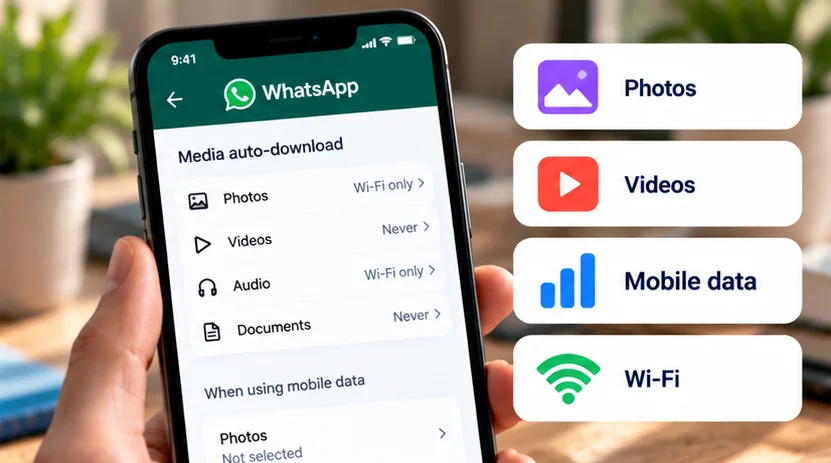
To stop WhatsApp automatically downloading photos and videos, open its Storage and data settings and change Media auto-download. On Android, review each connection type; on iPhone, choose the download rule for each media type. Restrict Wi-Fi as well as mobile data if you want to choose files manually on either connection.
This changes future automatic downloads. It does not remove photos or videos already stored on the phone, and opening media manually can still use data.
Choose the outcome you actually want
Several separate processes can affect where a photo appears:
| Process | What to review |
|---|---|
| Download into WhatsApp | Media auto-download and any manual download/play action |
| Appearance in Android's gallery | WhatsApp's Media visibility controls |
| Saving into iPhone Photos | Save to Photos and any chat-specific choice |
| Recovery through a chat backup | WhatsApp backup settings and the backup's actual contents |
| A separate cloud photo copy | The photo service's own sync/backup settings |
A downloadable item in a chat is not evidence that its full file is already on the device. Equally, hiding a downloaded item from a gallery does not establish that it occupies no storage.
For a busy social group, you might want manual video downloads but automatic photos on home Wi-Fi. For a tightly limited plan, you might prefer manual downloads for both. Decide that first, then change the relevant controls.
Stop automatic downloads on Android
WhatsApp's Android instructions organize the choices by connection:
-
Open WhatsApp's More menu, then Settings → Storage and data.
-
Under Media auto-download, open When using mobile data.
-
Deselect photos and videos you do not want fetched automatically. Review the other offered media types too, then confirm with OK.
-
Repeat for When connected on Wi-Fi.
-
Review When roaming separately, keeping unwanted automatic downloads deselected there as well.
Review photos, videos, audio, and documents as separate categories where shown. Disabling videos alone is not a setting for every attachment. If you want manual selection for all offered categories, leave none selected in each relevant connection dialog.
Roaming deserves its own check before travel. WhatsApp warns that automatic downloads while roaming can increase provider charges. Do not assume your normal mobile-data selection establishes the roaming rule too.
Set download rules on iPhone
WhatsApp's iPhone guide uses media-specific choices instead of Android's three connection dialogs:
-
Open WhatsApp Settings or your profile picture, then Storage and data.
-
Under Media auto-download, select the media category you want to change.
-
Choose Never for manual downloading, Wi-Fi for automatic downloading on that connection, or Wi-Fi and cellular for the broader option.
-
Repeat for the other categories you want to control, including photos, videos, audio, and documents where offered.
Setting Videos to Never does not automatically change Photos. Review both if both are unwanted.
The iPhone guide specifically says that pressing play on a video starts its download even with Never selected, and downloading can continue in the background. “Never” describes the automatic rule, not a ban on retrieving a file you choose to open.
If you need to avoid cellular use while roaming, prefer the restrictive download choices and review your phone/carrier's mobile-data controls too. Do not transplant Android's When roaming menu onto iPhone.
Review gallery and Photos saving separately
If the issue is clutter in another photo app, inspect the saving controls as a separate step.
On Android, WhatsApp documents More → Settings → Chats → Media visibility. For a particular conversation, open its contact/group information, select Media visibility, and choose No. Its Android saving guide describes these controls.
Use this for gallery presentation; use Storage and data for download selection. Phone-level gallery and storage labels can also differ across Samsung, Pixel, Xiaomi, OnePlus, and other manufacturers, so avoid assuming one device's file-manager path applies everywhere.
On iPhone, WhatsApp documents Settings or your profile picture → Chats → Save to Photos. Turn it off if you do not want automatic Photos saving. A specific chat's contact/group information also has Save to Photos, with a Never choice. The iPhone saving guide explains the separate chat rules.
Review those per-chat choices if a particular conversation behaves differently from the general setting. Changing the global control should not be assumed to replace every previous chat-specific choice.
Manual downloads and Wi-Fi still need a budget
Once automatic retrieval is restricted, use the item's download or play control only when you actually want the file. Downloading a large video manually on cellular still consumes cellular data; the setting does not make that transfer free.
Wi-Fi can also be metered. A connection through someone else's phone hotspot uses that phone's plan, while some home or travel networks impose their own limits. Save large downloads for a connection whose allowance you understand.
For example, keeping family photos automatic on home Wi-Fi may be convenient, while leaving videos manual can prevent a busy group from fetching every clip without your involvement. That is a practical preference, not a measured saving or a universal best configuration.
Existing media and backups need their own review
Old files remain after you change download settings. If storage is already tight, inspect WhatsApp's existing media to identify large or unwanted items. Preserve usable copies of important attachments before deleting anything; do not mass-delete chats simply to test the new rule.
Backups are another layer. A file's presence in WhatsApp, Photos, or a gallery is not proof that a usable chat backup includes it. Review the relevant WhatsApp backup arrangements before relying on recovery.
A photo separately saved to Photos or another library can also follow that service's cloud settings. WhatsApp's download switch does not configure those services or recall copies already made elsewhere.
Check the result with one ordinary attachment
Note your choices and wait for a new, non-sensitive photo or video. Check whether the full item downloads without your action on the connection you meant to restrict. Use a small file if you deliberately test cellular data.
Then inspect gallery/Photos behavior separately. An old item still appearing there does not show that a new download rule failed. If the installed app's labels differ, use its matching official Help Center instructions before changing unrelated storage or backup controls.
Keep the arrangement that fits your routine: Wi-Fi-only automatic downloads for convenience, or manual selection for more deliberate control. Review it again when your plan, travel arrangements, or preferred media categories change.