To review Chrome site permissions, open the controls for a particular website or the browser’s permission categories, then change access you no longer want. Start with notifications, camera, microphone, and location. Use the instructions for your platform: Chrome on a computer, Android, and iPhone does not expose an identical set of menus.
A permission request is not automatically suspicious. A video-call website needs a way to request microphone access. The useful check is whether the request matches something you chose to do on a website you recognize.
Know which kind of access you are changing
Site permissions govern capabilities such as using a camera or sending notifications. Cookies and site data help a website remember information. Extensions add browser functionality. Phone app permissions govern Chrome’s access at the operating-system level.
These controls can interact, but they are not interchangeable. Deleting cookies is not a dependable substitute for reviewing the permission itself. Our cache and cookies explanation covers the different kinds of stored browser data.
Likewise, a website permission review does not audit installed add-ons. Use the separate process for checking browser extensions if you are investigating an extension’s access or behavior.
Check Chrome site permissions for the current website
On desktop Chrome, Google’s documented route is:
- Open the website whose access you want to review.
- Select View site information to the left of its address.
- Open Site settings.
- Change the relevant permission.
Saved permissions may also appear directly in the site-information panel. Google’s desktop site-permission instructions explain the available controls. Labels and organization can change between releases.
Check the address carefully before allowing anything. A page resembling your usual meeting service may be on a different domain. If the origin is unfamiliar, pause and review whether the website is trustworthy rather than approving a request simply to dismiss it.
Review permission categories on a computer
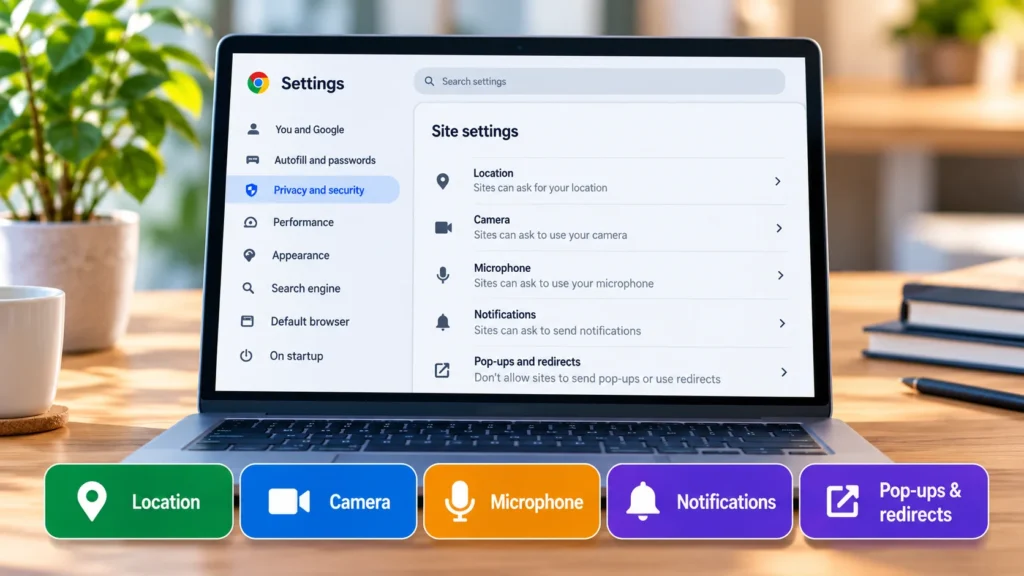
For a wider review, open Chrome menu → Settings → Privacy and security → Site settings. Choose a category and inspect the sites with exceptions or saved access.
Work through categories that matter to your use:
| Permission | A reasonable reason to allow it | A useful review question |
|---|---|---|
| Camera and microphone | A meeting or recording you initiated | Is this still a service you use? |
| Location | A map or local result you requested | Does it need location for this task? |
| Notifications | Alerts you deliberately subscribed to | Are these alerts still wanted? |
| Pop-ups and redirects | A trusted sign-in or payment flow | Is the exception narrow and necessary? |
| Clipboard, where available | Pasting material into a tool | Do you understand what it wants to read? |
Keep the review targeted. Blocking a capability everywhere can interrupt a trusted workflow without explaining which site needed attention. An “Ask” choice and a “Block” choice also have different effects: asking leaves room for a later decision, while blocking refuses the capability.
Use Android’s site controls
In Android Chrome, open the menu, choose Settings → Site settings, then select the category you want to inspect. For the current site, Google’s instructions use View site information → Permissions beside the address. Change an individual setting or use Reset permissions where offered.
These paths come from Chrome’s Android documentation. One-time permission choices may also be offered for supported features; read what the prompt says before choosing.
If a trusted camera or microphone feature remains unavailable, check both layers: the website’s permission in Chrome and Chrome’s app permission in Android. Samsung, Pixel, Xiaomi, OnePlus, and other manufacturers can place system controls differently. Our guide to app permissions worth reviewing explains that separate layer.
Expect different controls on iPhone and iPad
Google documents Chrome menu → Settings → Content Settings for its iPhone and iPad content controls. The documented options include pop-up behavior, default email apps, and default site view; this is not a promise of the full desktop permission dashboard.
Use Google’s iPhone and iPad instructions for the current options, and check iOS device-level controls when the question concerns Chrome’s access to hardware or location. Do not keep searching for an Android-only menu label.
If a particular site feature is missing or unsupported, repeatedly approving prompts will not necessarily make it work. Check the service’s supported browser and device requirements before changing broader privacy settings.
Handle unwanted notifications at the source
For notification spam, identify the sending website rather than following the alert. Open Chrome’s notification permissions and block that site if you do not want further alerts. On desktop, Google’s documented category is Settings → Privacy and security → Site settings → Notifications.
Chrome’s notification guidance describes its available options and automatic protections. Menu choices vary by platform. A browser notification is different from a pop-up window, so changing only the pop-up setting may leave notifications untouched.
Do not click an alarming “virus found” notification to reach the controls. Navigate through Chrome’s own settings. If you still want alerts from a trusted calendar or work tool, keep that exception rather than turning off useful access indiscriminately.
Reset permissions without deleting unrelated information
Changing one permission is usually easier to assess than resetting everything for the site. If you choose a reset option, read its wording: permission resets and controls that also delete stored site data do not have the same consequences.
Before deleting site data, preserve unsent work and make sure you can sign back in. Clearing cookies may end a session, but it should not be used as evidence that camera, microphone, or notification access has been revoked. Reopen the permission controls and verify the actual result.
Private browsing is not a replacement for this review either. Its separate session behavior does not decide which permissions are appropriate for your regular browsing. See what private browsing actually changes if you are comparing the two.
Respond to repeated requests deliberately
A site can ask again when a previous grant was temporary or a permission was reset. That alone does not establish wrongdoing. If you want to refuse future use, choose the available block option rather than repeatedly dismissing a prompt or restoring the default ask behavior.
For a legitimate meeting, temporarily allow only the capability needed, confirm that the correct camera or microphone is selected, and test it. Google’s camera and microphone guidance can help separate a permission problem from a device-selection problem.
If a site demands unrelated access before you can use it, consider another service. Finish by revisiting the settings you changed and confirming they reflect your decision; there is no need to wipe all browser data to complete a permission review.