
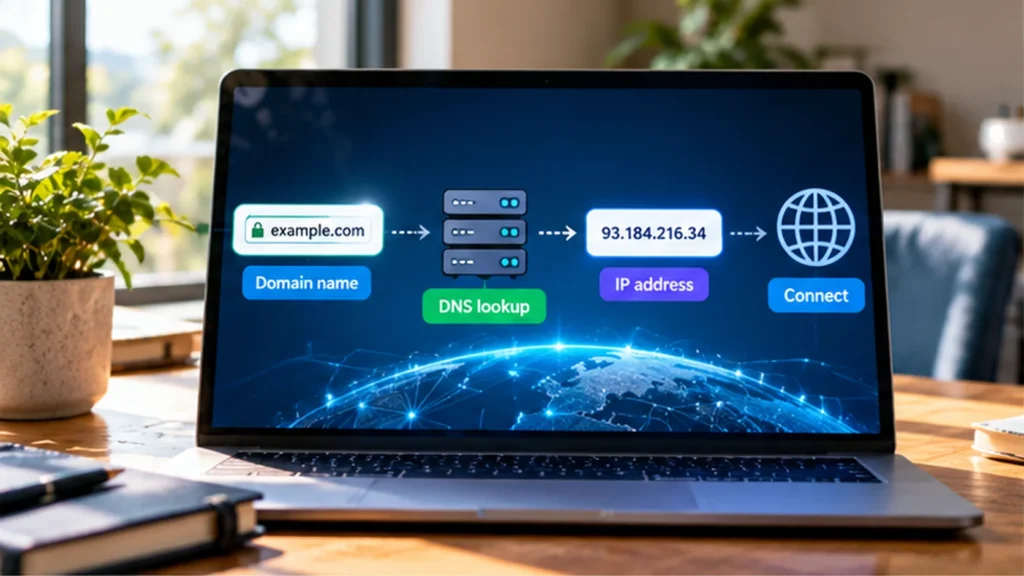
DNS stands for Domain Name System. Its everyday job is to help your device find the network address associated with a name such as example.com, so your browser can connect without you memorizing an IP address.
DNS does not deliver the webpage itself. It helps locate the destination; the connection and the website’s response come afterward. That distinction explains why a DNS problem can stop a perfectly working internet connection from opening certain sites.
A website name and an IP address do different jobs
A domain name is the readable name you recognize. An IP address is a numerical network address used to reach a destination. ICANN’s explanation of the naming system describes how DNS connects those two kinds of identifier.
The relationship is not necessarily one name pointing permanently to one computer. A service can use multiple addresses, change its infrastructure, or share an address with other sites while keeping the familiar domain name.
Think of DNS as a way to look up where to connect, rather than a complete street map of everything inside a website. The /help/ part of a web address, for example, is handled by the web service after the browser reaches it; DNS normally looks up the hostname, not that page path.
What happens when you enter a web address
In a simplified visit, the sequence is:
- You enter the website address or follow a link.
- Your device or browser checks whether it already has a usable DNS answer.
- If necessary, it asks a DNS resolver for the destination’s address.
- The address comes back, and the browser tries to connect.
- The website responds over that connection, commonly using HTTPS.
Real pages may use several hostnames for images and other resources, so opening one page can involve more than one lookup. However, you do not need to understand each request to distinguish a naming failure from a slow download.
The resolver is the service that answers your device’s DNS questions. A recursive resolver can do the searching on your behalf when it lacks a cached answer. Google Public DNS is one example; your internet provider may supply another.
An authoritative DNS server holds the published DNS information for a particular domain or zone. When needed, the recursive resolver follows DNS referrals to reach an authoritative answer. You normally deal with the resolver’s settings, not those authoritative servers.
Why DNS answers are cached
Looking up the same information repeatedly would add delay and unnecessary traffic. Devices, browsers, and resolvers can therefore retain answers temporarily.
A cached answer lets a later lookup finish without repeating the full search. Google’s DNS performance documentation explains why retrieving an answer from cache can avoid delays from contacting remote servers.
DNS records include a time to live, or TTL: a period, expressed in seconds, that limits how long an answer may normally be kept before it needs refreshing. The DNS specification defines this caching behavior. A TTL is not a promise about how long a webpage takes to load.
Caching also helps explain why a website’s address change may not appear everywhere simultaneously. Different caches can still have valid earlier answers. Clearing your device’s DNS cache affects that cache, not every resolver between you and the website.
Recognize a possible DNS problem without assuming one
DNS trouble may produce a message about an unresolved name or an unavailable DNS server. Another clue is that some domains fail while other online services still work.
Those clues are not a diagnosis by themselves. A misspelled domain, a broken website configuration, or a filtering rule can produce a similar result. Keep these layers separate:
- Connectivity: If the device cannot reach the internet at all, DNS settings are only one possible part of a wider connection problem.
- Name lookup: The browser cannot obtain a usable address for the hostname.
- Website availability: The address resolves, but the server does not respond properly.
- Browser state: An extension, damaged cached resource, or another browser-specific issue disrupts the page.
Try another known website and another browser before changing system settings. If the problem follows only Chrome, use the targeted checks for Chrome pages that will not load instead of treating every failure as DNS.
What changing DNS may actually change
Your network often supplies a default resolver automatically, commonly through your router or internet provider. A public DNS service offers an alternative. A browser’s encrypted-DNS setting may also select a resolver separately from the device’s default.
Changing providers may help when the current resolver is unavailable or responding poorly. It can also change filtering, logging practices, or access to names that exist only on a private network.
It does not automatically increase your broadband speed, improve Wi-Fi reception, or revive a website whose own server is offline. Faster name lookups and faster file transfers are different things.
If you do test a change, note the original settings first and change one thing at a time. On work, school, or managed devices, ask the administrator: a public resolver may not know internal names or may bypass required controls.
DNS privacy has boundaries
Traditional DNS requests are not encrypted. DNS over HTTPS, often called DoH, encrypts the connection carrying queries between a supported client and resolver. Mozilla’s DoH explanation describes that protection and its limits.
The resolver still processes the questions you send it. Choosing an encrypted connection does not remove the need to trust its operator; Google’s Public DNS privacy policy illustrates why provider-specific data practices matter.
Encrypted DNS also does not conceal every clue about a connection, erase cookies, or hide an account you sign into. Similarly, private browsing has a limited purpose; it is not a promise that network activity becomes invisible.
DNS is not a VPN’s encrypted traffic tunnel. The two tools perform different jobs, even when a VPN includes its own DNS handling.
A correct lookup does not make a website trustworthy
DNS security measures such as DNSSEC can help detect altered DNS data when validation is supported. ICANN explains DNSSEC as protection for DNS answers, not a review of a website’s honesty.
A scam domain can have working DNS and an encrypted website connection. Keep checking whether a website is safe before sharing sensitive information.
For everyday use, leave working settings alone unless you have a reason to change them. When something fails, identify whether the trouble is finding the address, reaching the destination, or displaying its page. That gives you a much better next step than repeatedly flushing caches.