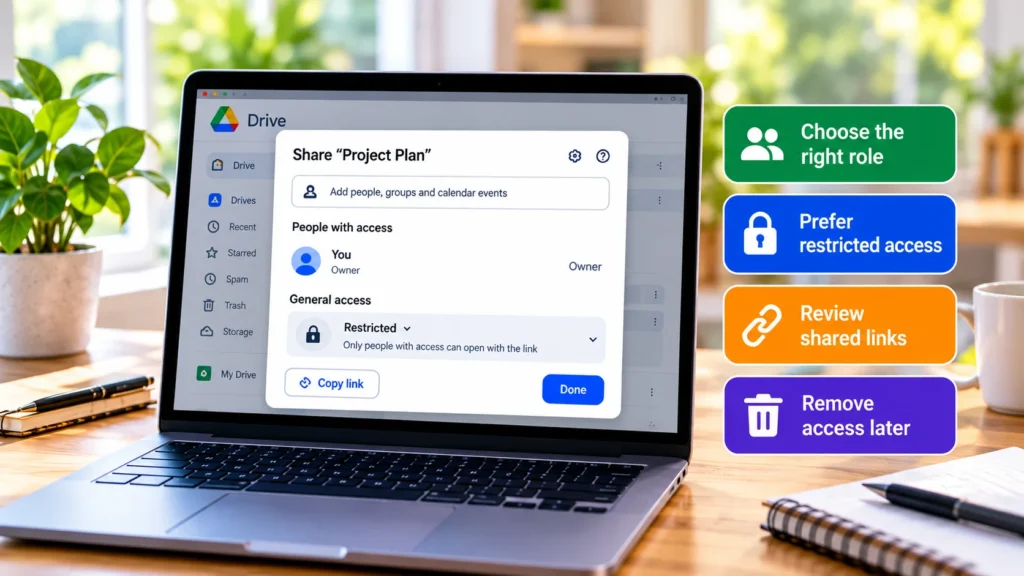
To share Google Drive files safely, identify the intended recipients, choose the least access they need, and inspect the file’s existing sharing settings before sending a link. Restricted access to named people is a sensible starting point for private collaboration.
Uploading a file and sharing it are separate actions. A document can sit in your Drive without being available to everyone, while a file inside a shared folder may already have a wider audience than you expect. Check the actual access rather than judging privacy by where the file appears in your own account.
Decide what you should share first
Before opening the sharing dialog, ask what the recipient really needs. A contractor checking one invoice may not need the folder containing every invoice. Someone reviewing a paragraph may not need access to the working spreadsheet behind it.
For sensitive material, prepare a separate, reduced copy. Remove unnecessary personal details and check comments, additional sheets, and other material that could reveal more than the visible first page. Use a proper redaction method if information must be removed; simply placing a shape over text is not a reliable substitute.
If the destination is an AI tool rather than a person, review document-upload privacy considerations first. Sharing permissions cannot decide whether supplying that information to a service is appropriate.
Understand the three main file roles
For ordinary files in My Drive, Google distinguishes these roles in its sharing documentation:
| Role | Main purpose | A practical example |
|---|---|---|
| Viewer | Open and read the file | Sending a finished timetable |
| Commenter | Review and comment without directly editing the file | Asking for feedback on wording |
| Editor | Change the file | Working together on a draft |
Choose based on the task. Commenting can be enough for review; editing should be an intentional grant. Downloading and further sharing have their own controls and defaults, so a role name alone does not describe every possible action.
Do not transfer ownership just to let someone contribute. Ownership changes are a separate decision with account and organization restrictions. If ownership genuinely needs to move, consult Google’s current transfer instructions and agree who should control the file afterward.
Share with named people on a computer
For a standard desktop workflow:
- Select the file in Google Drive and open Share.
- Enter the intended person’s email address.
- Check the address carefully, including the domain.
- Choose Viewer, Commenter, or Editor.
- Review the dialog, then use Send or Share as offered.
Google’s sharing and access guide explains this workflow. Mobile labels and work-account options can differ.
For a sensitive file, confirm the address through an established contact route rather than trusting a new message requesting access. Ask the recipient to open the document using the account you granted access to. If they are signed into a different account, widening access to everyone is an unnecessarily broad fix.
Treat “Anyone with the link” as a deliberate choice
Under General access, inspect whether the file is restricted or available through a broader link. Restricted access limits opening to people who have been granted access; copying the link does not by itself grant an unrelated person access.
With Anyone with the link, possession of that link can be enough to open the file, subject to its configured role and available options. Someone can forward it outside your original conversation. A long, difficult-to-guess address is not a confidentiality policy.
Broad link access can be appropriate for a public event handout. It is a poor default for an identity document or a private client record. Choose the audience first, then copy the link; do not paste first and investigate access later.
Check the parent folder too
Google’s current sharing model passes folder access down to its contents. A person’s broader access to the parent folder cannot simply be reduced by giving them a lower role on an individual file inside it.
This matters when you create a new file in an old project folder. The file may inherit an audience that has nothing to do with the new task. Inspect the parent folder as well as the document.
Google’s access guide describes using a separate location or supported limited-access folder when tighter access is needed. Moving a shared file can affect collaborators, so check the proposed location and permissions before proceeding. Do not reorganize a team’s folder casually as a privacy shortcut.
Use copying restrictions with realistic expectations
Owners can find supported controls in the sharing dialog’s settings to limit downloading, copying, printing, or an editor’s ability to change permissions. The exact choices depend on the file, account, and service behavior.
Google’s stop or limit sharing guidance explains these controls and their limits. They can reduce convenient ways of redistributing a file, but they cannot guarantee confidentiality. A person able to see information may still photograph the screen or reproduce what they read.
Use these settings as an additional boundary, not a substitute for choosing suitable recipients or removing unnecessary sensitive details. If disclosure would be unacceptable, consider whether the file should be shared at all.
Recheck access when the work ends
Open Share again, inspect people and groups with access, and change roles that are no longer appropriate. Google’s documented removal workflow uses the menu beside a person, Remove access, and confirmation where required.
Review General access separately. Removing one named collaborator does not close an independently broad link. Folder or group membership can also provide another route, so investigate where access comes from if someone remains able to open the file.
Removing permission affects future access to the original. It does not recall a copy someone already downloaded or created. Agree on handling expectations before sending sensitive material, not only when the project finishes.
Keep account, organization, and backup issues separate
Work or school administrators can restrict external sharing, and shared drives have organization-specific roles and rules. A missing option may reflect policy rather than a broken browser. Ask the administrator instead of moving work documents into a personal account to bypass the restriction.
Protect the account holding your files by reviewing Google Account security settings. Sharing controls cannot help if an unauthorized person can operate the owner’s account.
Sharing also does not create an independent backup. Our comparison of cloud and local storage explains why access and recovery are separate decisions. If a recipient reports an outdated local copy, investigate Drive synchronization separately rather than widening permissions unnecessarily.
Finish with a simple review: the right file, the right account, a suitable role, and the intended audience. Set a reminder to revisit access when the collaboration ends.