—
Uploading a document to an AI tool can be appropriate when you are authorized to share it, understand the service and account's data handling, and provide only what the task needs. A public manual is a different privacy situation from a confidential contract or password export.
There is no blanket answer for every file or assistant. Decide what information would leave your control, which organization would process it, and whether that use fits the document's restrictions before selecting Upload.
Check the file's contents and purpose
Think about what the assistant actually needs to do. Explaining a public product specification may require a short passage. Improving the layout of a private bank statement can usually be demonstrated with invented transactions instead.
| Document type | A practical starting point |
|---|---|
| Public reports or manuals | Check that you have the intended public version and that the proposed use is appropriate |
| Personal notes | Remove names, private events, contact details, and identifying context that the task does not need |
| Work, client, or internal company files | Establish permission and the approved account/service before sharing |
| Financial, medical, legal, or identification records | Consider whether a fictional example or carefully prepared excerpt can answer the question |
| Source code and configuration | Remove passwords, API keys, connection secrets, private endpoints, and unnecessary customer information |
An unpublished manuscript or private customer list can be sensitive even without a bank number. Conversely, a document being public does not automatically establish permission for every reuse, nor does it make any private annotations attached to it public.
Establish authorization before changing settings
Technical access to a file is not the same as permission to send it to another service. A client may allow you to read a document while prohibiting external processing. Your employer may require a particular managed workspace or forbid the upload altogether.
If the rule is unclear, ask the document owner or your organization's responsible contact. Do not upload first and seek approval afterward. This is a sharing decision, not a substitute for legal or compliance advice.
Consumer privacy settings do not override those restrictions. Nor does a “business” label alone prove that the particular product, workspace, contract, and configuration meet them.
Reduce the material before sharing it
Copy only the relevant section where practical. Replace names with consistent labels such as Client A, remove account numbers and contact details, and omit unrelated pages or spreadsheet columns. Remove credentials entirely rather than shortening or masking a few characters.
Check identifying context too. A job title, exact date, unusual incident, and small location can identify someone even after their name is removed. Keep only the context that changes the task's answer.
For a formatting or analysis test, use fictional data with the same structure. A made-up invoice can show an assistant how to rearrange line items without exposing the actual customer or payment details.
Prepare that smaller copy before uploading. Asking an AI service to redact a confidential original first still requires sending the original to that service. Keep the protected master separate from the version you intend to share.
Redact the data rather than covering its appearance
Drawing a black rectangle over a PDF or image does not, by itself, establish that the underlying information has been removed. Text, comments, metadata, or other hidden content may remain in the file.
Applied redaction is intended to be permanent, so work on a copy and protect the original. Use a trusted tool's proper redaction function, apply the changes, and inspect the saved output. Adobe distinguishes redaction from sanitizing hidden information; its PDF guidance also discusses comments, hidden layers, and previous content.
Reopen the final file, check all pages, and try searching or copying sensitive terms where the format supports that. Those checks can reveal mistakes but are not a complete security audit. If you cannot establish that the copy is appropriately sanitized, use a fictional example instead.
Check the specific AI service and account
Do not generalize one company's settings to every assistant. Review the current documentation for the product you are actually using, including whether you are in a personal account or a managed workspace.
Two examples show why the details matter:
-
ChatGPT: OpenAI says turning off Improve the model for everyone prevents new conversations from being used for model training, while they may still remain in history. Its data-controls guidance explains the distinction. A training preference is not a deletion command.
-
Gemini Apps: Google's Privacy Hub explains Keep Activity, feedback, and circumstances involving human review. Turning activity off should not be interpreted as zero processing, zero retention, or the absence of every kind of review.
Managed offerings can have different protections and administrator controls. Google's work/school Gemini guidance, for example, makes data handling dependent on the Workspace license. Confirm your organization's actual arrangement rather than inferring it from the email address.
Understand deletion, connected apps, and human access
Check what happens to the uploaded file, the conversation containing its content, and any separately saved copy. Those may have different controls.
Where ChatGPT Library is available and a file has been saved there, deleting the related chat may not delete that saved file. File and conversation cleanup can therefore require separate actions. OpenAI's Library guide documents this behavior. Read retention guidance for the relevant storage context and exceptions rather than assuming immediate erasure.
Connected-app access is another relationship to inspect. A cloud file exposed through a connection may still exist at its original provider; OpenAI says connected Google Drive files cannot be deleted from ChatGPT Library. Review access scope and sharing destinations, not just the visible attachment.
Also check whether the documented terms permit human review or authorized support/security access. OpenAI's consumer-data explanation describes limited authorized access, while Google's rules differ by account and settings. “Not used for training” does not settle every question about processing or access.
Use a final upload checklist
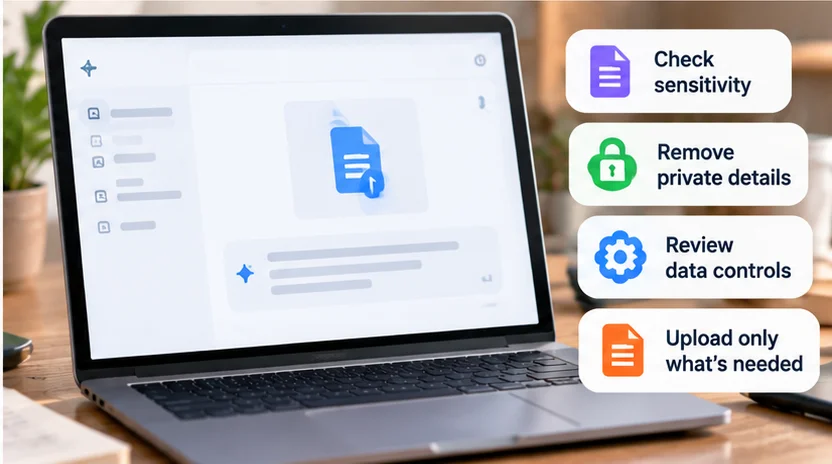
Before attaching the prepared copy, confirm:
-
You have permission for this service and purpose.
-
The task requires this material; a shorter excerpt or sample would not suffice.
-
Credentials and unnecessary personal information are removed.
-
The selected account and workspace are the intended ones.
-
You understand applicable training, retention, deletion, review, and sharing controls.
-
Redaction has been applied to the actual file, not just its appearance.
-
You are comfortable with the remaining information being handled under those terms.
For a low-sensitivity task, start with a small sample and check the answer against the source. A permitted upload does not make an AI interpretation correct.
Our ChatGPT vs Gemini comparison covers workflow choices, and useful free AI tools offers other starting points. Whichever tool you choose, minimize the data and resolve permission or policy gaps before sharing the file.